Product Review–Logitech MX Anywhere 3 wireless mouse
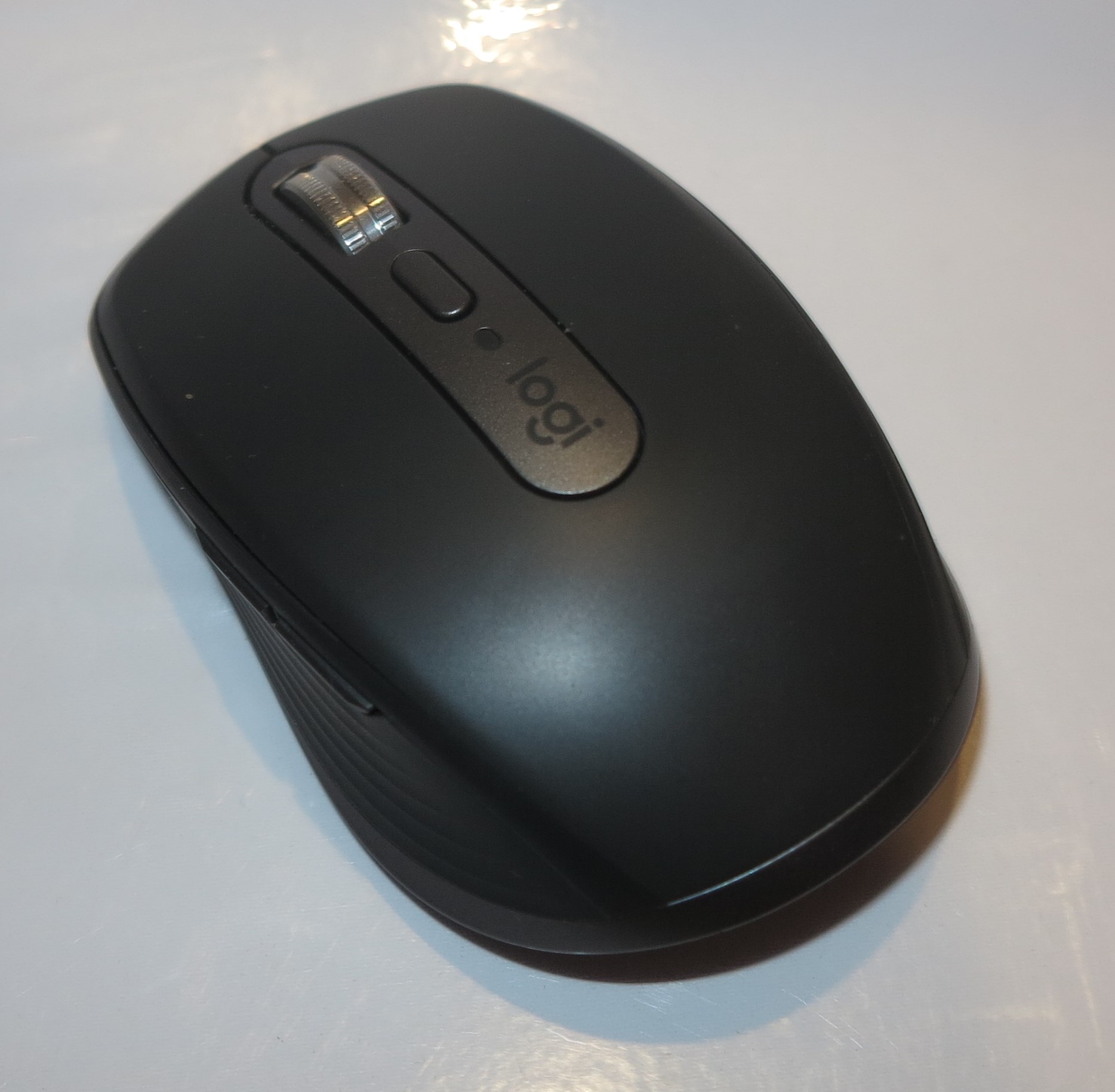 As part of a gradual upgrade to a new workspace centred around my new Dell XPS 13 laptop, I have decided to buy a Logitech MX Anywhere 3 Bluetooth mouse. This is a very small portable mouse that is pitched for laptop use while on the road.
This mouse connects to the host computer via a USB-A “Unifying” receiver dongle. But it can connect to a Bluetooth-capable host, presenting itself as a Bluetooth human-interface device, which is the method I have preferred. This means that if your computer is equipped for Bluetooth like most laptops, all-in-ones and some low-profile desktops are, you don’t need to worry about using or losing a USB receiver dongle. That is infact a feature I look for with wireless mice and keyboards for that reason.
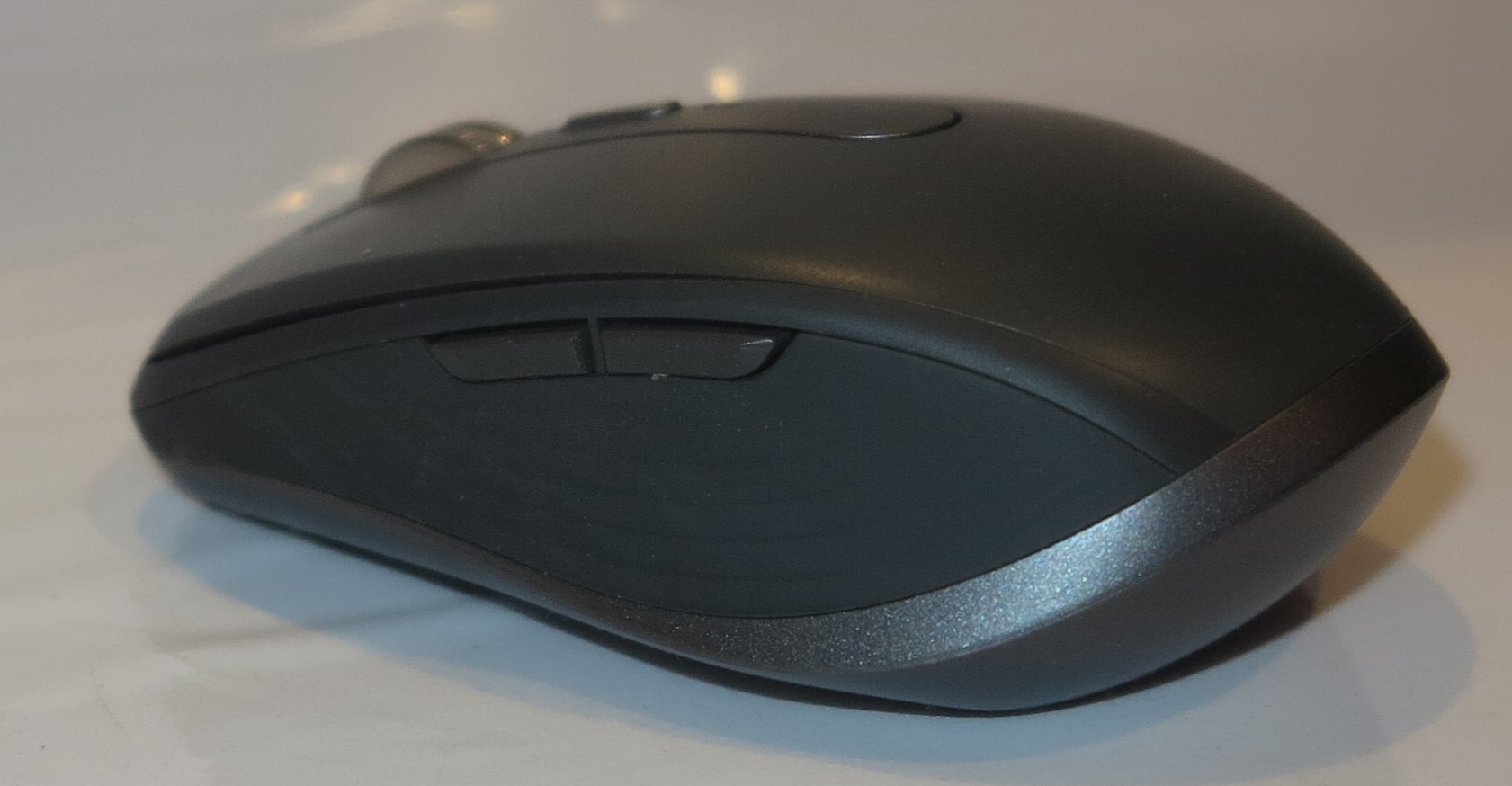
Low profile mouse
The setup routine for the Logitech MX Anywhere 3 mouse was very quick especially when I was wanting to use it via Bluetooth. Here, this was about pressing a button underneath the mouse to make it discoverable then having your Bluetooth host device “find” a new device in the form of this mouse, whereupon you select that device using the host device’s user interface.

Button underneath to select which host device the mouse works with or instigate Bluetooth pairing
Windows 10 even led me to download the Logitech companion software that provides extra functionality for the mouse. This software even showed me the features of this mouse and what I can set it up for including working across two different computers.
It also supports three-host operation so you can use it with three different host devices, no matter the platform. This will please those of us who run two or more computers or similar devices and want to use a mouse with them. A button underneath the mouse exists to select between the three different host devices you have set it up to work with.
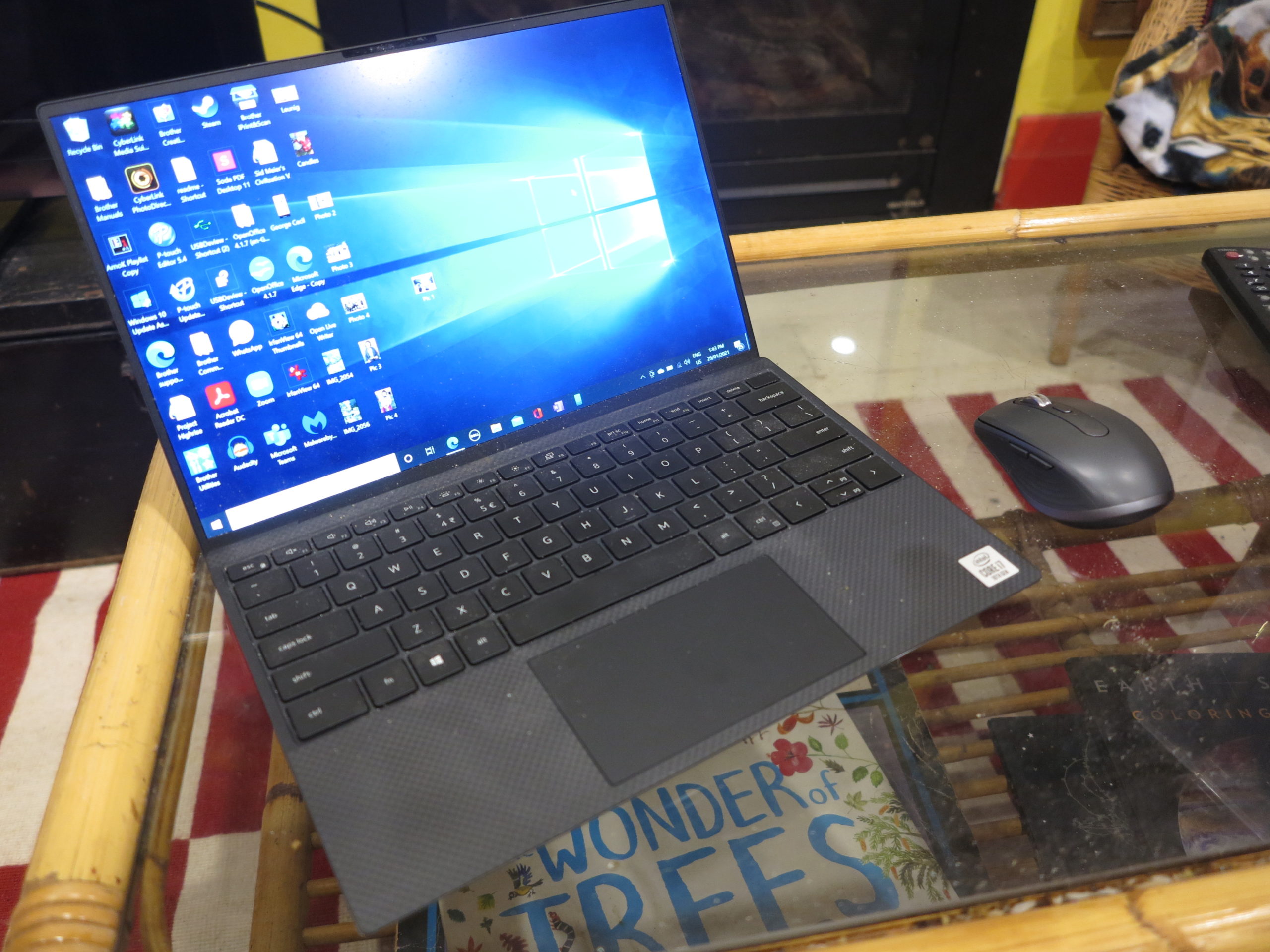
Able to work on a glass table thanks to Logitech’s Darkfield tracking technology
This MX Anywhere mouse uses Logitech’s Darkfield optical technology which allows the mouse to work with glass surfaces like . That is compared to most optical-mouse technologies where they don’t work reliably with glass surfaces, be they having a glass top across an opaque material under that surface or them having a glass pane as the table or desk top. I have tested it with a glass coffee table which just has a glass top and have found that it works when I move it on the glass surface.
It is a very shallow compact mouse which fits under an adult’s palm easily. This also means that it can be stowed in your laptop bag or briefcase without taking up much room, making it more travel-friendly.

Scroll wheel and switch to select detented or smooth operation
The mouse’s scroll wheel has the feel of a Swiss watch’s crown and can provide a smooth feel or a detented “click-click-click” feel. This can be determined you you pressing a “mode shift” button on top of the mouse near the scroll wheel. There are also two buttons for horizontal scrolling or other functions you determine using the Logitech companion app.
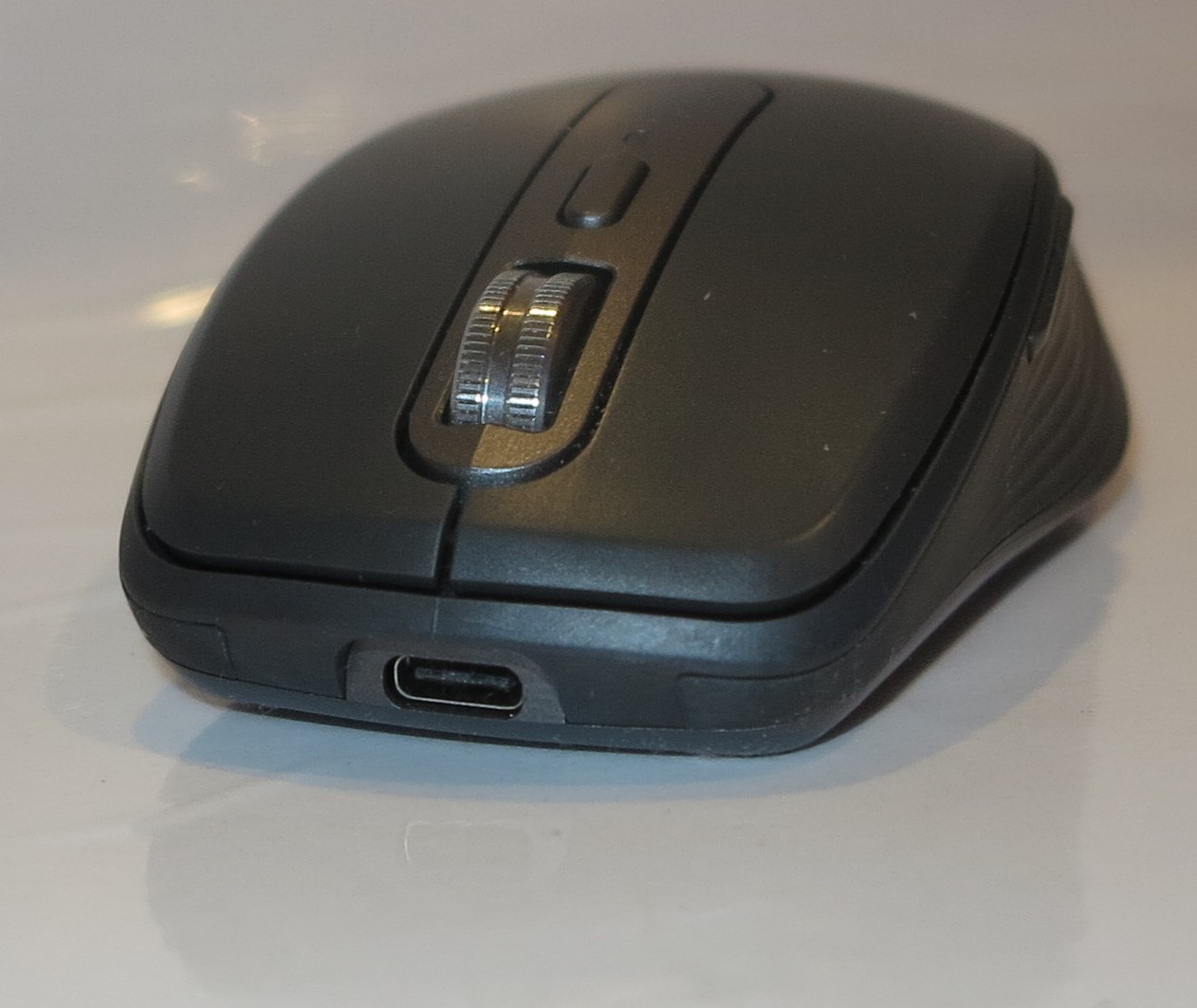
USB-C socket to charge your Logitech MX Anywhere 3 mouse
The Logitech MX Anywhere mouse is powered by internal rechargeable batteries which means you don’t have to worry about buying many AA or AAA Duracells to keep it going. Here, you connect the mouse to a USB charger via its USB-C socket and it comes with a USB-A to USB-C cable for this purpose if you use existing USB chargers.
Here, I have found that I could get a few days of significant use out of the mouse before I needed to charge it up again. Then it takes just a few hours to charge it up. You may find that charging your mouse for the duration of, say, a lunch break may be good enough to get it back in order for the rest of your workday.
Limitations and points of improvement
I would like to see Logitech and others who offer input devices like the MX Anywhere mouse that are charged via USB to take this connection further. If the peripheral uses a USB-C socket, it could support full Power-Delivery compliance to allow for quick charging.
As well, the USB connection could permit wired operation so, in the case of this mouse, it can work as an ordinary wired mouse. That arrangement may be seen as being relevant where wireless operation of input devices is not really desired such as in aircraft or with secure workstations where use of wireless devices isn’t desired. It can also simply be a way to keep the mouse useful to you if the battery dies out while you are working.
Tips
If you are travelling with the Logitech MX Anywhere mouse, it is a good idea to make sure it is properly turned off using the slide switch when you have it packed in your laptop luggage. You then turn the Bluetooth mouse on when you intend to use it.
This avoids the risk of the battery depleting suddenly while you are travelling and you having to end up charging it before you intend to use it.
Conclusion
The small size and the use of Darkfield glass-compatible tracking technology makes the Logitech MX Anywhere 3 mouse a highly-capable laptop mouse. Here, you are not worried about what kind of surface you will end up resting that laptop on and using this mouse with when you head out and about.