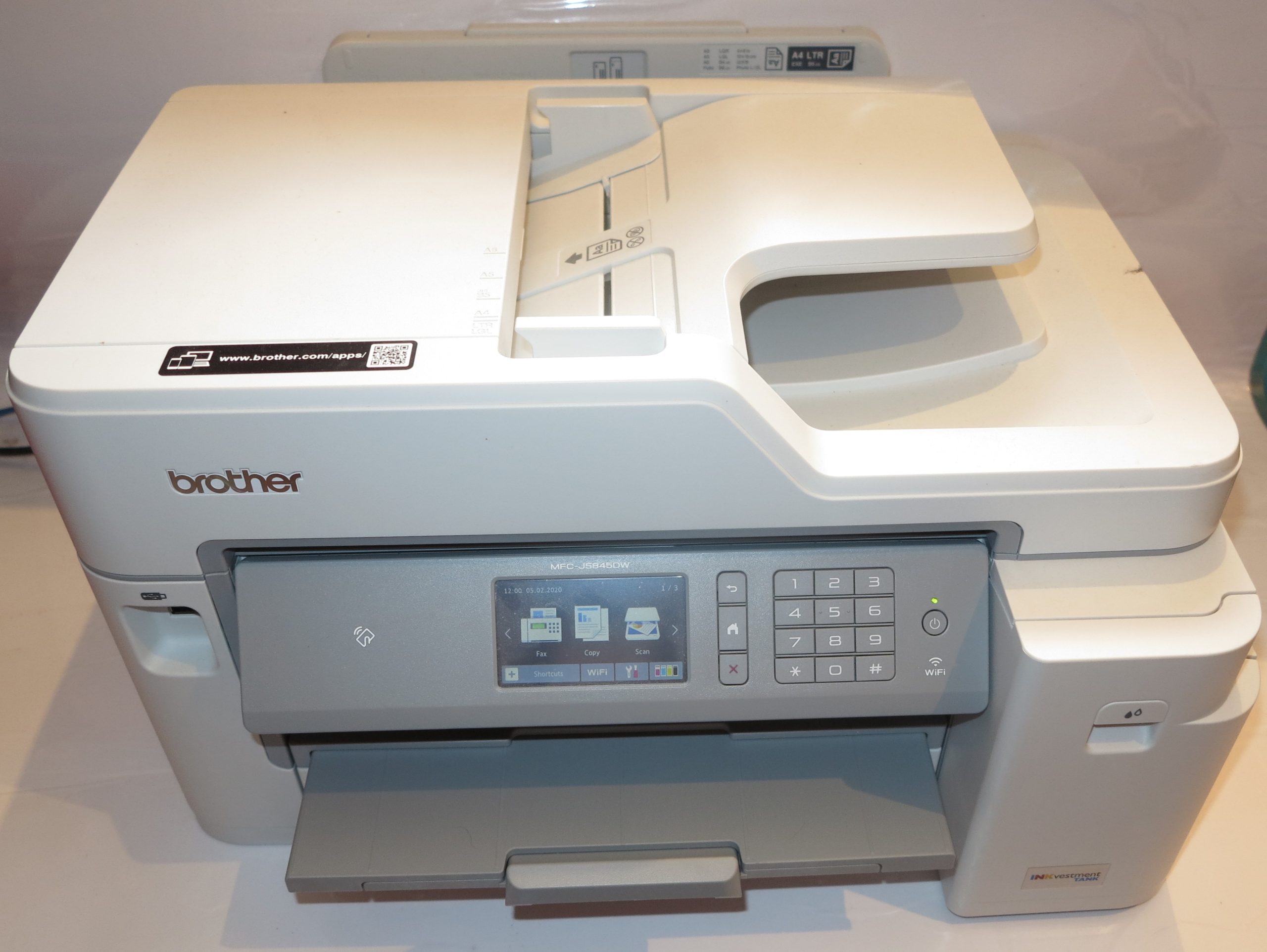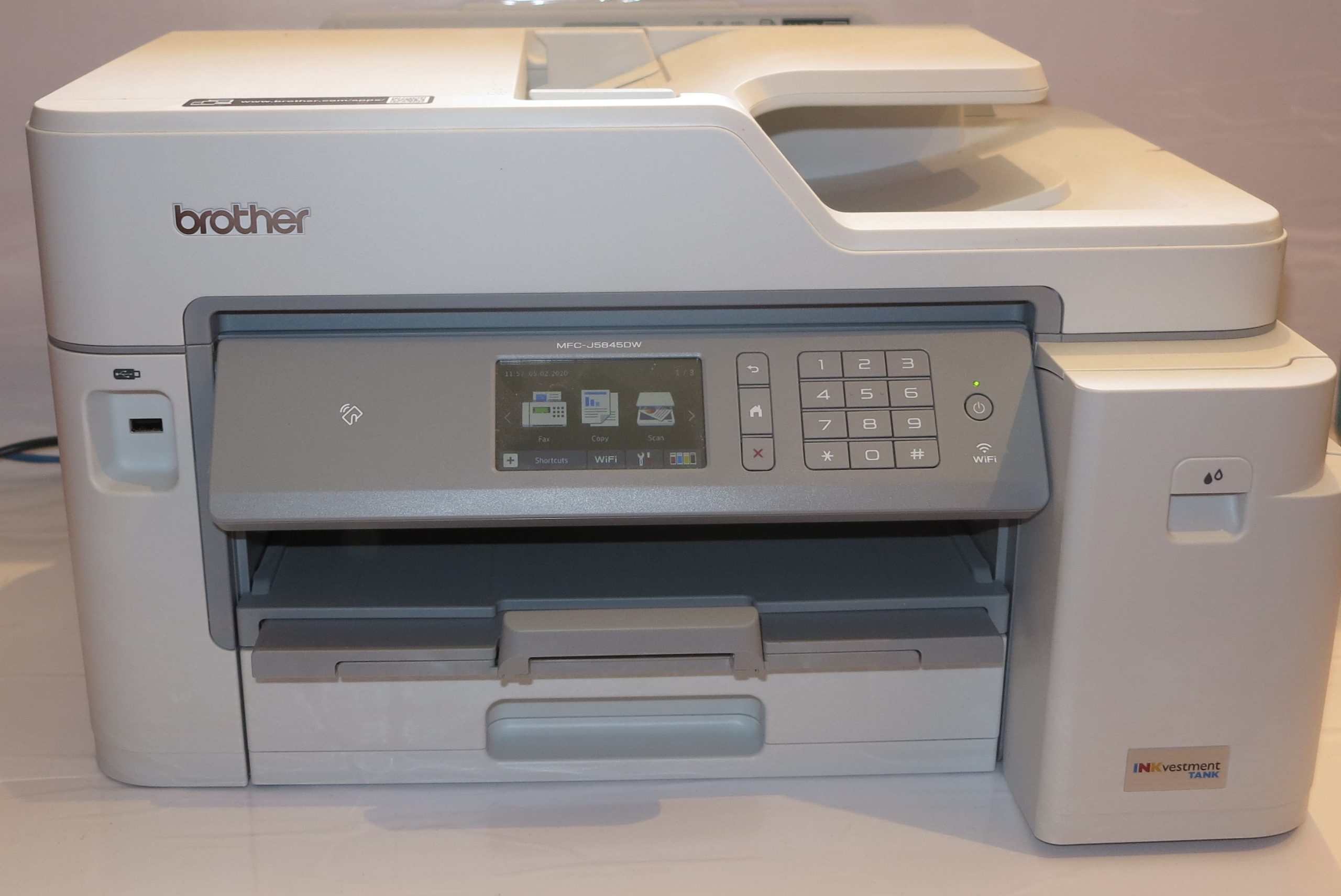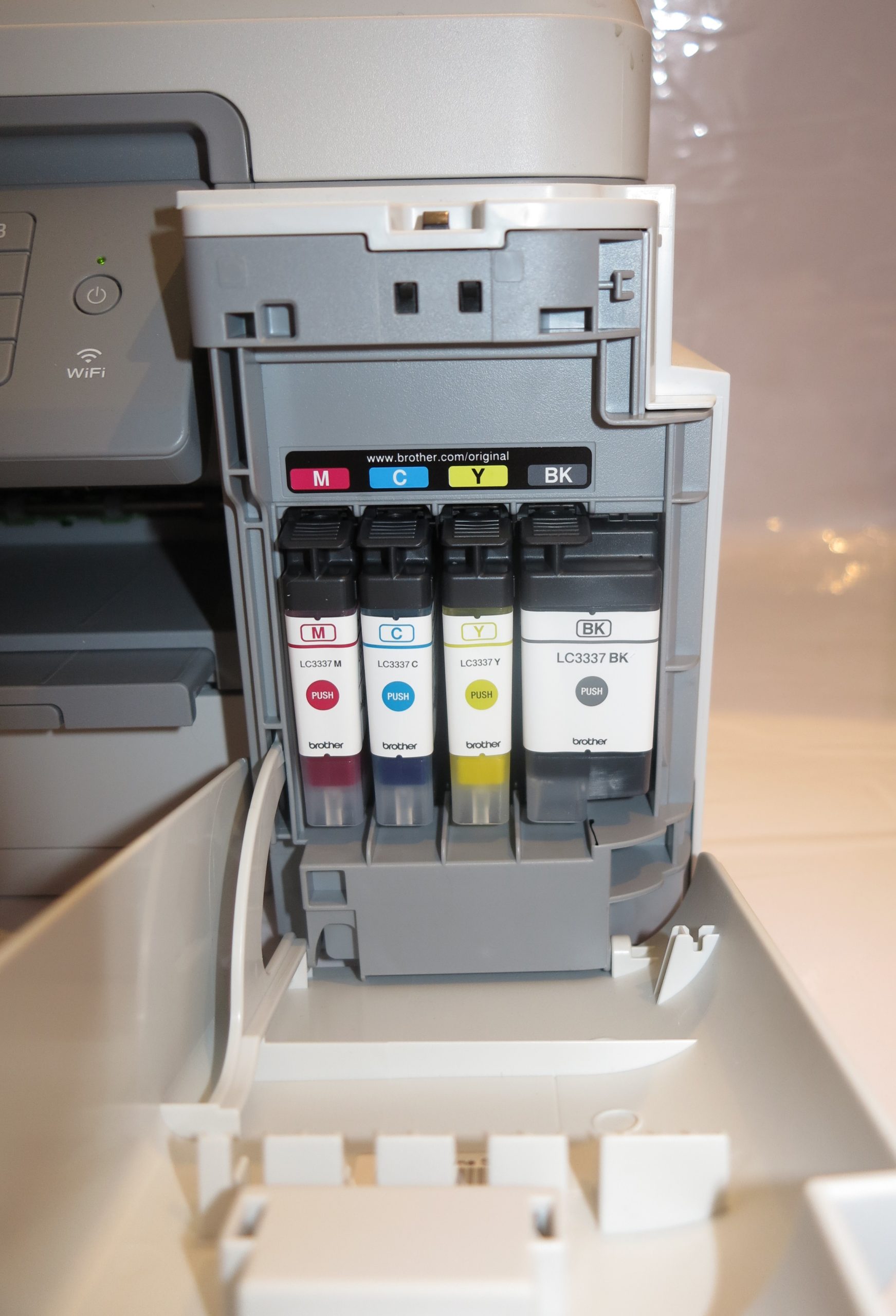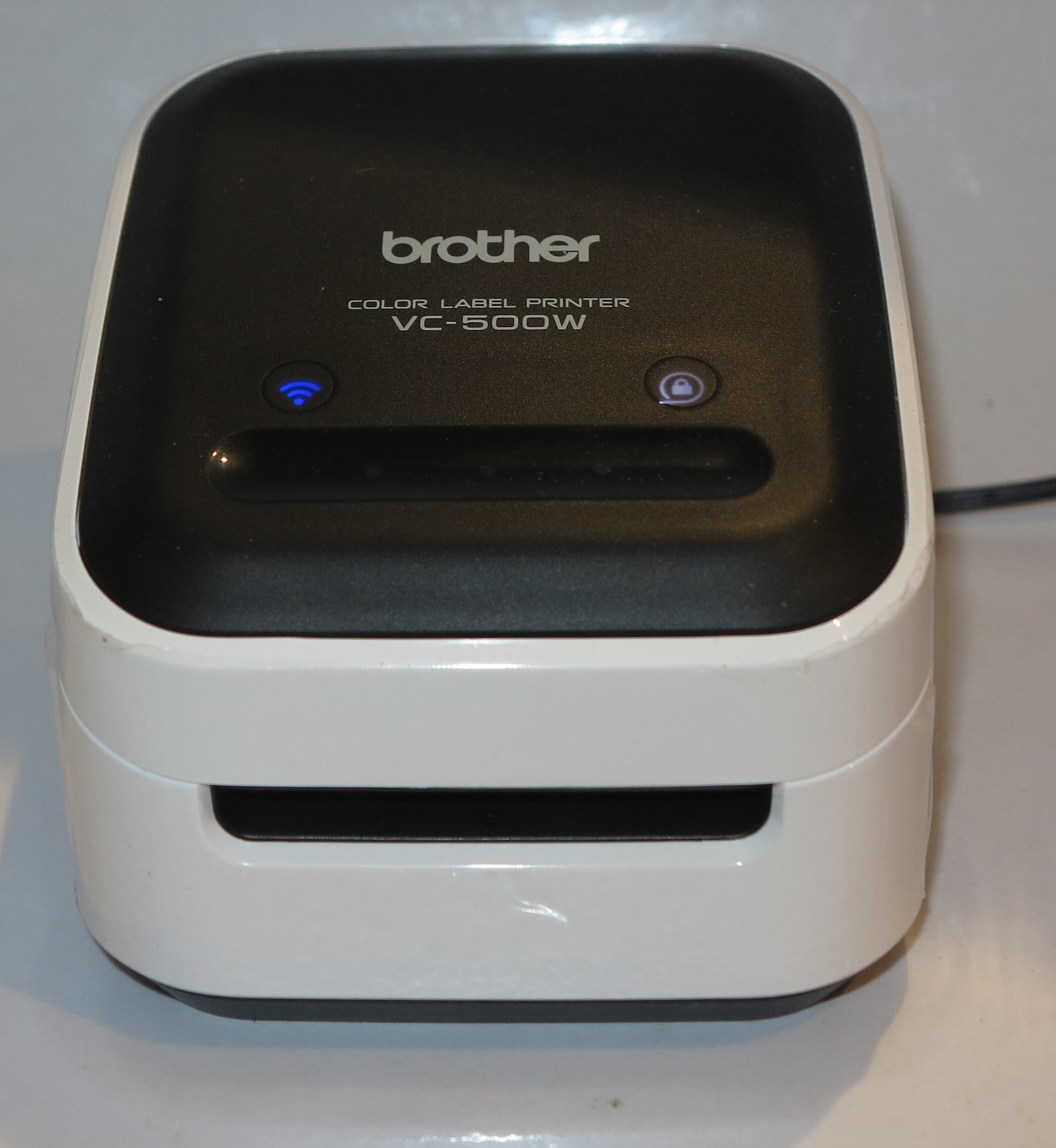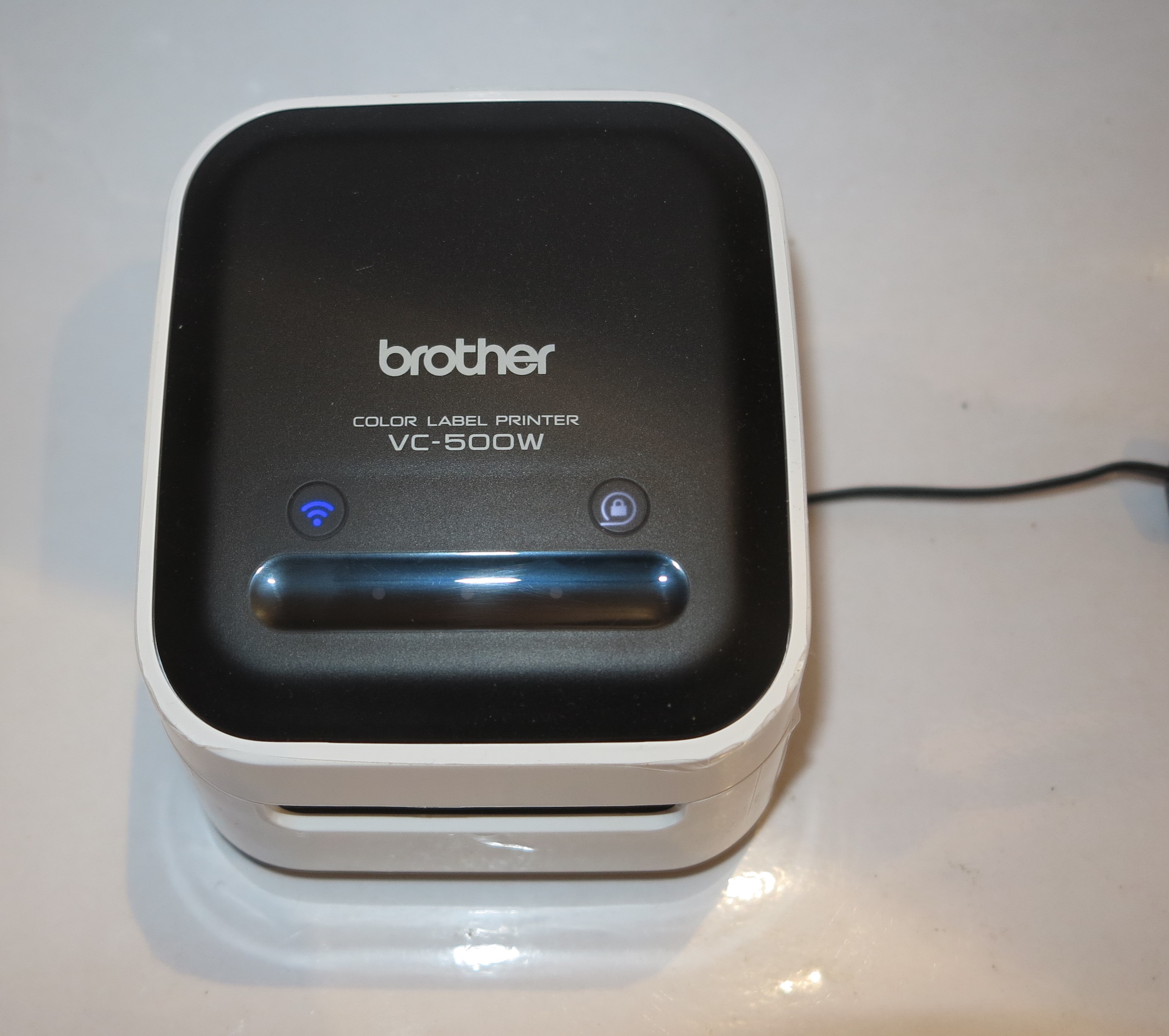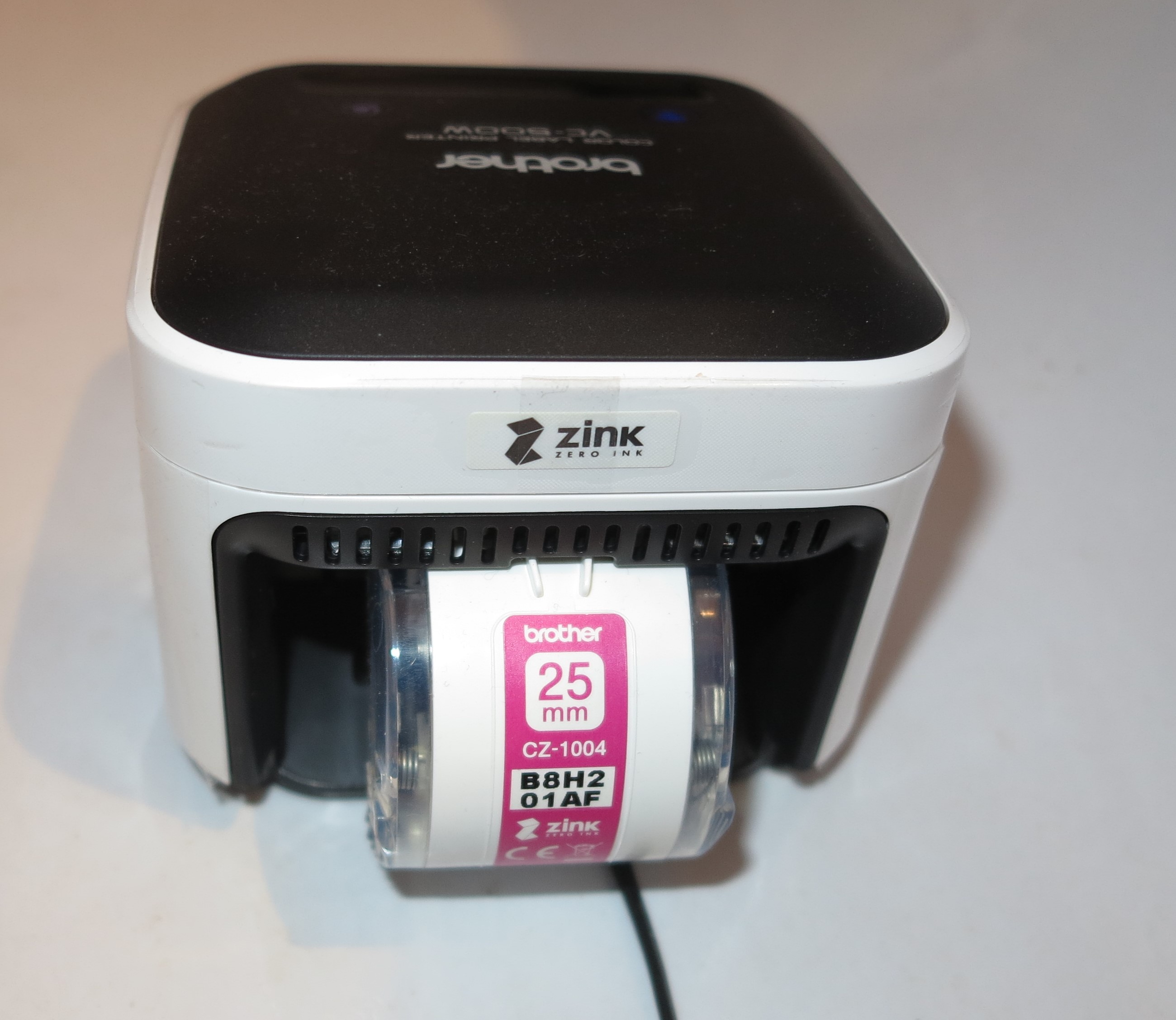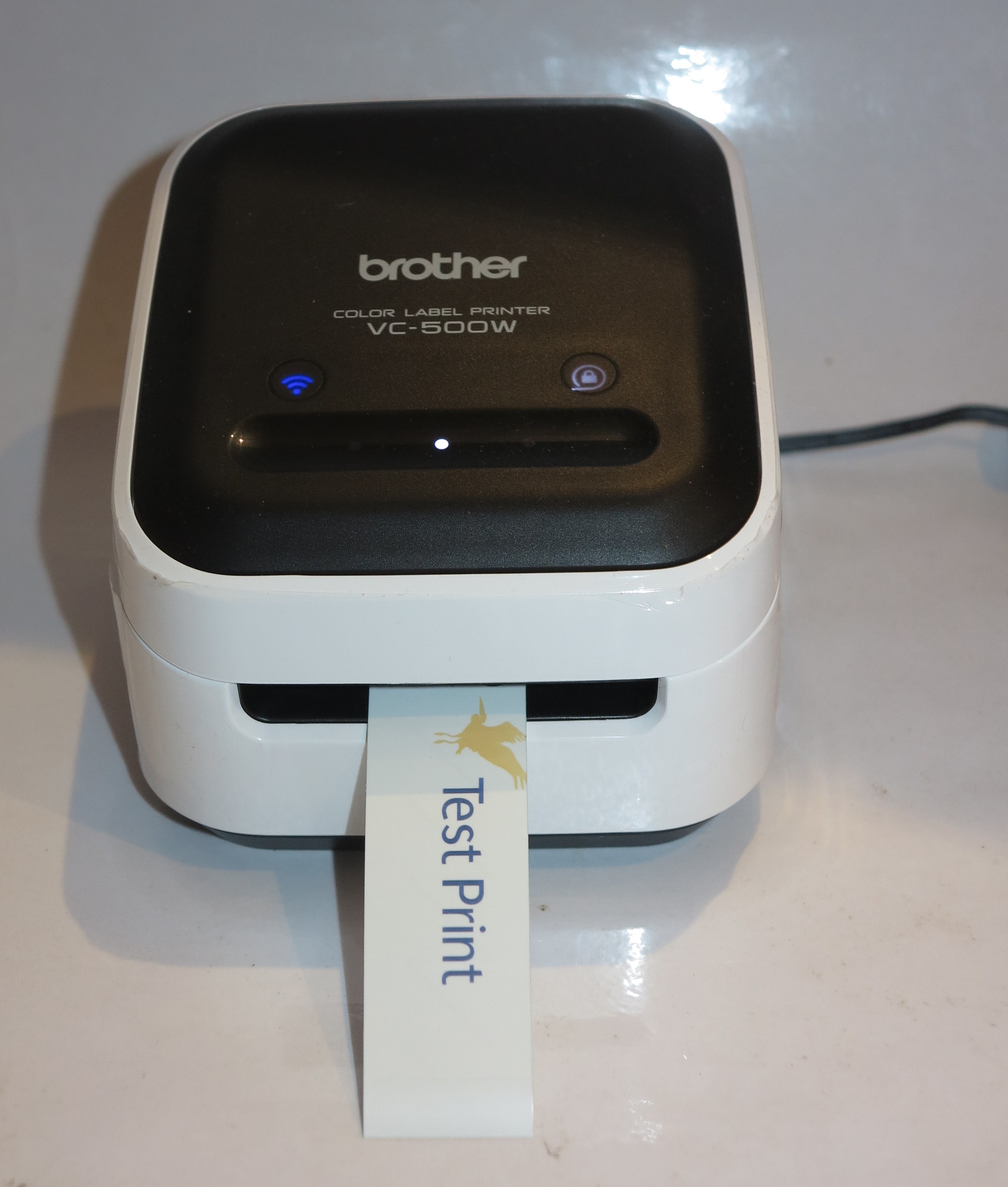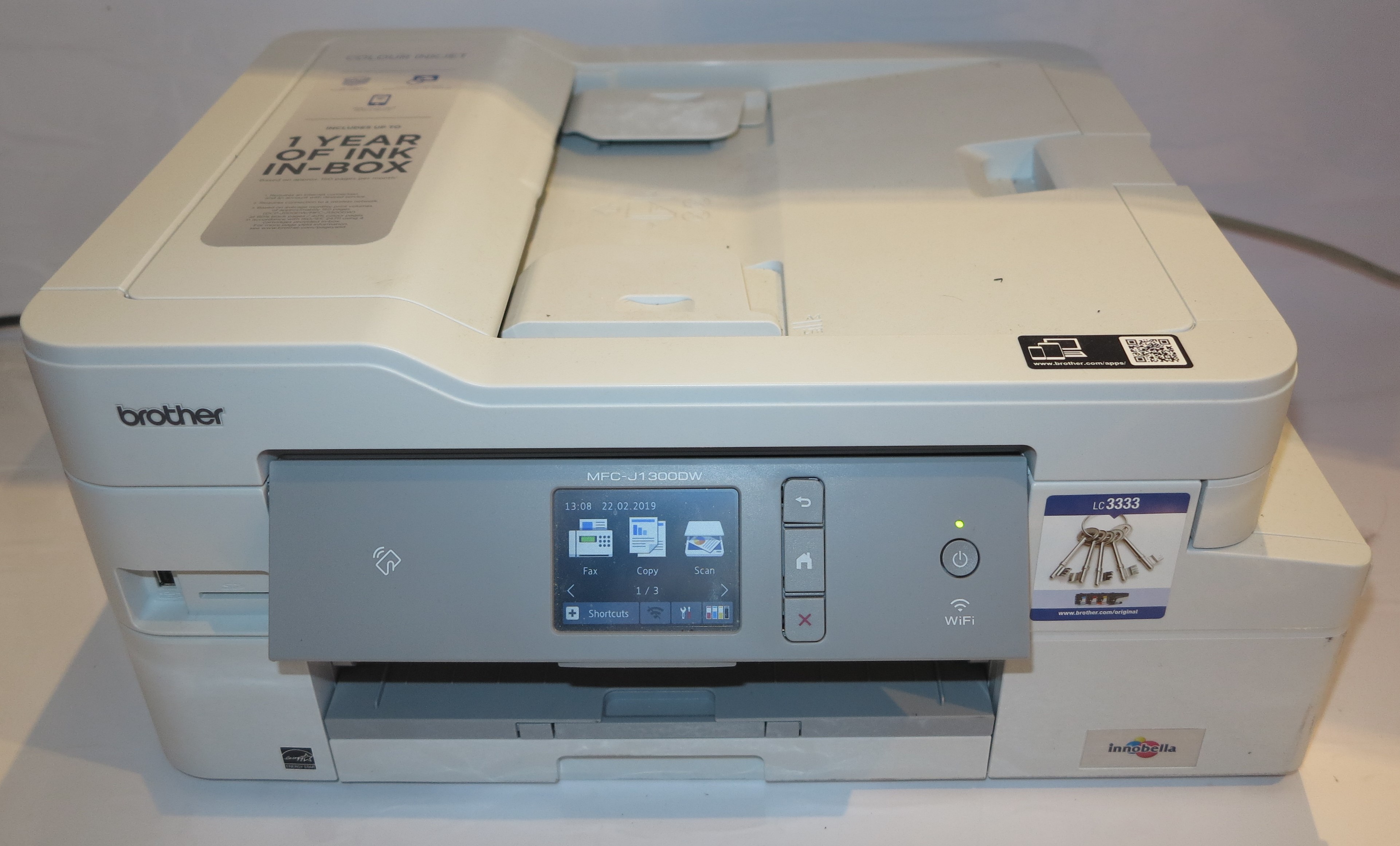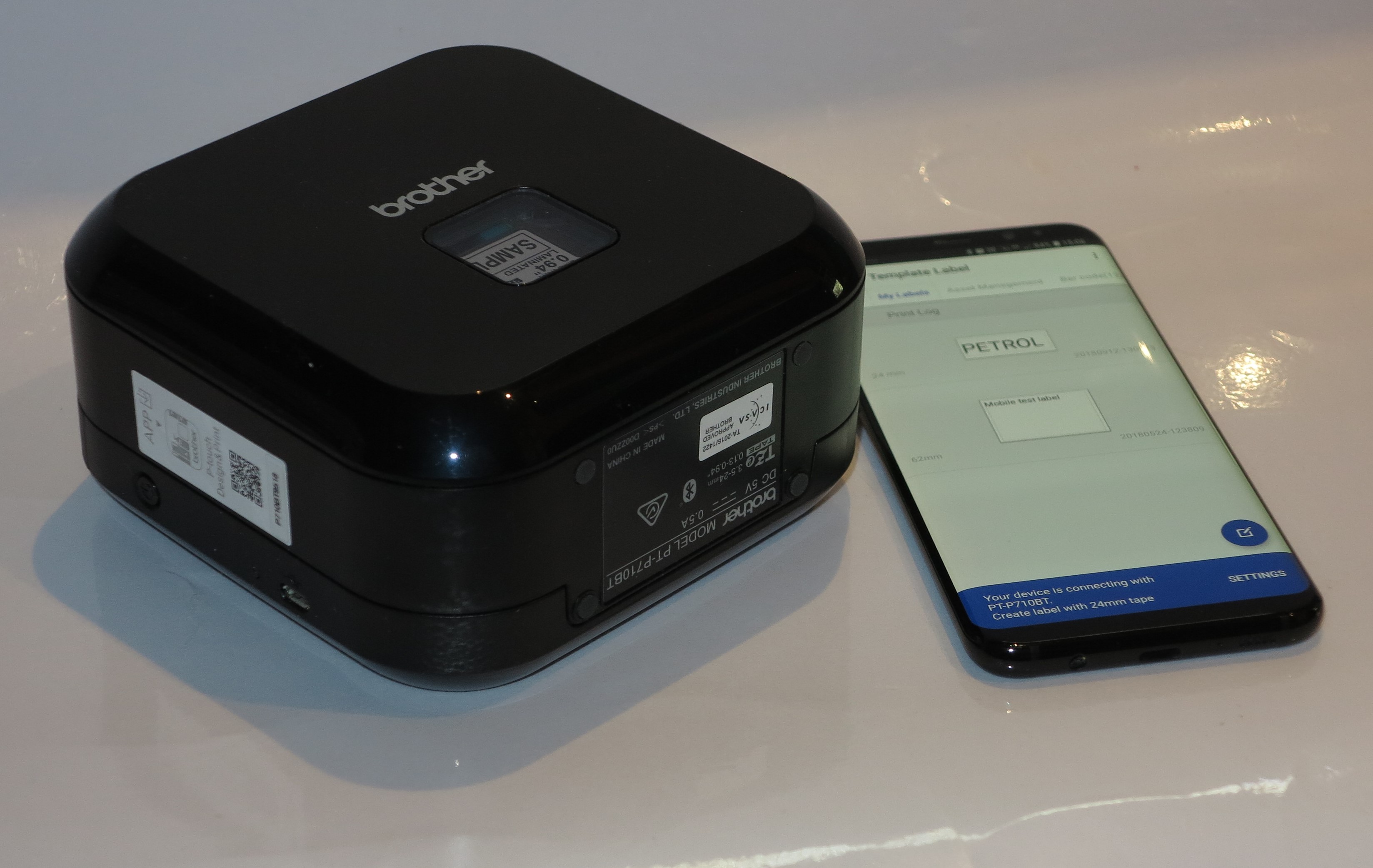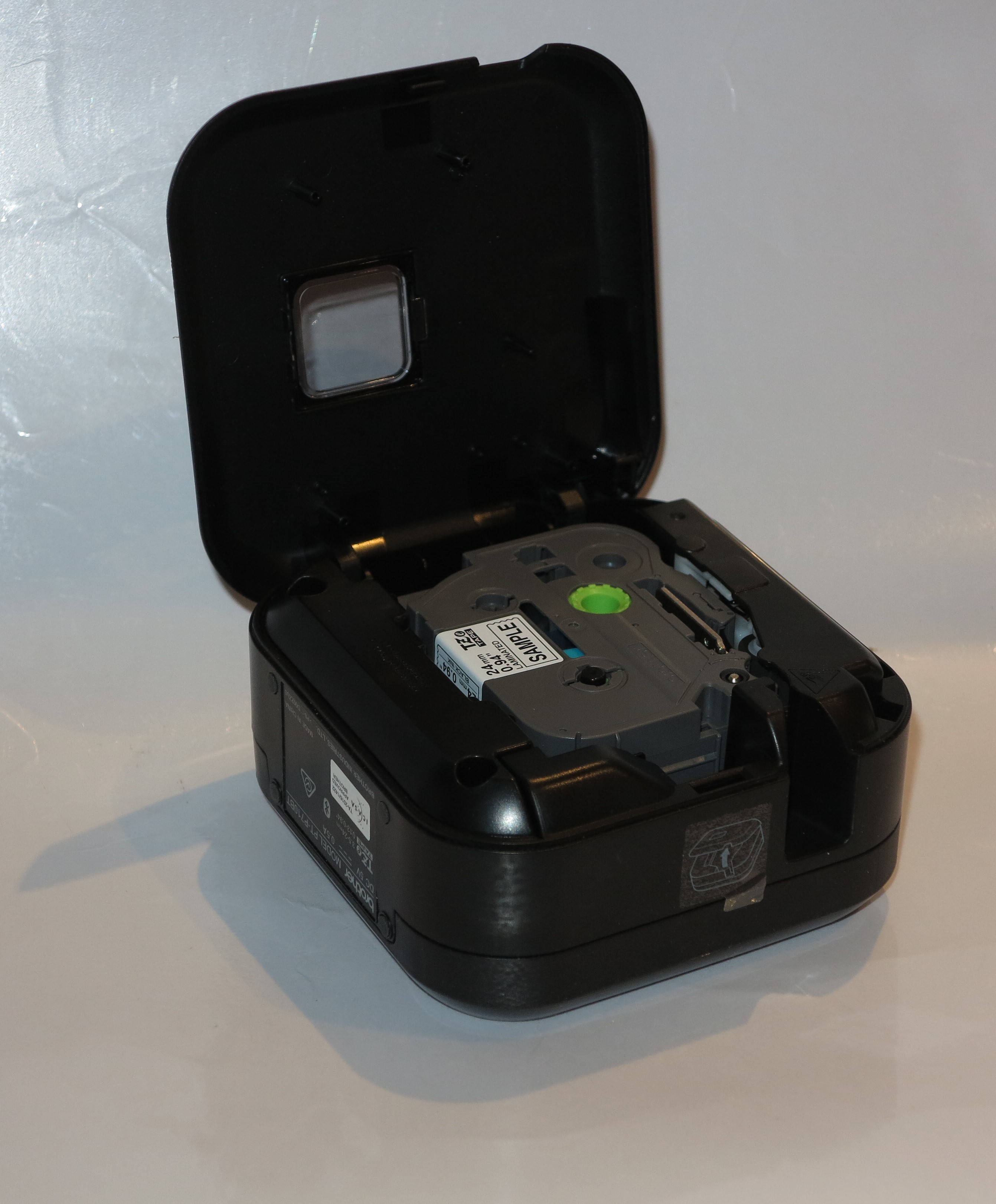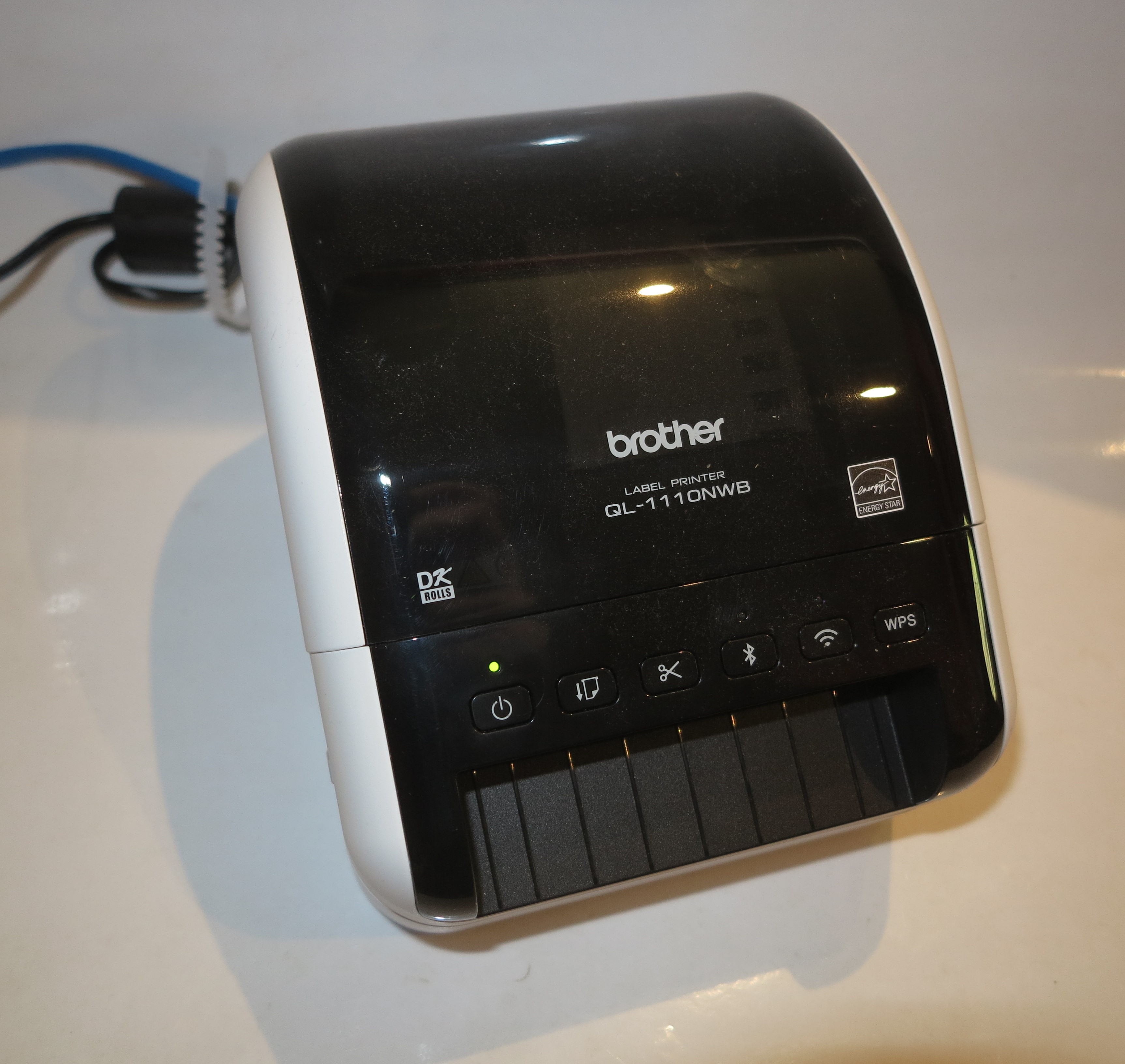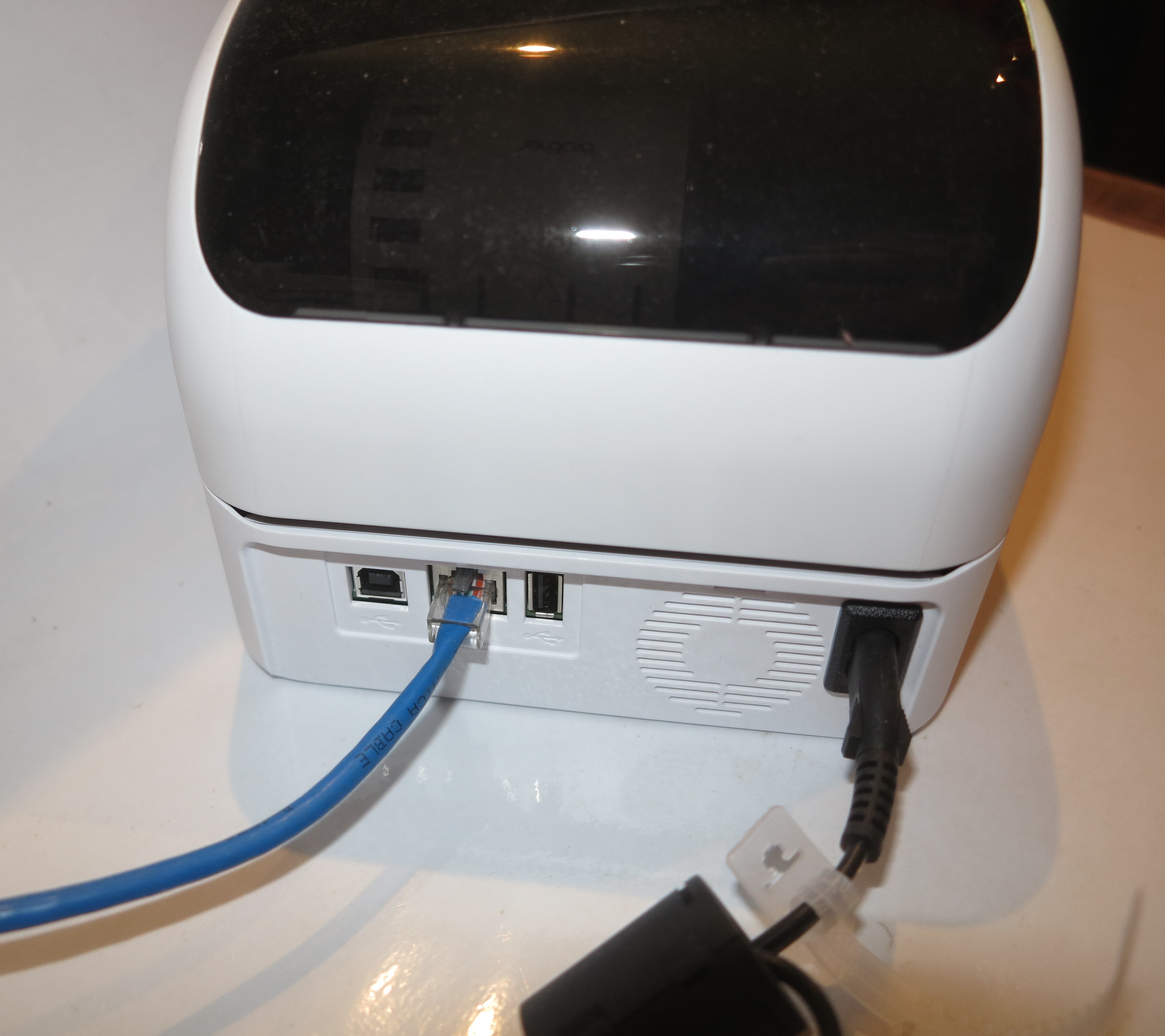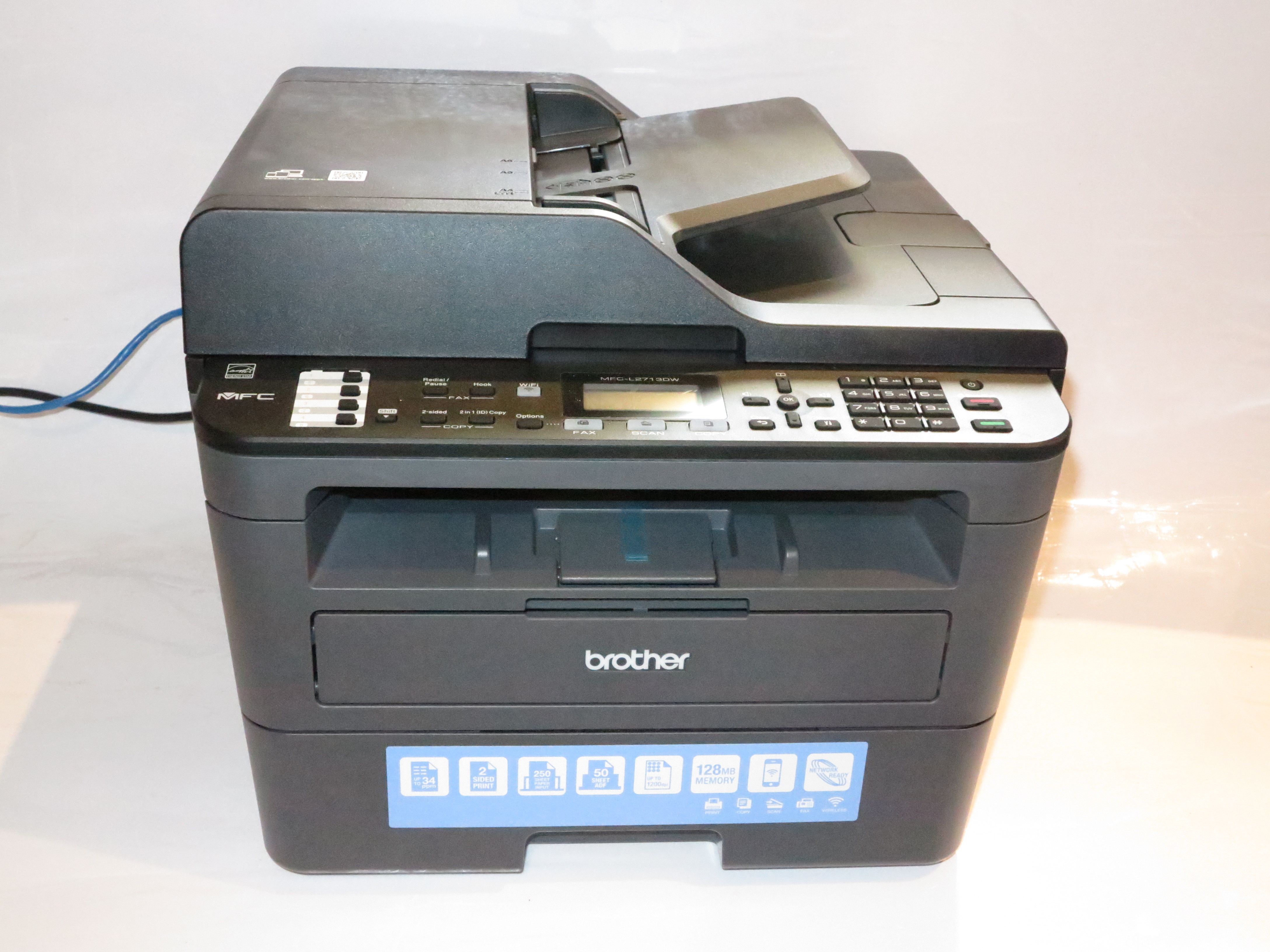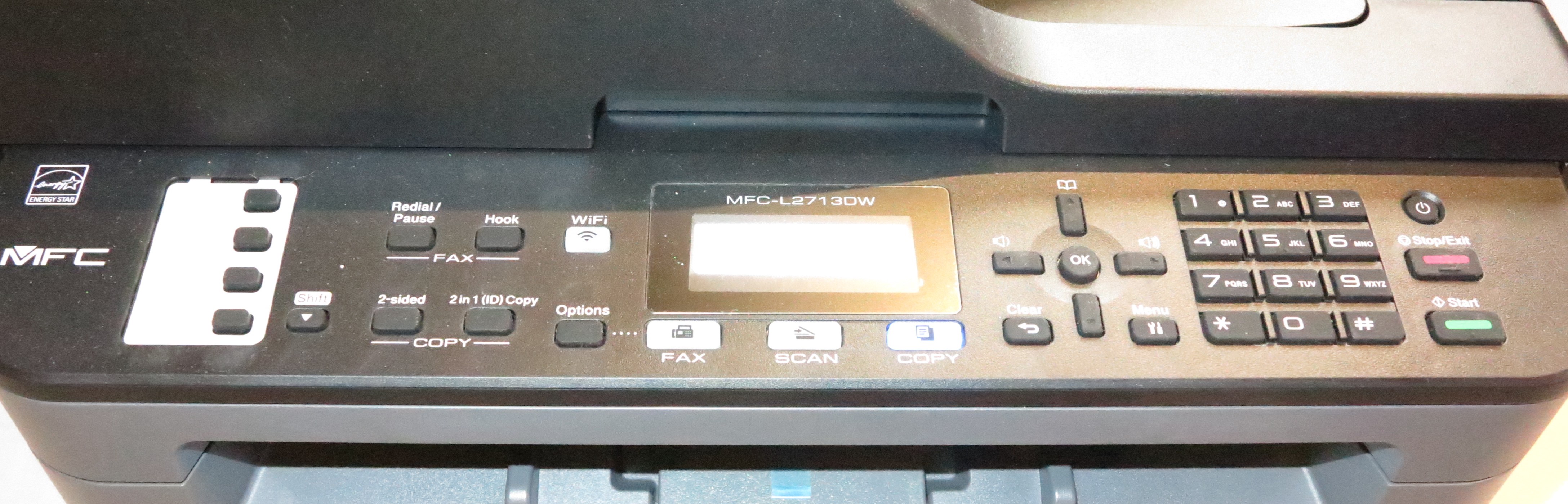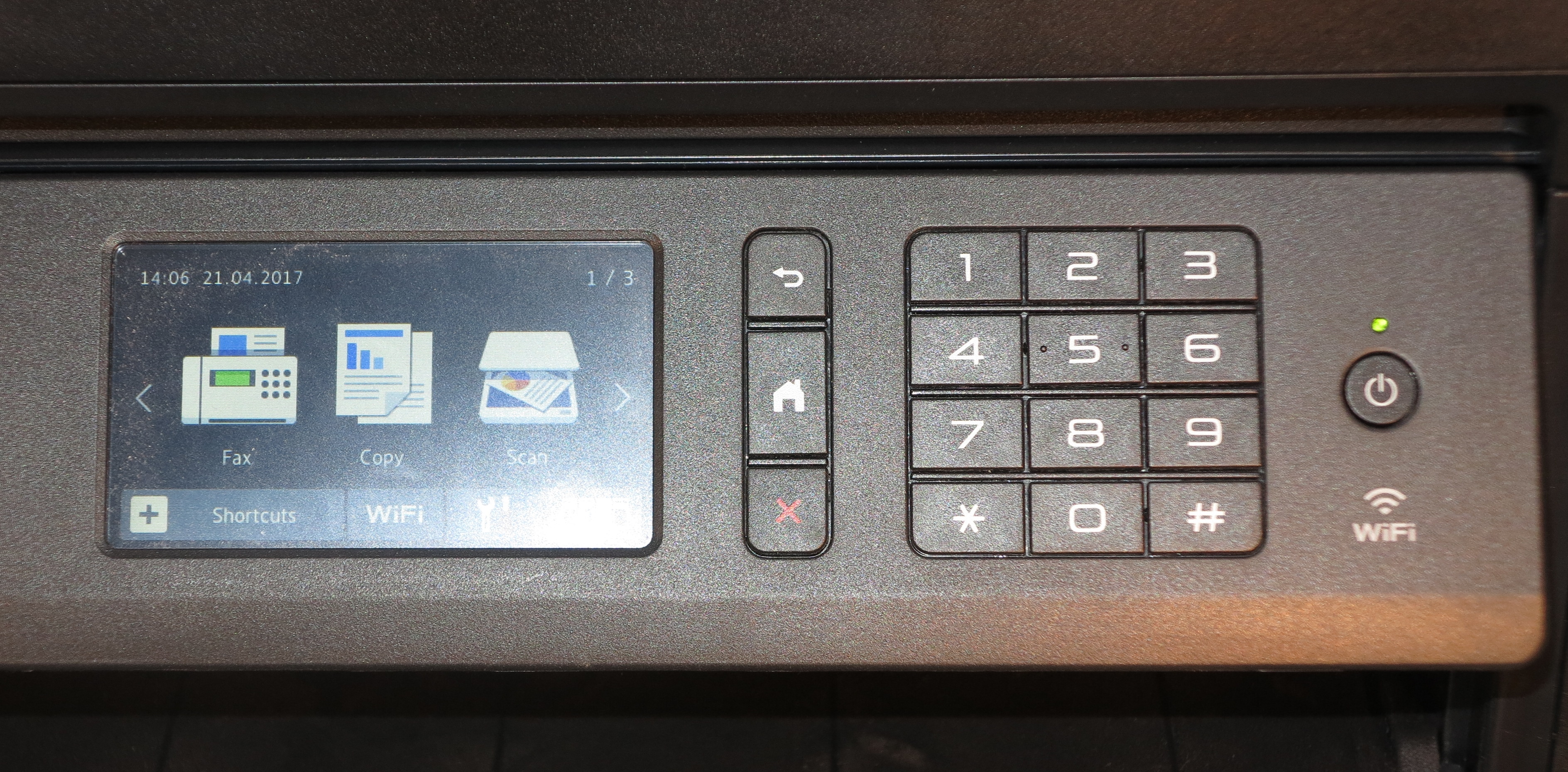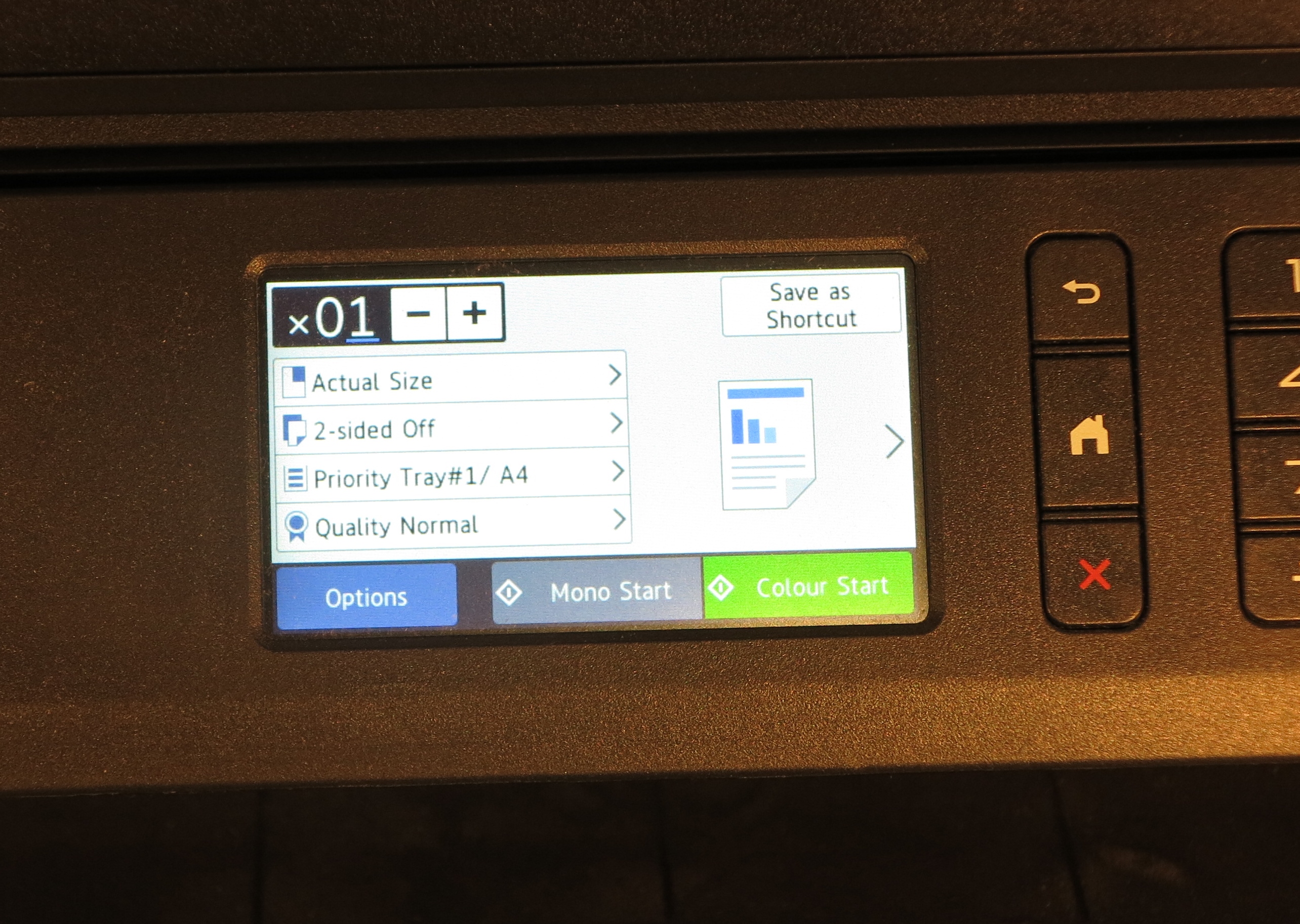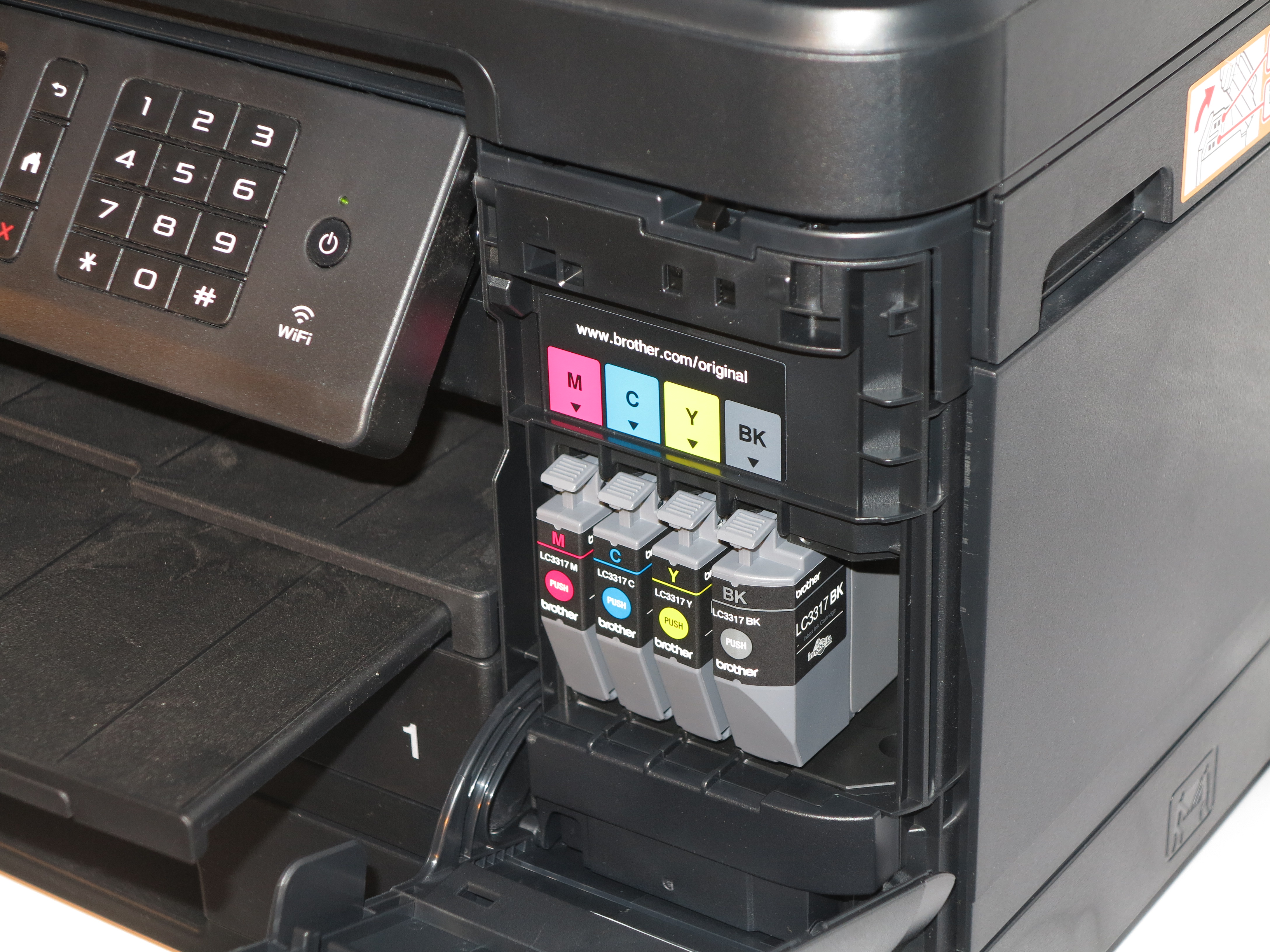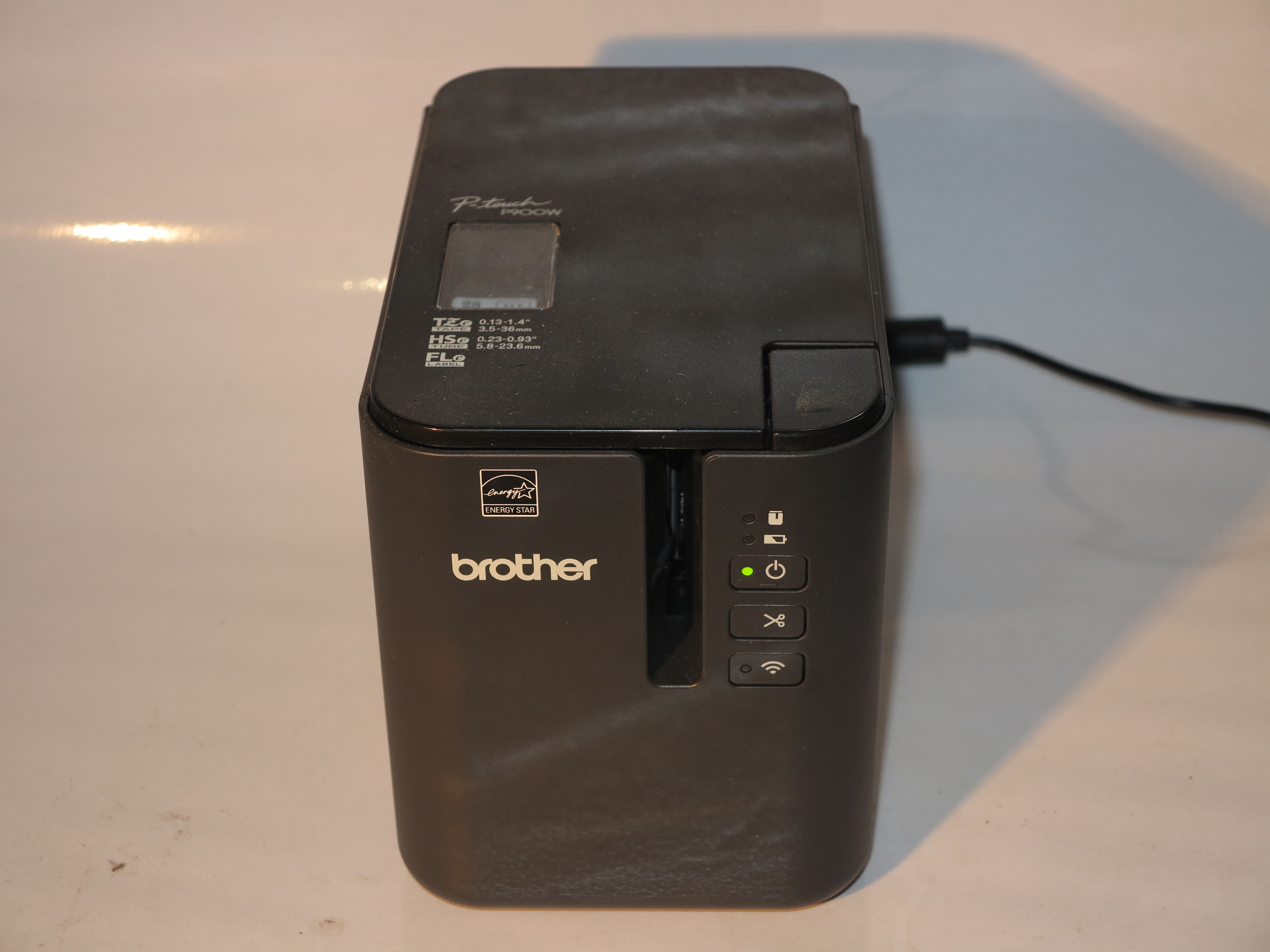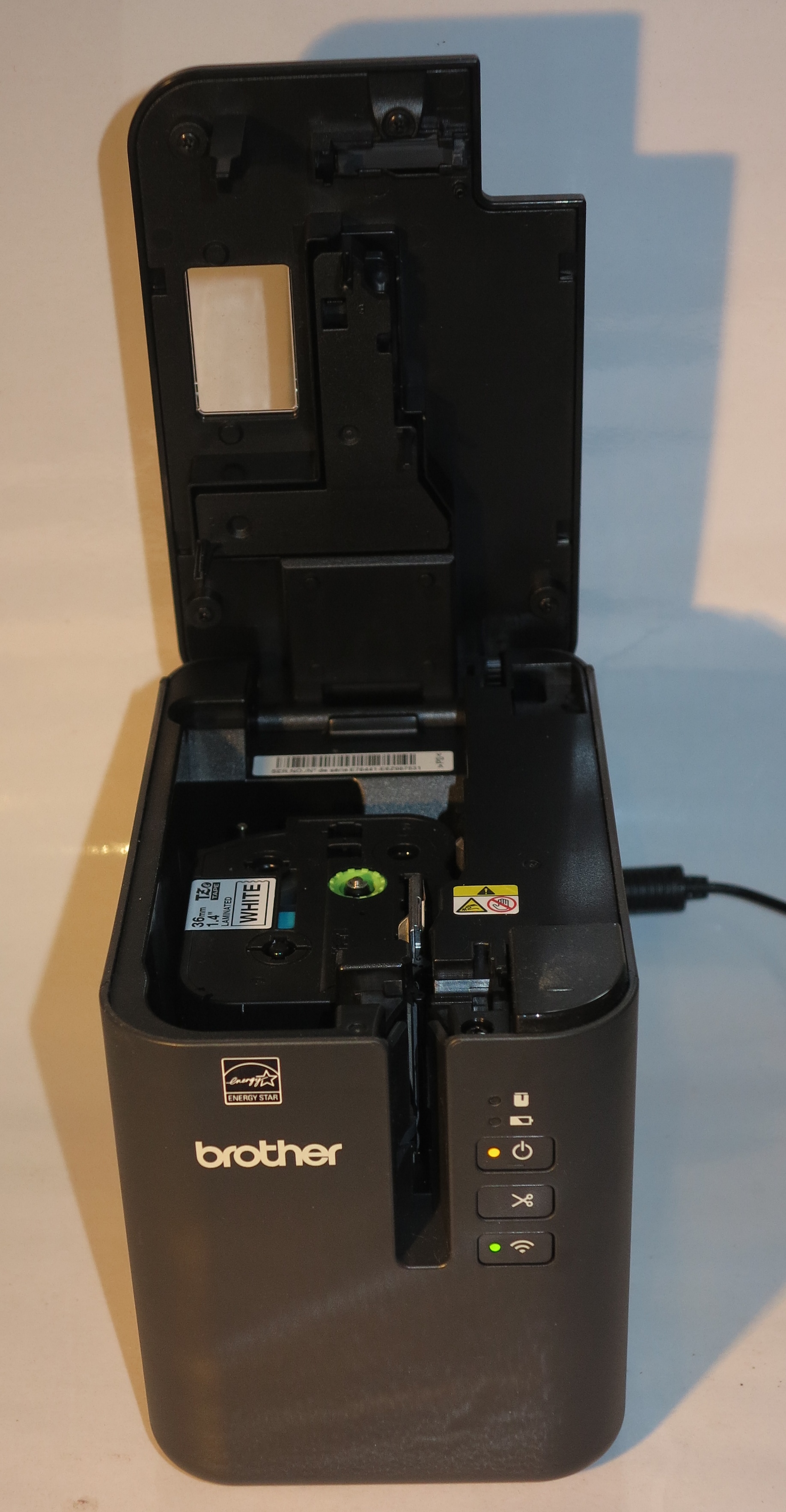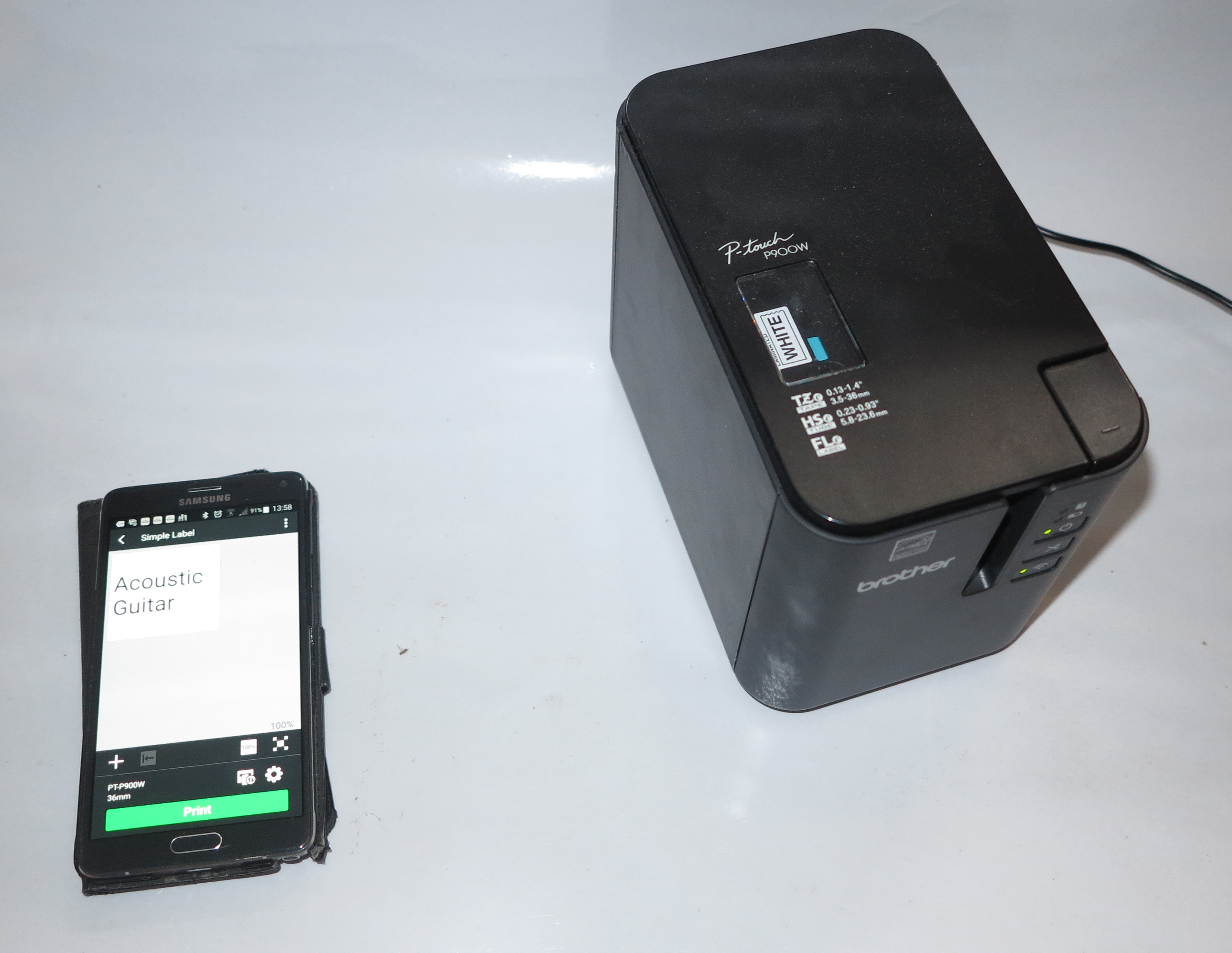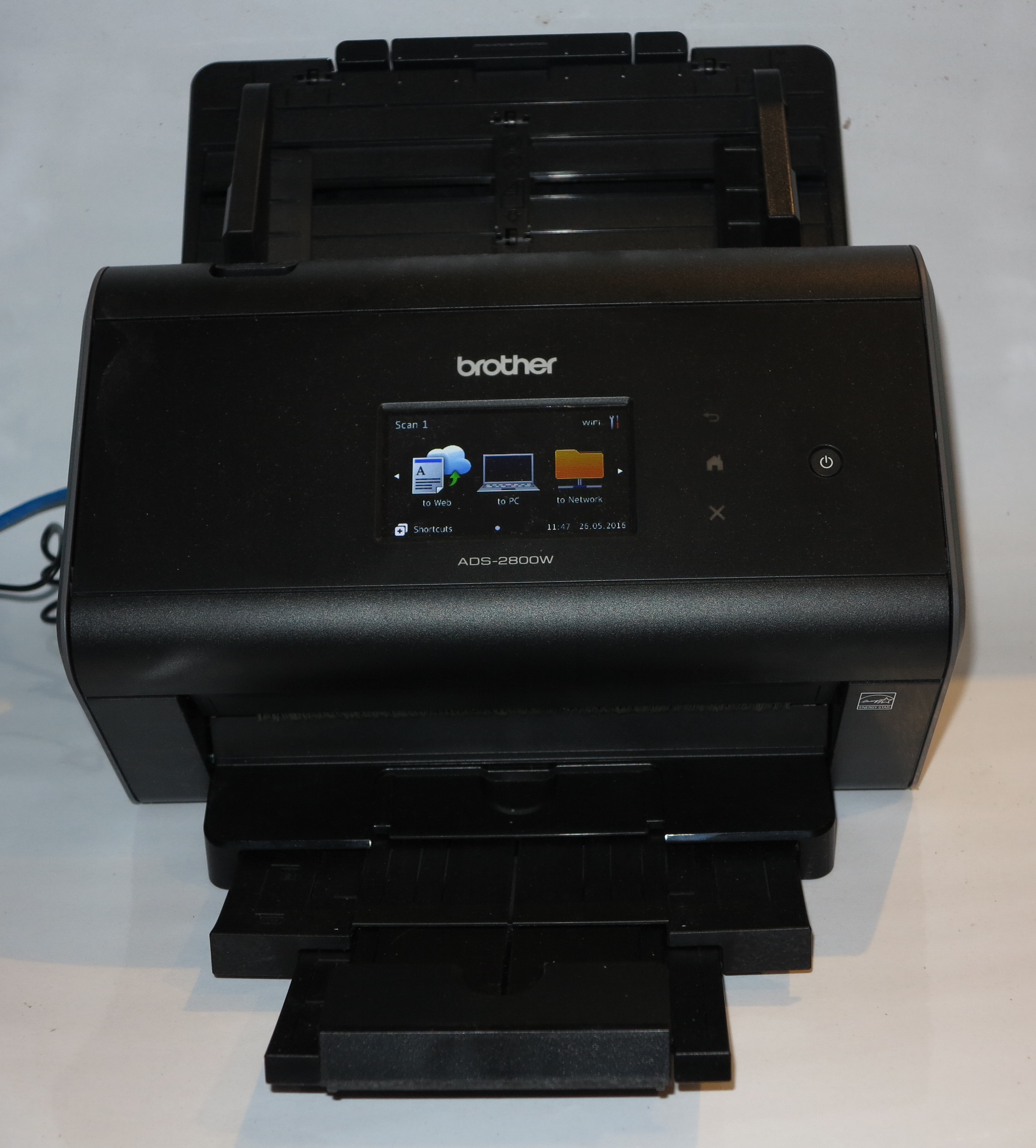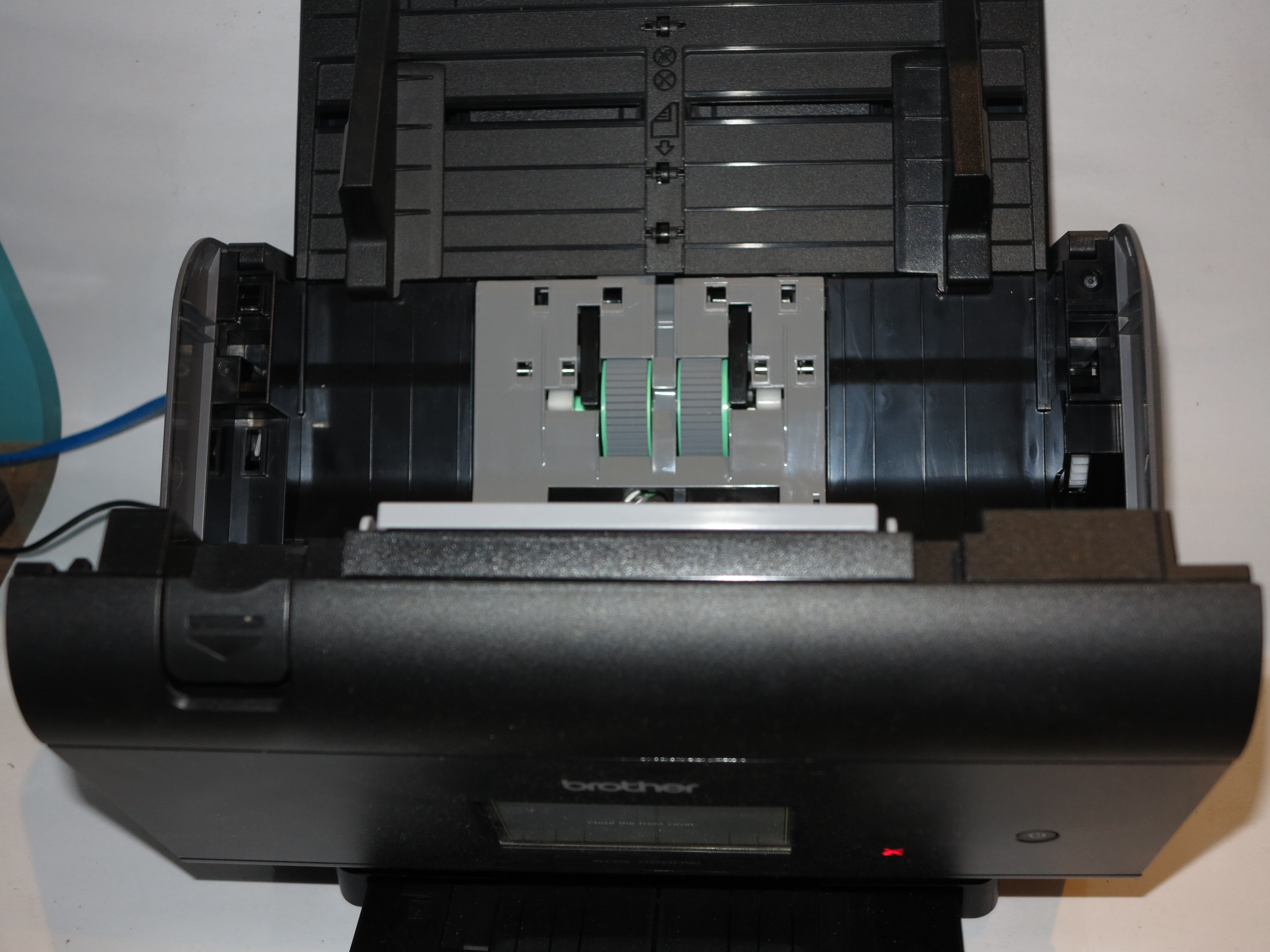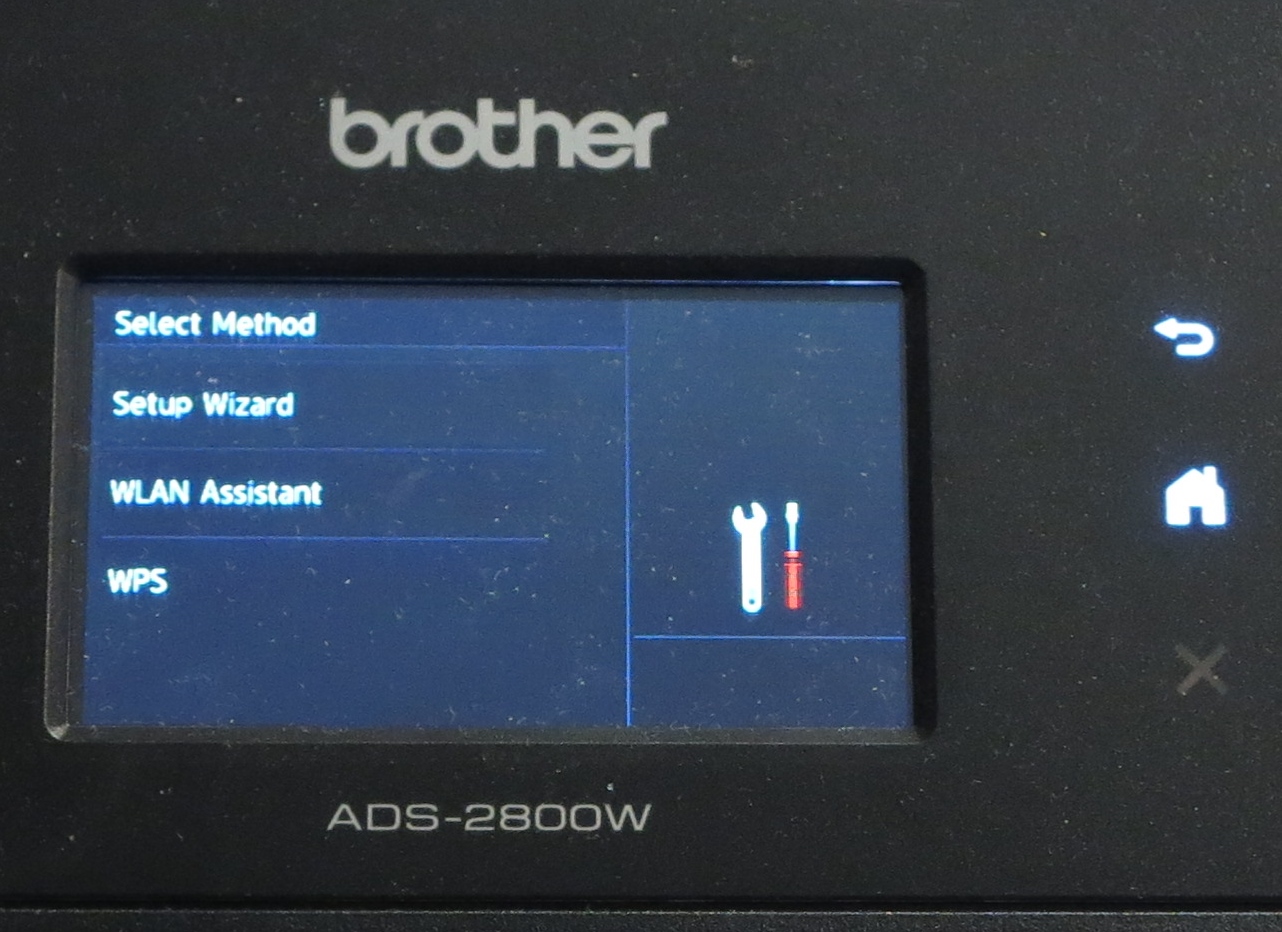
One of the reviewed printers seen in action at a small business

Brother HL-6180DW monochrome network laser printerPreviously I had reviewed the Brother HL-6180DW monochrome laser printer on this site and had recommended it as a mono laser printer for relatively heavy-duty requirements.

But yesterday, I had seen one of the printers in the same series as this printer used by my doctor, who practices at am inner-suburban clinic, to turn out some prescriptions that I needed. Here, this machine had to be used with the secondary paper tray that held the special stationery required for printing out the prescriptions. This printer has shown up the same abilities as the review sample when it came to the way it worked. The fact that this unit uses a separately

I would expect that it would satisfy the high-mileage requirements that would be expected for a printer being used by one or more family doctors who work at this kind of medical practice.

As well, the second paper tray could be offered as an option on any mid-tier monochrome laser printers so as to allow for the use of particular stationery, rather than having to manually load the particular stationery one sheet at a time on these printers.

Send to Kindle
Print This Post Print This Post

Product Review–Brother P-Touch PT-D200 Label Writer

Introduction

I am reviewing the Brother P-Touch PT-D200 Label Writer which is the newer “little brother” to the PT-2730 label writer that I previously reviewed. This one doesn’t have the computer connectivity that the PT-2730 has but can run on 3 AAA Duracell batteries. There is the opportunity to purchase an optional AC adaptor so you can run this unit off the mains although it didn’t come with one out of the box.

Brother P-Touch PT-D200 label writer

Price: AUD$89.00

The unit itself

Brother P-Touch PT-D200 label writer cartridge bay

Cartridge bay with TZe labelling tape

The Brother PT-D200 uses the new TZe labelling tapes which can also be used on the PT-2730 label writer. This can be handy if you want to maintain different label writers with different functionality levels but buy the same consumables.

It has a large LCD display and a rubber-feel QWERTY keyboard for text entry. You even have the ACCENT key so you can create those “aide-memoire” labels that you attach to items for people learning a foreign language.

But the display could be improved upon in contrast; as well as a WYSIWYG type of user interface for creating the labels. As far as the label-making procedure is concerned, it is the same, where you enter the text, then press “Print” to make the labels.

The label cartridges are loaded underneath the machine and use the simple snap-in installation. At least it isn’t a fiddly process to install the cartridges in to the machine

Being a cheaper model, the Brother PT-D200 doesn’t connect to host computers like the PT-2730 does. This may not work well if you want to do anything beyond basic labelling.

Limitations and Points Of Improvement

Brother P-Touch PT-D200 label writerAs I have said before, I would improve the Brother PT-D200 display and the display on other Brother P-Touch label writers by implementing a high-contrast appearance and display font. In some ways, this could also be achieved through the use of the monochrome OEL display which has the same contrast level as the fluorescent display commonly used with consumer-electronics equipment.

Another point of improvement is that Brother could provide for in-situ charging of batteries when connected to the optional AC adaptor. It is infact a practice that manufacturers like Canon and Sharp had done with some of their calculators which were capable of being powered from an external AC adaptor. This avoids the need to always remove the rechargeable batteries every time you need to charge them.

Conclusion

I would recommend the Brother P-Touch PT-D200 label writer as a desktop-style entry-level labeller for those of us wanting to dabble with electronic label generation at home or in our small business.

It would come in handy for people in charge of businesses or organisations who are using the Brother PT-2730 as the main label writer but want to have something that works as a battery-powered portable secondary unit.

Send to Kindle
Print This Post Print This Post

Product Review–Brother HL-6180DW monochrome laser printer

Introduction

I am reviewing the Brother HL-6180DW monochrome laser printer which is Brother’s latest entry in to the “office workhorse” laser-printer market.

The printer that I am reviewing here is the top-of-the-line model which has a page throughput of 48 pages per minute, a high-capacity paper tray and wireless networking. There are cheaper variants that have a lesser-capacity paper tray and work more slowly, with the models in this group having different connectivity options having wireless networking, Ethernet networking only or USB direct-connect only. All of them are driven by the same heavy-duty monochrome laser print engine and can print on both sides of the page.

Brother HL-6180DW monochrome network laser printer

Print Paper Trays Connections
B/W 1 x A4 USB 2.0
Laser xerographic Multi-purpose tray Ethernet, 802.11g/n Wi-Fi wireless
Auto-duplex  Optional high-capacity A4 paper tray Wi-Fi Direct, IPv6 ready

Prices

Printer

Recommended Retail Price: AUD$549

Optional Extras:

Optional high-capacity paper tray: AUD$180

Inks and Toners

Standard High-Capacity Extra-Capacity
Price Pages Price Pages Price
Black AUD$115.20 3000 AUD$183.90 8000 AUD$200.40 12000


Servicing and Other Parts (Laser Printers)

Price Pages
Drum Kit AUD$171.82 30000

The printer itself

The Brother HL-6180DW is able to connect to a wired Ethernet or 802.11g/n Wi-Fi wireless network. For that matter, it can support Wi-Fi Direct where it effectively becomes its own access point as well as AirPrint driver-free printing for the iOS platform. It still works with Brother’s iPrint&Scan Android app, being able to print Web pages, PDFs and photos from Android or iOS devices. It is also future-proof by being equipped for IPv6 in a dual-stack manner.

As a monochrome laser printer, this printer and the rest of the series are pitched as a “heavy-duty” take of the HL-2240D and similar units that I previously reviewed. These used a separately-replaceable toner and drum setup with the toner cartridge being “nested” in the drum unit that is loaded in to the front of the printer. This still has the advantage of the drum unit being separately replaceable which is more relevant to equipment that is expected to do a lot of work.

But the difference between these units and the other compact units is that the print engines on these models are optimised for heavy-duty printing. Here, you notice the difference with behaviour like the printer sounding like it is doing a normal print run even when working on both sides of the paper.

Printer setup experience

Hardware setup

Brother HL-6180DN laser printer control panel detail

Control panel

Something that can confuse some users is the front-door latch being confusingly part of the output retainer tab. This may be of concern when you are setting up the printer and removing all the packaging material or if you have to ask someone who isn’t familiar with the machine to change the toner or rectify a paper jam.

But once I opened the machine’s front service door, it didn’t take long to get the printer up and ready for use. The drum unit, with the toner cartridge. dropped in to the slot without any risk of user confusion, The paper was also easy to load up with a drawer that didn’t feel tacky.

Software setup

As is my practice when reviewing printers, I install the latest driver set from the manufacturer’s Web site rather than working from the CD that came with the equipment. This is to be sure I am not running a driver set that has bugs or isn’t tuned for best performance with current needs because of the desire amongst manufacturers to get the product to market very quickly.

During the installation phase, the driver software discovered the printer very quickly and was able to have the printer ready to go within a few minutes. Like other driver programs used with Brother printers, it still has the same easy-to-use user interface where there is a list of selected options for the print job.

Printer useability and page quality

The Brother HL-6180DW laser printer doesn’t take long to start turning out the print jobs. Here, it took only a second from when I clicked the “Print” button on the computer for it to come to life and have the first page of the document coming out of the output bay. There wasn’t any unnecessary curling or buckling with the paper after a print run because the printer’s fuser unit was effectively at temperature when the job came in. Even the auto-duplex cycle was very quick with it taking around three seconds to print both sides of the page.

There is a confidential-print mode where you can set up a passcode that you enter in to the printer to claim the print job. But, like the other single-function printers with this feature, it requires the user to enter the passcode using the “pick’n’choose” method with the arrow keys and this can cause users to be impatient with this printer.

Brother HL-6180DN laser printer replaceable parts

Separately-replaceable toner cartridge and drum unit that nest in to each other

Like all of the Brother laser printers, the HL-6180DW uses a separately-replaceable toner cartridge and drum unit which slot in to the front of the unit. Here, like the compact HL-2240D and others in that series, this unit requires the drum unit to be removed from the printer before you can replace the toner cartridge. But it is still easy to detach and attach the toner cartridge and drum unit by you pressing a distinct green tab to separate these pieces.

The auto-duplex function was exact with the registration when printing A4. This would be important for desktop publishing, especially if you want to turn out tent cards, door hangers and the like.

When you print colour photos using this printer, the 1200dpi image was brighter than the 600dpi image, thus was also close to what a colour image would look like on those old black-and-white TVs. The printer also turned out some very sharp text from material printed out from the computer.

The Brother HL-6180 laser printer was very reliable with turning out a large auto-duplex print job, thus not being prone to jam up. In fact if it runs out of paper, you don’t need to do anything further to get the job going beyond just putting the paper in the drawer.

Limitations and Points Of Improvement

The Brother HL-6180DW and others in this series could benefit from a few useability improvements here. For example, a distinctly-coloured latch release for the front service door could be beneficial here because this is hard to find amongst the document retainer flap on the top of the printer. Here, the confusion can occur if a user had to open up the printer to replace the toner or rectify a paper jam.

As well, there is the absence of a “fuel-gauge” on the display to show how much toner is available. Here, this can be useful if you were to determine whether to always run high-capacity cartridges or know if you were to order extra toner after a large print job.

Similarly the printer could benefit from a USB port to permit walk-up printing of PDF files or use of a USB keypad to improve the useability of the printer’s “secure print” function. This could be delivered as a product differentiator for the high-end models. As well, the HL-5470DW could be able to work with the extra-high-capacity toner cartridge, which could be handy if you were to avoid having to spend heaps of money on toner.

As well, the end-of-job cool-down noise could be reduced by, perhaps, gradually slowing down the fan’s speed through the cooling cycle or running the fan very fast for a few minutes just at the end of a print job.

Conclusion and Placement Notes

The Brother HL-6180DW laser printer is one I would recommend for use as an office’s main laser printer. This would be very important in paper-intense environments like schools or medical and legal practices or for those of us who are doing plenty of monochrome desktop publishing. If you could afford to, you may be at a point where you can use the high-capacity or extra-high-capacity toner cartridges for most of the machine’s working life and use the standard-capacity toner cartridge as a short-term measure if the organisation was short on cash.

If you want to save money but want a heavy-duty laser printer, I would recommend that you could go for the Brother HL-5470DW if you value Wi-Fi connectivity or the HL-5450DN if you are just connecting to an Ethernet or HomePlug network segment. Here, you don’t have the ability to load up a large quantity of paper or use the extra-capacity toner cartridge. But, as I have said before, I would recommend using the high-capacity toner cartridges due to the low cost-per-page and the long time between replacing them.

Send to Kindle
Print This Post Print This Post

Brother introduces an inkjet printer that implements landscape paper feed to achieve a compact size

Article

Brother crams all-in-one functionality into a pint-size package for Business Smart series – Engadget

From the horse’s mouth

Brother USA

Press Release (PDF)

My Comments

I was reading the Engadget article about this Brother multifunction printer and found that this is another example of improving on the printer’s design. The previous examples I have seen and consider of note include the use of a “capillary” pipe system and front-loading ink cartridges to allow for a compact printer design, the design of A3 multifunction inkjet printers and designing compact colour LED printers that use four colour drums.

Typically a printer or multifunction prints in a portrait manner where the paper is fed in to the machine using the short edge. Then the print head works across that sheet along that edge. This has been the way to go for most printers because it was known not to be likely to jam but makes it hard for manufacturers to design a compact printer system with a reduced footprint.

What Brother has done with their latest “Business Smart” inkjet printers, headlined by the MFC-J4510DW is to implement landscape printing. This is where the paper is drawn in by the long edge and the print head moves across the long edge of the page. It has allowed them to design a very shallow machine that doesn’t need to occupy much desk space because the paper is held lengthways within the machine. Another advantage is to avoid the bulky look of paper trays that jut out from the front of the printer, which can be seen to make the machine look ugly.

Of course, the MFC-J4510DW which was cited in the article and the press release has the expectations of a current-specification business printer. These include network connectivity including Wi-Fi, low running costs due to availability of separate-colour cartridges including high-yield cartridges, app-assisted printing from mobile devices and auto-duplex printing which cuts down on paper used, prints documents that are more intuitive to read and opens up desktop-publishing possibilities. It can also print 11”x17” pages as long as the paper is fed in the bypass tray.

There are some limitations like the inability to print without borders when doing auto-duplex printing but I would expect for Brother to iron out these difficulties come the next iteration of this series.

Once these printers are released, it could be a chance for Brother to work further on compact printers that could appeal to particular applications where the narrow footprint is desired.

Send to Kindle
Print This Post Print This Post

Recent Brother TV commercials–review links for the printers you see on them

Hi everyone!

Brother HL-3075CW colour LED printer

Brother HL-3075CW colour LED printer with Wi-Fi and walk-up printing

You may have seen the recent TV commercials for Brother’s printers and may be interested in the printers that are featured on them, especially the ones shown at the end of the ad.

They are:

  • The HL-3045CN colour LED printer which is the lower-spec variant of the HL-3075CW which I have reviewed here
  • The MFC-J6910DW multifunction inkjet printer which can print to and scan from A3 paper
  • The HL-4150CDN colour laser printer which is known for a very-quick auto-duplex function, something you can use for colour short-run flyer printing.

This informatiom may be of use if you want to find out more about these printers after seeing that TV ad.

Send to Kindle
Print This Post Print This Post

Product Review–Brother HL-3075CW colour LED printer

Introduction

I am reviewing the Brother HL-3075CW colour LED printer which is an economy colour xerographic printer based on LED technology. I have covered this technology before in an article about the difference between laser and LED printer technologies.

There is a cheaper variant of this printer, known as the Brother HL-3045CN which has USB and Ethernet connection to host computers only and doesn’t have the walk-up printing abilities that this model has. The comments about the print quality would apply to the Brother HL-3045CN as well.

Brother HL-3075CW colour LED printer

Print Paper Trays Connections
Colour 1 x A4 USB 2.0
LED xerographic Multi-purpose slot Gigabit Ethernet, 802.11g/n Wi-Fi
IPv6 ready

Prices

Printer

Recommended Retail Price: AUD$449

Inks and Toners

Standard
Price Pages
Black AUD$108 2200
Cyan AUD$102 1400
Magenta AUD$102 1400
Yellow AUD$102 1400

It is worth knowing that Officeworks are selling in Australia a pack of each of the above-listed toners for AUD$375.

Servicing and Other Parts (Laser Printers)

Price Pages
Drum Kit AUD$264 15000
Belt Kit AUD$187 50000
Waste Toner Kit 50000

The printer itself

Brother HL-3075CW colour LED printer control panel detail

The printer’s control panel

The Brother HL-3075CW was very easy to set up. This included establishing it on to the home network via Ethernet and is what I would prefer for any networked printer so as to assure reliable operation. It also is future-proof with inherent support for IPv6.

Walk-up functions

The Brother HL-3075CW has a USB socket on the front for PictBridge printing from cameras or to print PDF and JPEG files from a USB memory key. The PictBridge setup worked as normal with may Canon PowerShot G1X camera, making use of the camera’s user interface properly.

Brother HL-3075CW colour LED printer walk-up PictBridge USB connection

USB socket for connecting document-filled USB memory keys or PictBridge digital cameras

But when you navigated a directory structure of a USB memory key, the display truncated the file and folder names to a shorter form of the kind you would have expected from earlier MS-DOS versions. It could work better by scrolling the full file or folder name if you wait on that folder name without touching any button, and can make it easier to choose the right file to print.

It also works properly with the Brother iPrint&Scan mobile printing app for the iOS and Android platforms and was ready to print when the photo print job was 85% through on my Samsung Galaxy S Android phone.

Computer functions

Although I install the software from the drivers on Brother’s Web site so I can be sure of the latest drivers, the driver installation procedure went smoothly for my Windows 7 computer. This included the ability to discover the printer quickly and without any ambiguity.

The driver’s user interface still has the same features as all the other Brother print drivers that I have used. This is where it clearly shows you the settings you have implemented for your print job so you are sure of what you are specifying for the print job.

The printer supports a “confidential-print” mode which is similar to what is offered on the Brother HL-4150CDN. It is where the job is turned out only when you enter a password that you set when you submit the job from your computer. It has the same user experience with that “pick ‘n choose” password-entry method where the user uses the arrow keys to select numbers for the password.

Printer speed, quality and reliability

Brother HL-3075CW colour LED printer toner cartridges in place

Toner cartridges in place

The Brother HL-3075CW printer took 10 seconds from the “sleep” mode to be ready to print. It didn’t matter whether you touched its control panel so as you could adjust a setting or do a “walk-up” print job; or sent a job from a computer. If you did send a job from your computer, the first page would be finished and in the output tray a few seconds later. Even the printout speed was very quick for both the colour and monochrome print runs, in a imilar manner to what was expected for most of the colour laser printers that I have reviewed..

If you print photos on this printer, they do come out noticeably darker and it doesn’t matter if you use 2400dpi or not. As well, the Brother printer doesn’t yield strong colours for the images. I also noticed the same effect with printing a picture that I took on my digital camera through its PictBridge interface.

Other than that, the documents that this printer turn out are very crisp and have that distinct “laser-quality” look about them.

Limitations and Points of improvement

There are ways in which Brother could improve these economy colour LED printers. One would be to provide an auto-duplex mechanism so as to capitalise on the advantages of this feature such as paper being saved and the flexibility that this offers for desktop publishing.

As well, they could provide optional high-capacity toner cartridges like they have done previously for most of the monochrome laser and LED printer range as well as the high-end colour laser printer range. This feature could make these colour LED printers appealingly efficient to run and suit different operating patterns.

Brother could also improve the way their laser and LED printers, especially the colour models, turn out photos so that the pictures come out with improved contrast and colour saturation. This is because most of us may use the photo-printing capabilities on these printers for printing proof images that are used when you shortlist pictures for your print or online publication.

As well, I would like to see the USB port on these printers able to be used for a USB “Human Interface Device”-compliant numeric keypad which works as a password-entry device for the “confidential-print” feature. Brother could then sell one of these keypads as an optional “deal-making” accessory for their business laser printers.

Conclusion and Placement Notes

Brother HL-3075CW colour LED printerI would position the Brother HL-3045CN as a networked entry-level colour xerographic printer if you don’t place value on the walk-up USB printing feature and the HL-3075CW if you do place value on this function. In some cases, you could use the walk-up USB printing and the wireless network ability as a bargaining chip when you do buy this printer. As well they would work well if you are placing emphasis on them as colour document printers and you don’t intend to print both sides of the page.

Send to Kindle
Print This Post Print This Post

Product Review–Brother DCP-J925DW multifunction printer

Introduction

I am reviewing the Brother DCP-J925DW multifunction printer which is part of Brother’s newest run of A4 inkjet all-in-one printers that are destined for the home and home office. There are variants of this model that have integrated fax functionality.

Brother DCP-J925DW multi-function printer

Print Scan Copy Paper Trays Connections
Colour Colour Colour 1 x A4, 1 x 4×6” photo USB 2.0
Piezoelectric Ink-jet 2400 dpi Resolution Optimised book copy CD print 802.11g/n wireless,
Ethernet
Auto-duplex Automatic Document Feeder

Prices

Printer

Recommended Retail Price: AUD$179

Inks and Toners

Standard High-Capacity
Price Pages Price Pages
Black AUD$28.95 300 AUD$39.95 600
Cyan AUD$16.95 300 AUD$23.95 600
Magenta AUD$16.95 300 AUD$23.95 600
Yellow AUD$16.95 300 AUD$23.95 600

There is a pack of the high-capacity ink cartridges available for AUD$109.95.

The printer itself

The Brother DCP-J925DW is housed a a relatively shallow chassis with a shallow automatic-document-feeder lid that has a swirl-type pattern. This has been made possible through the use of Brother’s “capillary” system with the ink cartridges mounted up front rather than on the printhead.

Brother DCP-J925DW multi-function printer front-loading ink cartridges

Front-loading ink cartridges

The printer has a single tray but there is a mezzanine tray that is used for 4×6” snapshot paper so you can print out photos as snapshots, a different method to what HP has done for some of their high-end Photosmart printers where these have totally separate paper trays. It also has a DVD/CD printing mechanism so you can print on to inkjet-printable optical discs.

Setup

This printer can connect to your network via Wi-Fi or Ethernet and the Wi-Fi setup experience was surprisingly easy. It needs the time to be set in order to work with the Web-connected printer functionality, but Brother could implement an NTP-based clock setup option rather than requiring the user to set the time, just asking the user for their time zone and whether their time zone observes daylight-saving time.

Brother DCP-J925DW multifunction printer - sockets under lid

You have to lift the lid to plug the printer in to the Ethernet network or USB-connected computer

Like other Brother inkjet printers, this printer has the the inks loaded in the front and obviates the need to lift a heavy lid to replace the cartridges. But, like the MFC-J6910DW that I previously reviewed, it requires you to open the lid to find the USB and Ethernet sockets if you need to connect it directly to the host or to an Ethernet network.

Brother DCP-J925DW multifunction printer touchscreen

Touchscreen control panel

The control panel for this printer is primarily a touchscreen LCD but there are two start buttons and a cancel button as well as an on-off button. Compared to the HP touchscreen printers, this provides for surefire “start” and “stop” controls on the printer for those of us used to the traditional buttons. The screen may be found to be too small for some activities like choosing pictures to print and may be hard to read for those of us with limited sight.

Walk-up functions

The automatic document feeder is one of those types that draws the document under and ejects it out the top. This can be confusing to operate because most of these printers require you to feed the document in on a top shelf and they will eject the document underneath.

The Brother DCP-J925DW can copy as expected with one-touch ease but also has an option for improved book copying which may please those of us who copy a lot of material out of books and other bound documents. Think of copying those recipes that friends need out of those cookbooks as you “cook up a storm”.

Brother DCP-J925DW multi-function printer with paper loaded

Printer loaded with input and output documents

There is also the ability to print from directly-connected digital cameras or camera memory cards with the functionality that is expected of that feature.

The printer also works properly with the Brother iPrint&Scan mobile app so can print images and PDFs held on your smartphone. It can also scan to your smartphone with the phone saving the images as JPEGs.

The WebConnect online services that Brother provided allows for “hot-seat” use by multiple people and work with the popular social networks and photo-sharing services. As far as Facebook is concerned, it only offers uploading of images to the user’s Photo Albums from the scanner or camera card.

Computer functions

The Brother DCP-925DW’s software installed properly but couldn’t determine by itself which network adaptor it is connected. You had to determine whether you were using a wired or wireless connection which can be confusing if your printer was connected via Ethernet and the computer was connected via Wi-Fi or vice versa.

In, use, the driver showed the same level of useability as the software supplied with other Brother printers that I reviewed. This included highlighting the options that are in force and even using the “pages” graphics to show the kind of duplex or booklet printing that was in force when you used these features.

Useability and Print Quality

The Brother DCP-J925DW printer is quick at turning out documents but takes a very long time at turning out A4 photos on the glossy paper. This may be helped with an increase in memory and processor speed.

As well, it can print on both sides of the page very accurately with a minimum time penalty, which can be of a bonus if you rely on auto-duplex printing as a desktop-publishing tool, not just to be “green”. This was exemplified by my printing out a “download-to-print” door-hanger flyer from the Stop The Traffik anti-human-trafficking website that was pitched at hotels as a guest-awareness measure about this problem.

There is a high-pitch tone from the printhead when the Brother printer is pausing during a job and this may annoy some people, but would be expected of piezo inkjets because of the way they work.

When the Brother DCP—J925DW prints out photos, the pictures turn out darker and more defined compared to its HP and Canon home-use peers that I have reviewed. There is also a strong yellow component in these photos compared to the Brother A3 printers that I reviewed but this yellow is similar also to the same HP inkjets.

Limitations and Points Of Improvement

As I have said before, the Brother DCP-J925DW could benefit from a faster processor and more memory so it can handle larger or more detailed print jobs more effectively.

The touchscreen control panel could be made larger so it is easier to read, in a similar vein to the touchscreen control panels on the recent HP multifunction printers. This would make the printer easier to use for older people or those of us with poor eyesight.

The automatic document feeder could be improved in its useability by indicating where the original document should sit under and preferably in a contrasted colour. This can help with newer users who have upgraded from other multi-function printers that use the orthodox automatic-document feeder.

The Web-connected functionality could support a few more features like email-to-print or the ability to print from Facebook image collections. It, like the other Brother printers, could also benefit from UPnP Printer functionality so as to support network printing from digital cameras and interactive-TV applications.

Conclusion and Placement Notes

I would position the Brother DCP-J925DW as a cost-effective general-purpose home-use printer for the connected home as an alternative to the HP Photosmart 7510 if you don’t worry about fax or ePrint capabilities. It can also work as a secondary printer that could do supplementary work to the main laser or inkjet multifunction printer, such as in a study or rumpus room.

Send to Kindle
Print This Post Print This Post

Product Review–Brother QL-700 high-speed thermal label printer

Introduction

I am reviewing the Brother QL-700 desktop label printer which is the high-speed heavy-duty version of the QL-570 label printer that I previously reviewed. It is pitched at high-throughput applications such as the delivery segment of an online-order business or the mailroom in a busy office, whereas the QL-570 is pitched as a desktop labeller for most low-throughput applications.

Brother QL-700 label printer

Details

The QL-700 which is the heavier unit can use the same Brother thermal labels and tapes as the QL-570, yet is able to turn out labels and badges at a quicker rate than the previous model. It retails for AUD$149 and effectively uses the same software as the other model, working as a printer for the host computer using the supplied driver rather than needing special software to print at all.

Brother QL-700 label printer with tape loaded

Tape loaded in Brother QL-700

Like the Brother QL-570 label printer, the Brother QL-700 connects to the host computer via USB, and is self-powered like the QL-570 with an easy-to-replace “cassette-recorder” AC cord, which has the same advantages of not being dependent on “wall-wart” power supplies. Like the QL-570, it could benefit from having a two-port or three-port self-powered USB hub integrated in to the unit, which would benefit use with other workstation devices like bar-code readers, scales or keyboards.

If you are upgrading from a Brother QL-570 label printer, you do not really any retraining because the loading and operating procedures are effectively the same for both units.

As a labeller, the Brohter QL-700 still does the job properly and reliably, being able to work with continuous tape or cut labels and turning out sharp text on these labels. The supplied address-book software can turn out advanced mailing / shipping labels with the barcode for the ZIP code but this only works properly with goods destined to the USA. It could work in a country-specific manner by supporessing this barcode for other countries or using destination-specific barcode systems where applicable.

Limitations and Points Of Improvement

Brother QL-700 tape bay

Tape loading bay - just like the QL-570

Like the Brother QL-570, the QL-700 could benefit from implemeng the USB POS device classes ; and could also support printing on to regular thermal-print paper rolls used with point-of-sale devices. This can then make it an ideal partner for a high-traffic point-of-sale environment rather than just a label maker.

Similarly, the Brother P-Touch software that comes with the QL-series label printers could take advantage of the continuous-length tapes to turn out stick-on measuring tape for applications such as health and education.

Brother could also turn out a 12-volt variant of this model which can run from a car battery for use with high-throughput outdoor applications like disaster relief and country events.

Conclusion

I would recommend using the Brother QL-700 for high-turnaround environments like online-order businesses or offices with high-traffic mailrooms – if the business has outgrown the QL-570’s capabilities, the QL-700 would be a perfect step-up unit.

Brother QL-700 label printerWhen used with the Brother VM-100 visitor-management software or similar visitor-registration software, the Brother QL-700 could satisfy the needs of a very busy registration and check-in desk at a very busy event.

Send to Kindle
Print This Post Print This Post

Product Review–Brother MFC-J6910DW A3 multifunction printer

Introduction

Previously, I reviewed Brother’s first A3 multifunction printer, the MFC-6490CW, which was one of the first multifunction-class printer that can turn out documents on this large paper size. Estate agents, architects and the like have been licking their lips at these machines because of the availability of a compact desktop multifunction printer that can print out those building plans on the sizes of paper they are accustomed to for these documents.

Since then, HP had introduced a single-tray A3-printing multifunction in the form of the OfficeJet 7500a but Brother have worked further on the idea of A3 printing in the small office which I had talked about in my industry interview with them. This has manifested in the latest run of A3 multifunction printers which the MFC-J6910DW that I am reviewing represents as the fully-equipped model.

There are cheaper versions of this model that neither support duplex scanning nor have a touchscreen LCD display. As well the cheapest model in the range, the MFC-J5910DW can only scan A4 pages where as the other single-tray unit, the MFC-J6510DW can scan A3 pages. The model just below this unit, the MFC-J6710DW has the two paper trays and can scan A3 pages. But they all can do things like print on both sides of A3 pages.

This machine is infact the printer that was used in Brother’s latest TV-commercial series about using A3 paper as a tool to “expand your business horizons”. This is to use the paper size to realise more impact with customers or business partners by benefiting from larger text or room for detail. It may be also worth looking at this article that I wrote on making more use of A3  and similar sizes in the office when you read this review.

North-American readers should think of Ledger paper when I mention A3 paper in this review because of the fact that the paper sizes are just about the same and this printer can scan and print on this paper size. It will also scan double-sided on Letter or Legal paper, which is similar in size to A4 paper.

Brother MFC-J6910DW A3 inkjet multifunction printer

Print Scan Copy Fax /
E-mail
Paper Trays Connections
Colour Colour Colour Colour 2 x A3 USB 2.0
Piezo-action Ink-jet 2400dpi resolution ID copy
Optimised book copy,
Super G3 Multi-purpose tray Ethernet, 802.11g/n WPS Wi-Fi
Auto-duplex Single-pass duplex ADF – duplex for A4 onlyA3 scanning T.37 email-based faxing (requires free
download from Brother)
IPv6 ready

Prices

Printer

Recommended Retail Price: AUD$379

Inks

Standard High-Capacity
Price Pages Price Pages
Black $39.95 600 $53.95 2400
Cyan $27.00 600 $33.95 1200
Magenta $27.00 600 $33.95 1200
Yellow $27.00 600 $33.95 1200

The printer itself

Setup and Network Connectivity

Brother MFC-J6910DW A3 inkjet multifunction printer - data connections

Where to plug in the USB or Ethernet cable for wired connections

If you are connecting the Brother MFC-J6910DW printer to your computer or network using Ethernet or USB, you have to open the access lid and snake the cable through to sockets installed within the printer chassis. But the phone connections for the fax functionality; as well as the power connection are exposed connections on the left side of the printer. This can be very daunting for people used to a group of sockets on the back of the printer.

The printer works with wired and Wi-Fi networks and is future-proof with IPv6, as expected for a business printer. It does support expected Wi-Fi setup functions like WPS “one-touch” setup.

Walk-up functions

The ability to print directly from the memory card or a digital camera works properly but the paper reserve you can use is whatever is loaded in the upper tray or manual feed slot. I would like to see this improved by allowing one to select whichever paper tray to use or if they print using PictBridge, the printer checks both paper trays for the specified paper size and type.

It has the expected copy functions, with the ability to enlarge an A4 document to A3 which is commonly expected of A3 copying devices. This is done by setting the Enlarge function to 141% and setting the paper size to A3. The ID copy function is very tricky to operate for new users because you have to use the “N-in-1” option to set the ID copy for the job. As well users wouldn’t know where to place the identification document to be copied for each side of that document.

As far as copy fidelity goes, the copies come out slightly paler than the original. It also doesn’t use the memory to quickly scan subsequent pages using the automatic document feeder while the copies are being turned out.

The fax functionality supports Super G3 faxing with colour over regular phone lines as well as T.37-compliant fax over email. This IP-based “fax-over-email” functionality is limited to handling A4-sized monochrome documents. At the moment, this function is enabled through a free download program from Brother’s support Webpage for this unit.

Brother MFC-J6910DW A3 multifunction inkjet printer control panel

Control panel with touchscreen

This printer is equipped with a full-duplex automatic document feeder that scans both sides of the page at the same time, rather than reversing the paper over a roller to expose the other side for scanning. The main benefits that I have seen from this is that the documents are scanned very quickly and the ADF is more reliable because there isn’t any extra paper handling involved. This feature is only avaliable for A4 or smaller documents.

Computer functions

I would prefer that you download the latest driver software for your computer’s operating system from Brother’s Website for this printer rather than install the software that comes on the supplied CDs; as I have preferred when new computer hardware is installed. This is more so with this unit because when I installed the driver software from the CDs on to my Windows 7 PC, there was a weird error message towards the end of the install routine and the driver wasn’t in place.

During printing, the software runs very lean and isn’t demanding on your computer’s resources. Even if you start a scan job from the MFC-J6910DW’s control panel, there isn’t much demand on the computer for the necessary scan monitor software. For that matter, a duplex scan job had both pages on the hard disk simultaneously. As well, you can set the printer up to scan to network (or Internet) storage resources as long using standard file-transfer protocols.

The Brother print driver’s user interface still has that excellent “at-a-glance” view of the settings that you have specified for that print job. This is something that I have seen consistently with all of Brother’s printers since I reviewed the HL-4150CDN colour laser printer.

Use with Brother iPrint&Scan (Android)

If you use the Brother MFC-J6910DN with the Brother iPrint&Scan mobile-printing app, you can print PDFs and photos from your device. It can accept A3 print jobs if the document is a PDF.

But, as I have seen from my Android copy of this program, the program’s current version doesn’t support printing of photos on A3 paper, nor does it support duplex and booklet printing for PDF documents. On the other hand, this app can scan both sides of a document that passes through the duplex automatic document feeder.

Paper and ink handling

Brother MFC-J6910DW ink cartridges

Ink cartridges loaded up front on this printer

This Brother MFC-J6910DW multifunction printer, like the other Brother inkjet printers and the HP OfficeJet 8500a Plus allows you to change the ink cartridges by opening a door on the front rather than lifting a heavy scanner lid. But because the printer, like other Brother and Epson inkjet printers uses piezoelectric inkjet technology, you have to make sure you  have a spare cartridge on hand when it lets you know it is low on ink for that cartridge and be ready to replace the cartridge when the ink volume looks very low. This is to avoid a loss of print quality due to airlocks in the ink system.

It can handle heavy print runs, including auto-duplex print runs, without failing. The auto-duplex function works to the edge for A4 and lower paper sizes but requires a margin at the top and bottom of an A3 document. This can be of concern when you use this function to print out A4-size booklets on A3, which it still can do well.

I would like to see Brother add some improvements concerning the ability to use the lower tray for photo-paper or poster-print jobs. Similarly there could be the ability to load the manual feed tray at the back with up to ten sheets of paper and have that considered as a separate paper source. This can improve the workflow for multi-page photo prints or poster-print jobs.

Print quality

The Brother MFC-J6910DW yields very sharp text from regular document print jobs, but some spot colours don’t come out strong on plain paper. I even printed the PDF file of the London Tube and Rail Map on A3 as a test to assess its prowess with complicated maps, plans and diagrams and it did yield a crisp image with legible station-name text. This is because a lot of users who buy this printer will be making it turn out those floor plans, maps and similar diagrams on to big sheets of A3 or Ledger paper as part of their livelihood.

Brother MFC-J6910DW A3 inkjet multifunction with A3 pages

This unti does scan and print A3 pages

When you print photos on this Brother printer, the pictures yield a darker contrast and don’t exhibit strong colour saturation. If the picture is of a person, the flesh tones don’t come out very pale.

Limitations and Points Of Improvement

The Brother MFC-J6910DN has could benefit from improved advanced-copy functions like an easy-to-use ID-copy function with marked out “master areas” for this function on the edge of the scanning glass. It could also benefit from a user interface that can support “one-touch-copy” functions for particular common tasks like A4-A3 enlargement, A3-A4 reduction or ID copy.

As I have said before, this printer can benefit from flexible paper handling options like the use of both trays for special-printing jobs or the ability to feed multiple sheets of paper in the manual feed slot on the back of the unit.

People who have used HP and Canon printers may find that the Brother MFC-J6910DW, like other Brother printers, misses out on “stationery-cupboard-in-a-box” printing functionality like “Quick Forms”. This is where the printer can print out paper like checklists, calendars, ruled notepaper or graph paper by you operating functions on the control panel. Some of us may consider it an unnecessary frill but it can come in handy if you need ruled paper at a moment’s notice.

This Brother A3 printer, like nearly all home, SOHO and small-business printers, could benefit from being able to use commonly-available SD cards as upgradable high-capacity system memory. Here this could allow for quick fail-safe printing, faxing and copying from these devices, with the ability to upgrade the memory for those devices that have higher workloads. It is also more relevant with this printer as it handles A3-size documents which will typically be graphics-rich.

Conclusion and Placement Notes

This current series of Brother A3 multifunction printers has what it takes to bridge the A3 paper size to the multifunction printer. I would recommend the Brother MFC-J5910DW as a general office printer for work environments that are cutting their teeth on the large paper sizes. An example of this is the cafe owner who is wanting to get started with double-sided A3 “specials lists” that they attach to those plate-glass windows.
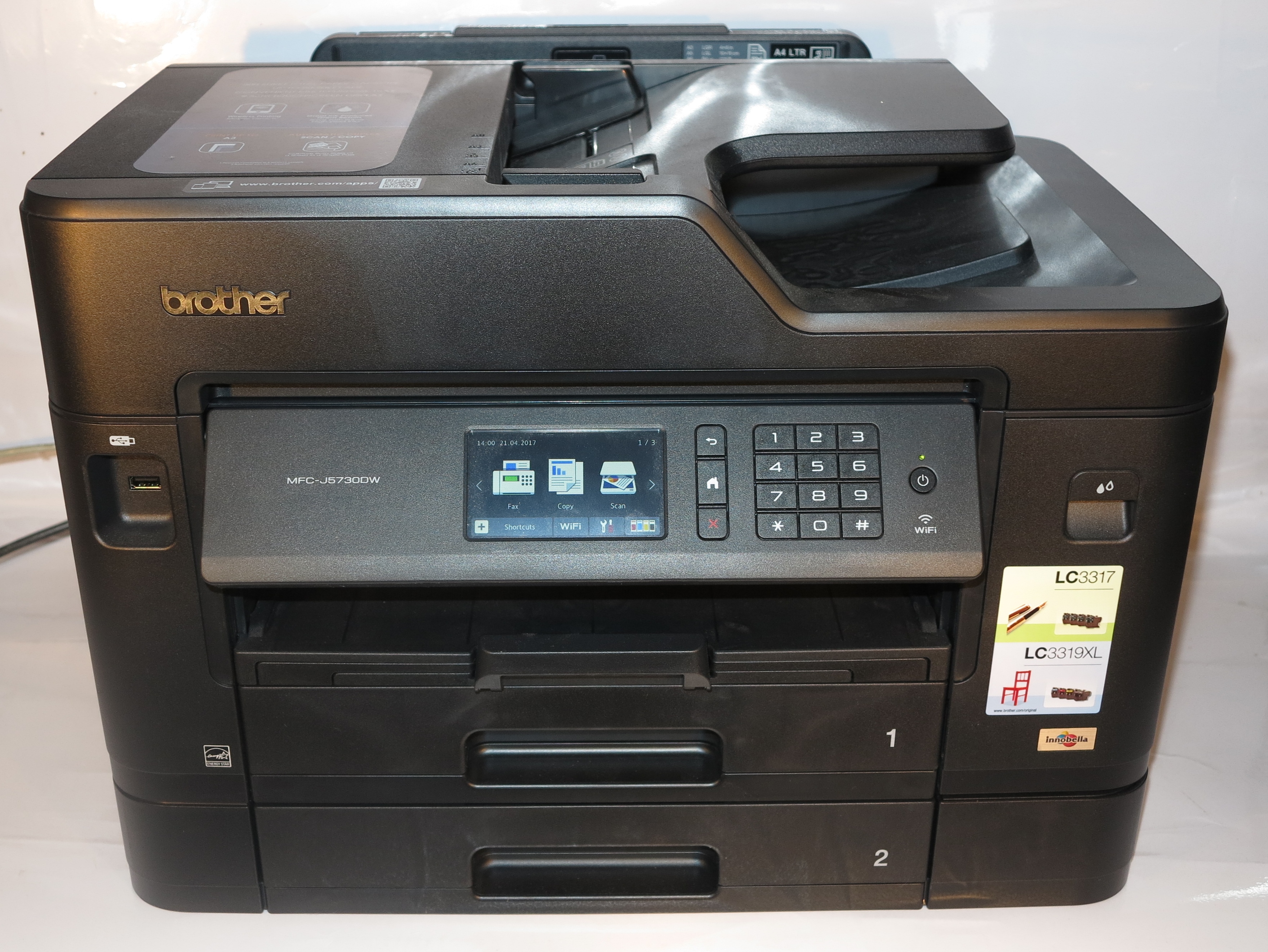
The MFC-J6510DW would work well as a complementary A3 scan-copy-print “specialist” printer alongside that colour-laser multifunction printer which is serving as your A4 document workhorse.

But I would specify the Brother MFC-J6910DW as an “all-round” document workhorse for people who have fully cottoned on to A3. I would even team this with the Brother HL-4150CDN colour laser printer if you want a “two-box” full print solution for quickly turning out short-order flyers and other high-volume short-order A4 work. The less-expensive MFC-J6710DW could also answer the “all-round” document workhorse if you are willing to forego A4 duplex scanning or a nice touchscreen.

Send to Kindle
Print This Post Print This Post

Product Review–Brother VM-100 visitor management software

Introduction

I have seen the Brother VM-100 visitor-management software in action for myself when I visited Brother’s headquarters in Sydney for the interview that I did with Stephen Bennett and Heidi Webster last year. Now I have the chance to put this same software through its paces as an entry-level visitor management setup for that small office.

Price:

Software package: AUD$399

System kit with QL-570 printer: AUD$499

In some areas, the system kit with the label printer would be known as the VM-100VP whereas in other areas it would be known as the QL-570VP. This will be of importance when you want to track down the visitor management system as a full kit.

These also include a roll of thermal paper for the label printer as well as a starter-pack of 12 badge holders and clips.

The software works on the Windows desktop computing platform with an operating system from Windows XP onwards. This would cover most computers deployed in the small-business world over the last ten years.

Functions

Brother VM-100 visitor management system login screen

Login screen

The software is able to work as a receptionist-aided mode for the typical reception desk or as a self-check-in mode for conferences and trade events.The data in this software is password-protected and when administrators log in, they either can log in as a user with no administrator privileges available or as an administrator that only can work the higher-level functions.

It is also feasible to set inactive visitor data to be automatically purged after a certain time period ranging from a week to a year; which keeps with different individual-privacy and data-protection requirements.

The standard receptionist-aided mode allows the creation of a visitor badge and a parking permit, with the latter supporting a loosely-described vehicle for the parking permit. It also supports the creation of a “reserve list” which is populated with visitors who have been pre-registered and are intending to be checked in. This works well if you have the staff inform the receptionist of expected visitors, are handling large visitor groups or you want to use this software for managing an “invitation-only” event with the list full of RSVP’d invitees. Parents, take note here when it comes to managing that 16th birthday and you want to make sure that the party isn’t overrun by gatecrashers.

Brother VM-100 visitor management software receptionist screen

Receptionist's data-entry screen

The Brother VM-100 software has the ability to turn out an “emergency list” of visitors who are currently checked using the regular printer for whenever you need to reconcile whoever is in the building during emergency situations. As well, the data can be exported as CSV (comma-separated) text files for use with other programs. This same data form is also used to import potential hosts in to the “hosts” table. This supports hosts coming from different departments or organisations, thus able to work with larger multi-department organisations or buildings that have many tenants but one common reception desk.

Experience with the software

When you install the software, you have to restart the computer after the installation process is completed. Otherwise the program won’t work properly. As well, there are error messages that are simply “generic error” stub messages appearing if things go wrong through the installation.

Brother VM-100 visitor-management software self-checkin screen

Self-checkin screen for conference registration

The username and password setup allows suitably-privileged users to operate either as regular users or administratiors. The only limitation is that the password string only handles basic alphanumeric characters – it doesn’t allow the use of punctuation in the passwords, which could allow for stronger passwords.

The administrator user can choose various badge layouts for use as the standard layout for both the badge and the parking permit, but there isn’t the ability to custom-design a layout for one’s own needs.

The process of checking in and checking out visitors works incredibly smoothly and the user interface does a good job in making this easier for untrained operators. There is the support to take images of visitors as they are checked in using your computer’s webcam.

Default visitor label generated by Brother VM-100 visitor management software

Default visitor label

If you use the self-checkin setup, the check-in process is totally wizard-driven where your visitors work through two screens to sign in and obtain their conference pass or badge.

There is the ability to load visitor details for reserving or signing in and out from the “Reserved”, “Signed In” and “Signed Out” lists. As well, visitor data can be imported in to the system from such services as contact management systems.

Limitations and points of improvement

The parking permit function could support the ability to keep vehicle data in a separate table indexed by the vehicle’s number-plate (license plate) and containing make, model and colour data. This could improve the workflow process for creating parking permits for regular visitors’ vehicles.

There is the ability to sign in accompanying visitors, but the label printer will turn out a badge as you sign in the visitor. This can be OK for two or three people checking in at once but would be a problem if you had to do something like check in a busload of school students who are visiting as part of a field trip. In this case, the receptionist would have to “reserve” all of the group members, then select the group members from this list using either Shift+click (for contiguous entries) or Ctrl+click (for non-contiguous entries), then click “Sign in and print badge” to check the group in and turn out the badges.

This function could be improved by supporting a “group mode” which allows the receptionist to enter details for the group members, then click a “Sign group in” button when the last member is entered. Here, all the group is entered and the badge printer spits out the badges. As well, this could support the turning out of any parking permits in that same run so these are handed out to the drivers.

As well, I would like to see the program support the ability to work with ODBC-compliant databases or other database-hooks that are standards compliant. It could make such data collections as the host list work with data sources like human-resources databases.

Other points of improvement could also include the ability to allow the receptionist to choose the printer that they send the emergency report to rather than the default printer that is assigned for the system; and the ability to determine other visit reasons in the “Purpose of Visit” field.

These limitations and the lack of “polish” in the user interface may be typical for a version-1 (first release) program but I would like to see the program being improved continuously through its lifecycle rather than appear as a half-baked effort to work with Brother’s label printers.

Conclusion

As it stands, the Brother VM-100 visitor management system works as a capable entry-level visitor management setup for the typical small office, factory or warehouse. It may be stumped as far as integration with other back-end systems for growing organisations is concerned but, being a program in its early stages, it is something that would be expected.

Send to Kindle
Print This Post Print This Post
Page 1 of 3123»

Sponsors

Find this on Facebook

Archives

HomeNetworking01.Info

Latest PDF issue

Switch to our mobile site