Filed under Computer setups, Configurations Informatiques by simonmackay on 28/01/2011 at 14:34
{no comments}
When I talk of laptops, wireless routers and network-capable printers, I make frequent references to a “new computing environment” that these devices can enable.
What is the “New Computing Environment”
The “New Computing Environment” is a home computing environment that is based around portability and flexibility. The seed for this environment has been sown with the widely-publicised Intel Centrino campaign and is becoming stronger in a lot of households.
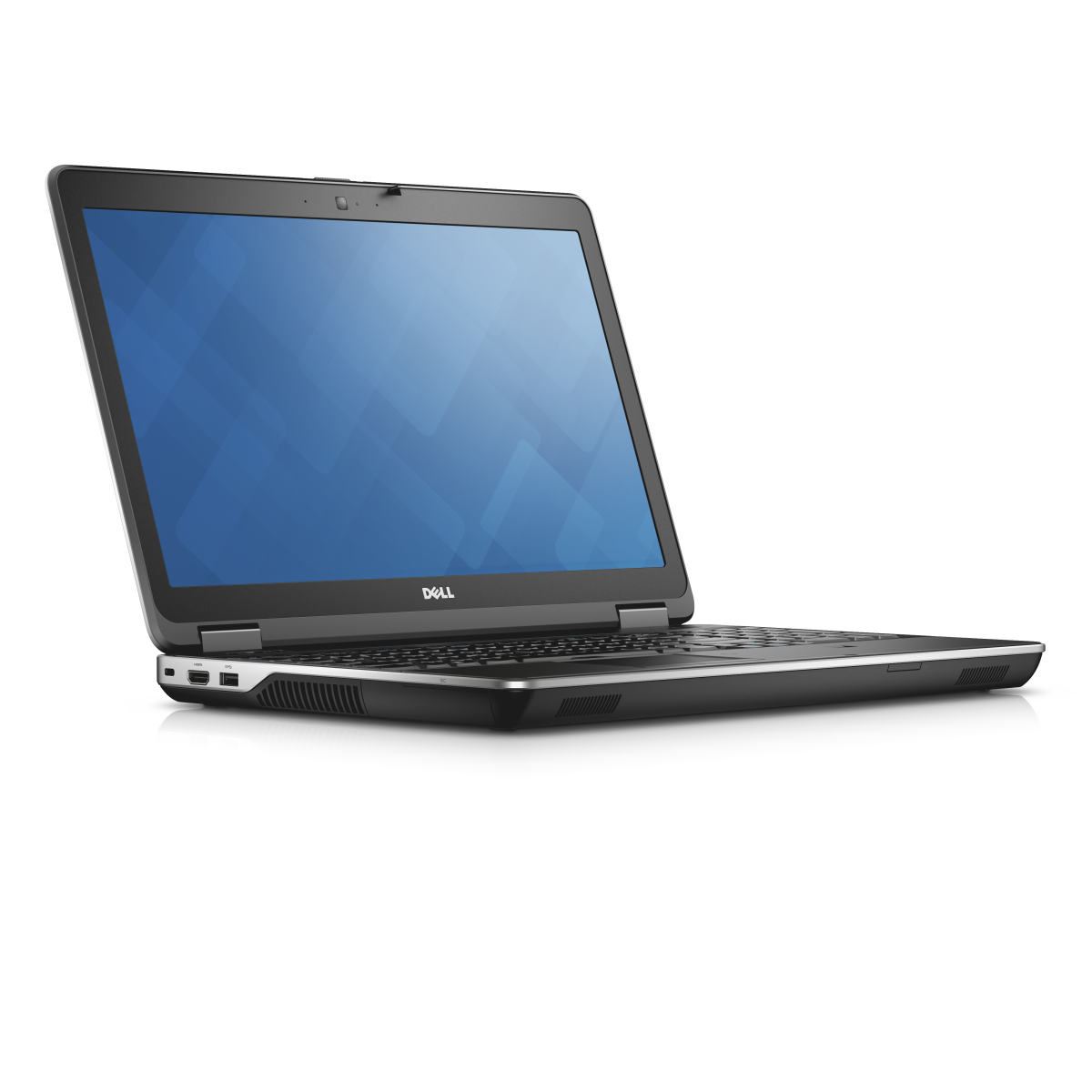
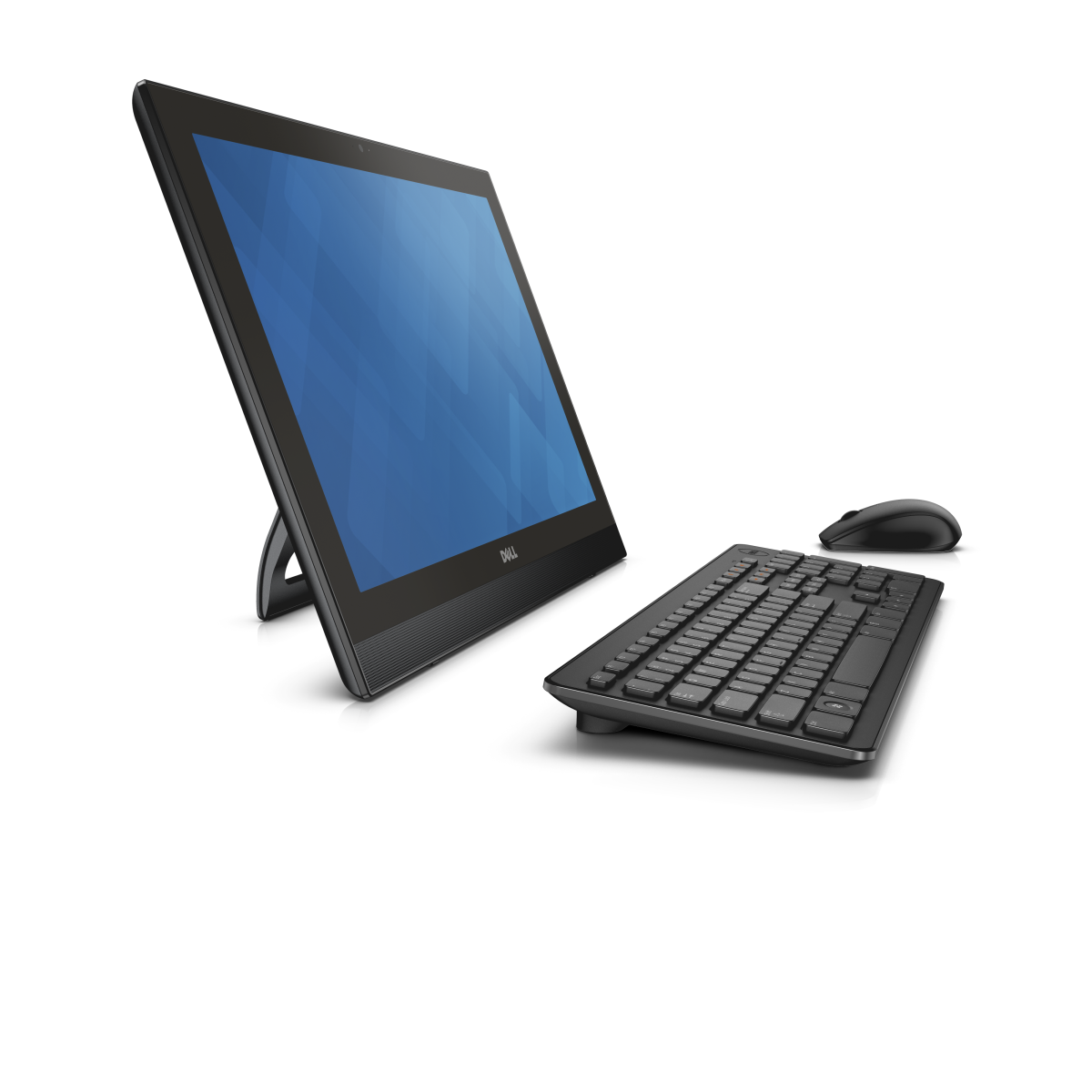
It consists of most of the computers in the house being laptop or notebook computers.It may also include the use of “all-in-one” desktop computers similar to the newer Apple iMacs or HP TouchSmart desktops. The goal is that these computers are able to be moved easily around the house at a whim.
This environment will also encompass the use of smartphones and tablet computers for secondary computing activities like casual Web browsing, email and use of social networks.
There is a Wi-Fi home network in place that is served by at least a wireless router that is the network’s Internet “edge”. The computers may connect to that router via Ethernet if they are close to it but are typically connected to that router using the Wi-Fi network segment.
What does this lead to
Increased flexibility
The key benefit is to increase flexibility when it comes to computer use. The major benefit is that you can relocate the computer as you need it. An example that was portrayed in an Intel Centrino radio ad that was played in the UK was someone who was writing out an email on a laptop being being interrupted by another household member who had come in to do the vacuuming. Then they are able to move somewhere quieter to do the rest of their work.

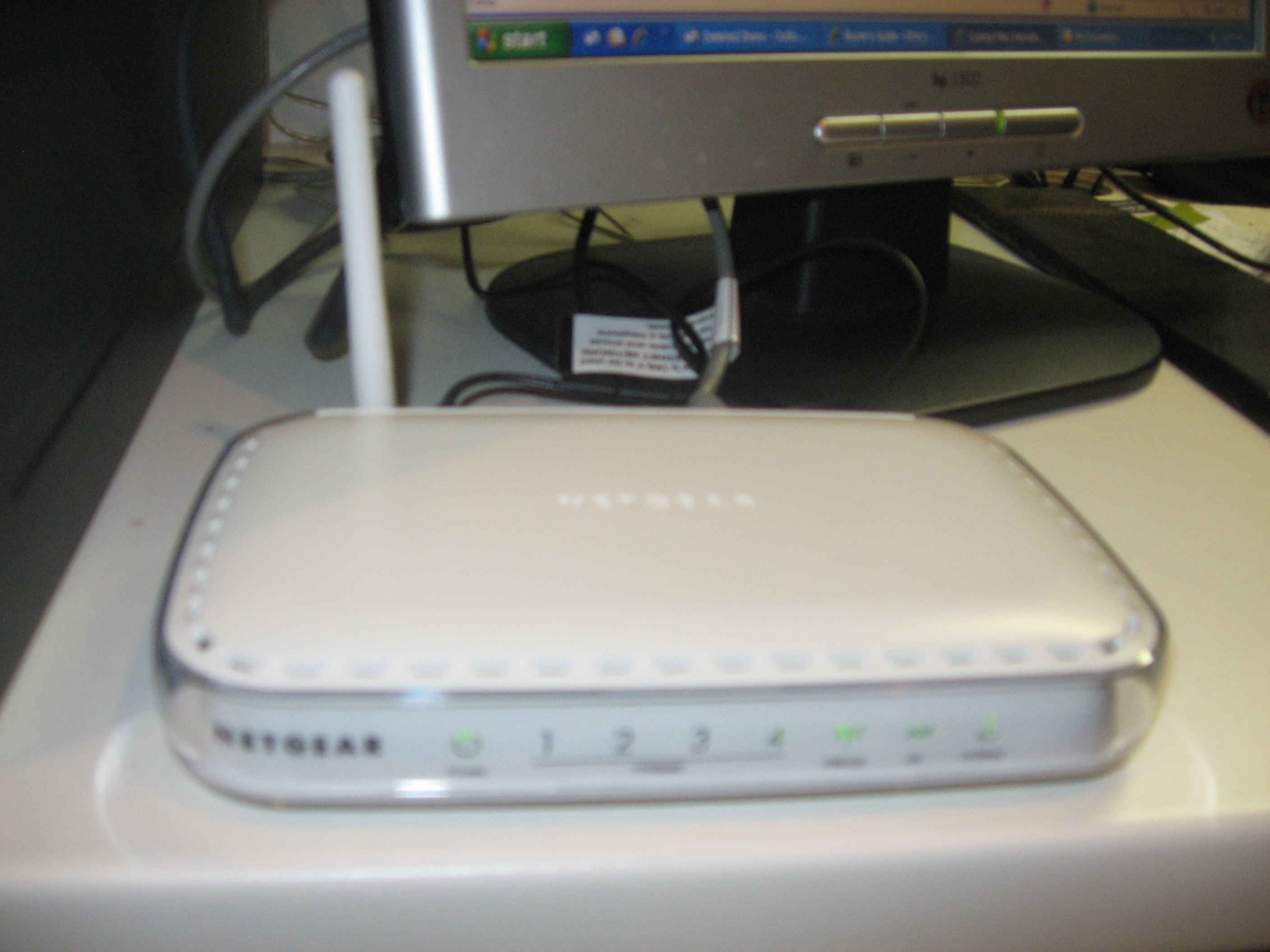
Netgear DG834G ADSL2 wireless router
As well, the “New Computing Environment” also leads to increased “casual computing” setups like viewing sites like YouTube or Facebook while lounging around on the sofa; going through one’s email while relaxing in bed or flicking through online news sites while in the kitchen. I even wrote a short article on this site about the trend of young people visiting Websites while watching TV.
Catering to temporary workspaces
Another very common scenario is a household without a dedicated workspace. This is where the kitchen bench or the dining table becomes a temporary office. Some households may have a collapsible table like a card table or trestle table along with one or more folding chairs, set up in a lounge area or landing for use as a temporary workspace; or may have such furniture on hand to set up a temporary workspace as required. The “New Computing Environment” allows the user to shift the computer along with the rest of their work whenever they need to do something like set the table for a meal.
Even if a household has a dedicated workspace, there will always be the need to create another temporary workspace to suit another person’s work or study needs or to suit a different type of work.
Storage flexibility
Similarly, laptop computers are much easier to store when not in use. For example, they can be put in a drawer when not needed, as I have mentioned in an older article regarding use of a laptop as a kitchen PC. This allows the machine to be well out of harm’s way which can be of concern in a busy household or with some children and pets.
As well, the laptop is also more suited to households who have older “davenport” or “roll-top” desks which are capable of being closed up when not in use. Here, these computers can be used at and stored easily in these desks. It also allows these desks to become the elegant piece of furniture that they are known for.
Suitability with “downsized living”
This computing environment is becoming increasingly relevant with people who live in smaller houses and apartments; especially city apartments.
This class of user includes “empty-nest” parents who are moving to smaller premises because their children have left the family home, but still need to be able to look after their grandchildren when they come around. Here, their computing equipment doesn’t need to cause much space to be taken up in these smaller living quarters.
The “home-business” laptop
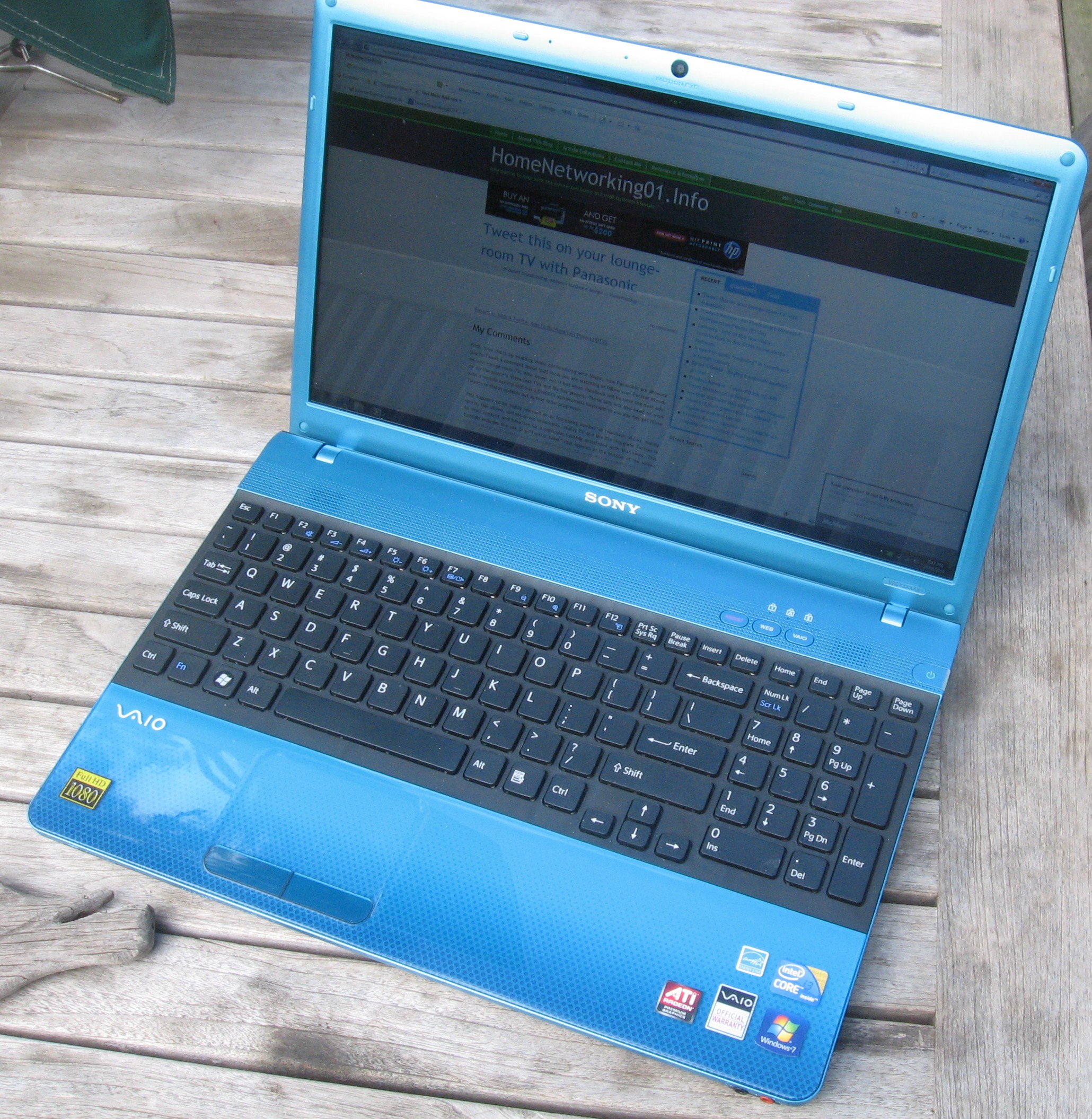
This kind of computing environment also suits the use of a “home-business” computer that is used at home but taken to the workplace while you are working. For some small-business operators, a large laptop like the Dell Inspiron 15R or the HP Probook 4520s may be the only computing device that they need to use for all their computing needs and you just pack this machine in the boot (trunk) of your car before you head to or from your workplace.
Implementation notes
Starting out
You will need to use a laptop computer that is commensurate to your computing needs. But it will have to be equipped with an integrated Wi-Fi wireless network interface of at least 802.11g WPA standard. This covers most laptops made over the past five years. I have reviewed plenty of laptops and notebooks on this site and will be reviewing more of them as they come along from different manufacturers. You can have a look at the list of equipment reviewed here on this page.

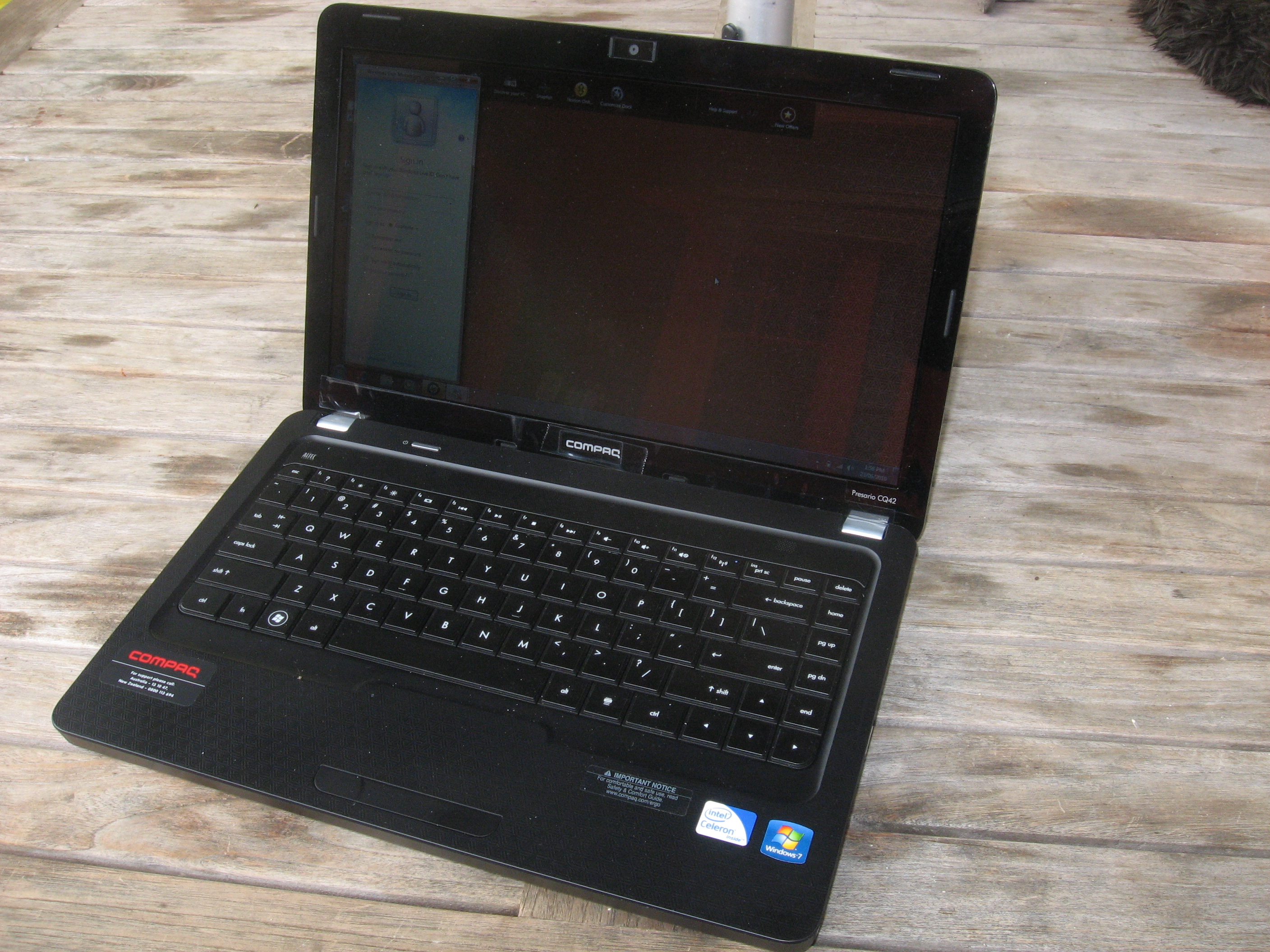
Compaq Presario CQ42 entry-level laptop
If you are intending to buy a new laptop computer, I would suggest that you look at the buyer’s guides that I have written – “Buying a Laptop or Notebook Computer”. Here, I have suggested the use of the 15” laptop computers as a sole or main computing device for this environment. If you have very basic needs like emailing and basic Web surfing, a unit equipped with a low-end processor and around 2Gb memory, like the Compaq Presario CQ42 that I have reviewed here, can suit your needs here. It is still worth it to spend as much as you can afford on the hard disk capacity because as you use the computer more regularly, you will end up filling the hard disk more quickly.
On the other hand, you may want to use an “all-in-one” desktop computer like one of the Apple iMac, HP TouchSmart Desktop or Sony VAIO J or L Series computers. These have the computing power, secondary storage and the screen integrated in one slim lightweight housing, with a separate keyboard and mouse. They may be useful as a “common” or “family” computer and can be stored or moved easily as long as you know how to reconnect the keyboard and mouse.
Printers
A lot of people who set up for the “new computing environment” typically use a direct-connected printer and bring the laptop closer to it in order to plug it in when they want to print or scan something.

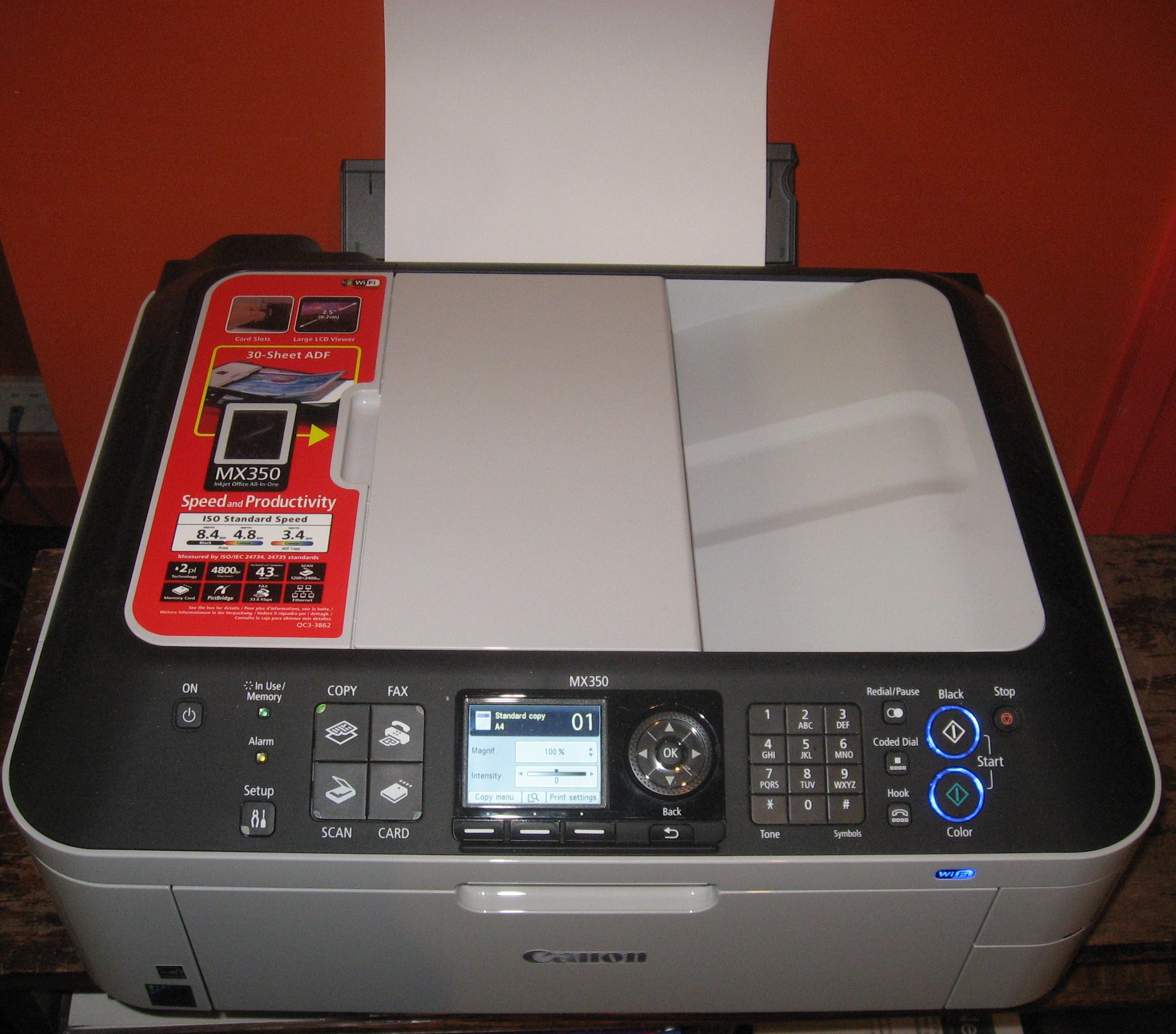
Canon PIXMA MX-350 network multifunction printer
What you need to do for proper implementation is to use a network-enabled printer. Here, these printers connect directly to the network either via Ethernet or Wi-Fi wireless and accept their print jobs through this connection. Multi-function printers can also expose their other functions like the scanner, fax or memory-card slots to the network.
This avoids the need to connect the laptop to the printer every time you want to print something out. With a network printer, you just select that printer from the list of printers when you specify a print job from your laptop and, moments later. you will find your print job in the printer’s output tray. Here, the job is sent via the network to the printer rather than via a cable that you always connect to the printer.
“Easing the gap” towards flexibility
Some users who are used to a regular laptop computer connected by Ethernet to a single-port broadband modem at a regular workspace may still get in to the habit of connecting the laptop to the wireless router using the “old way”. This is more so if they see their computer’s home location as being on the desktop near the router and while at that location they plug it in to the Ethernet socket on the router.
Some operating systems may react in a strange way if the user plugs in the Ethernet connection while the wireless connection is still active. This may be not of concern with newer operating systems that can automatically deactivate the Wi-Fi wireless network interface if the computer is connected to the network via an Ethernet cable. Here, the user needs to know how to manually enable and disable the Wi-Fi wireless network interface in the laptop.
Some of the computers will use a separate “Wi-Fi” button to turn the Wi-Fi modem on an off whereas more recent examples will require you to press the “Fn” key and a function key with a transmitter symbol to turn the wireless network on and off. This function may also be known as a “flight mode” and in some cases, will turn the Bluetooth function on and off at the same time.
Then what you might end up doing is to forget using the Ethernet cord and just use the laptop wirelessly as you realise you can use the Internet at home without wires.
Network-attached storage devices
If you are considering expanded or secondary data storage space for the “New Computing Environment”, you will be interested in buying a network-attached storage device. This is a dedicated external hard disk that is accessible from computers connected to your network. It is different to the idea of repurposing an old desktop computer as a shared storage server because the device is designed specifically to be a storage device and will end up being quieter, more efficient and more reliable to run than the old desktop computer.
They are relevant as a backup device; to offload rarely-touched data from your computer and/or to works as a standards-compliant media server for your music, digital pictures and videos. I have touched on this latter application in the DLNA Home Media Network series article: “Setting up for PC-free operation”.
An increasing number of wireless routers are offering NAS functionality when a USB hard disk is plugged in to them. This may be good for starting out or a temporary network-storage solution but a dedicated network-attached storage device can do the job much better for long-term use. As well, most of the routers that offer this function are very under-powered when it comes to handling USB hard disks and you would then have to use a self-powered USB hard disk or connect the “power” USB connection on small USB-powered hard disks to a powered USB hub.
Is wired technology relevant to the New Computing Environment
There are some cases where wired-networking technology is relevant to the New Computing Environment. One main case would be to support network printers or networked AV devices that don’t have integrated Wi-Fi functionality. This would be more so as you consider purchasing an Internet-enabled TV or Blu-ray player for your home and a lot of these devices may just have an Ethernet socket rather than Wi-Fi connectivity.
Another case would be to use a secondary access point to extend wireless-network coverage, such as with buildings that use thick walls made of brick, stone or similar materials; large buildings or outbuildings on a property.
Here, you may think that you have to lay Ethernet wiring through the premises and this may be expensive and of poor value if you aren’t renovating, extending or rewiring your building. In most cases, you could use HomePlug AV technology as your wired “no-new-wires” technology because this uses regular AC wiring as a data carrier.
Conclusion
What I am hoping to do with this is to explain the “New Computing Environment” that is becoming a major trend as far as home and small-business computing is concerned. This is where the computing environment is centred around the use of portable computers that connect to a wireless network.
Print This Post
Filed under Home computer setups, Internet Access And Service by simonmackay on 21/04/2010 at 23:41
{no comments}
Originally published: 12 March 2009 – Latest update 20 April 2010
There are an increasing number of WiFi wireless hotspots being set up, mainly as a customer-service extra by cafe and bar operators. But there have been a few security issues that are likely to put users, especially business users off benefiting from these hotspots.
This is becoming more real due to netbooks, mobile Internet devices, WiFi-capable smartphones and other easily-portable computing devices becoming more common. The hotspots will become increasingly important as people take these devices with them everywhere they go and manage their personal or business data on them.
The primary risk to hotspot security
The main risk is the “fake hotspot” or “evil twin:. These are computers or smart routers that are set up in a cafe or bar frequented by travellers, business people or others who expect Internet access. They can be set up in competition to an existing hotspot that offers paid-for or limited-access service or on the fringes of an existing hotspot or hotzone. They offer the promise of free Internet access but exist for catching users’ private information and/or sending users to malware-laden fake Websites hosted on the computers.
Standard customer-education practices
The common rhetoric that is given for wireless-hotspot security is for the customer to put most of their effort into protecting their own data without the business owner realising that their hotspot service could be turning in to a liability. This can then lead to the hotspot service gathering dust due to disuse by the customers it was intended to serve.
The typical advice given to users is to check whether the premises is running a wireless hotspot or if there is a hotzone operating in the neighbourhood before switching on the wireless network ability in your laptop computer. Then make sure that you log on to a network identified by a legitimate ESSID when you switch on the wireless network ability.
Other suggestions include use of VPNs for all Web activity, which can become difficult for most personal Web users such as those with limited computer experience. Some people even advise against using public Internet facilities like Internet cafes and wireless hotspots for any computing activity that is confidential on a personal or business level.
But everyone involved in providing the free or paid-for hotspot service will need to put effort into assuring a secure yet accessible hotspot which provides a high service quality for all users. This encompasses the equipment vendors, wireless Internet service providers and the premises owners.
Signage and operating practices
When Intel promoted the Centrino chipset for laptop computers, they promoted wireless hotspot areas that were trusted by having a sticker with the Centrino butterfly logo at eye level on the door and the premises being scattered with table tent cards with that same logo. Similarly hotspot service providers and wireless Internet service providers used similar signage to promote their hotspots.
But most business operators, especially small independently-run cafes and bars, commonly deploy “hotspot-in-a-box” solutions where they connect a special wireless router that they have bought to their Internet service and do their own promotion of the service. This may simply be in the form of a home-printed sign on the door or window or a home-printed display sign near the cash register advising of WiFi hotspot service.
An improvement on this could be in the form of the ESSID matching the business’s name and listed on the signage, which should have the business’s official logo. Similarly, the network could be set up with WPA-PSK security at least with the passphrase given to the customers by the business’s staff members when they order hotspot service. Most “hotspot in a box” setups that list the customer’s username and password on a paper docket also list the ESSID and WPA-PSK passphrase on these dockets. As well, I would modify the login page to convey the business’s look with the business’s logo and colours. A complimentary-use hotspot could be secured with a WPA-PSK passphrase and the customer having to ask the staff member about the passphrase. This could allow the facility to know who is using the hotspot and the organisation who runs that hotspot can have better control over it.
It may be worth the industry investigating the feasibility of using WPA-Enterprise security which is associated with different usernames and passwords for access to the wireless network. Most portable computers and handheld devices in current use can support WPA-Enterprise networks. This can be implemented with the typical “paper-docket” model used by most “hotspot-in-a-box” setups if the authentication system used in these units works as a RADIUS server and the built-in wireless access point supports WPA-Enterprise with the unit’s built-in RADIUS server. The same setup could work well with a membership-based hotspot service like a public library with the RADIUS server linked to the membership database. But it may not work easily with hotspot setups that work on a “self-service” model such as paid-service hotspots that require the user to key in their credit-card number through a Webpage or free-service hotspots that use a “click-wrap” arrangement for honouring their usage terms and conditions.
The organisation who runs the hotspot should also be aware of other public-access wireless networks operating in their vicinity, such as an outdoor hotzone or municipal wireless network that covers their neighbourhood; and regularly monitor the quality of service provided by their hotspot. Also, they need to pay attention to any customer issues regarding the hotspot’s operation such as “dead zones” or unexpected disconnections.
People who own private-access wireless networks should also keep these networks secure through setting up WPA-secured wireless networks. They should also check the quality of their network’s service and keep an eye on sudden changes in their network’s behaviour.
When wireless-network operators keep regular tabs on the network’s quality of service, they can be in a better position to identify rogue “evil-twin” hotspots
Improved standards for authenticating wireless networks
There needs to be some technical improvement on various WiFi standards to permit authentication of WiFi networks in a manner similar to how SSL-secured Web sites are authenticated. This could be based around a “digital certificate” which has information about the hotspot, especially:
- the ESSID of the network ,
- the BSSID (wireless network MAC) of each of the access points,
- the LAN IP address and MAC number of the Internet gateway
- the venue name and address and
- the business’s official name and address.
The certificate, which would be signed by public-key / private-key method could be part of the “beacon” which announces the network. It would work with the software which manages the wireless network client so it can identify a wireless network as being secure or trusted if the signature is intact and the network client is attached to the network from the listed BSSIDs and is linking to the gateway LAN IP.
The user experience would be very similar to most Internet-based banking or shopping Websites where there is a “padlock” symbol to denote that the user is using an SSL-secured Website with an intact certificate. It will also be like Internet Explorer 7 and 8 where the address bar turns green for a “High-Assurance” certificate which requires higher standards. In this case, the user interface could use colour-coding and / or a distinctive icon for indicating a verified public network.
The provision of cost-effective wireless-network management software
There are some programs that can turn a laptop computer in to a wireless-network survey tool, but most of them don’t show much useful information, are hard to operate for anyone other than a network technician; or are too costly. They miss the needs of people who run home or small-business wireless networks or wireless hotspots.
What needs to exist is low-cost wireless-network management software that can work with the common Microsoft or Apple platforms on computers that have common wireless . The software should be able to use commonly-available wireless network adaptors such as the Intel Centrino platform to perform site surveys on the WiFi bands and display the activity on these bands in an easy-to-view but comprehensive manner. The software should be easy to use for most people so they can spot interference to their wireless network easily and can “tune” their wireless network for best performance.
An application that is matching this need is MetaGeek’s inSSIDer, a free wireless-network site survey tool for the Windows platform which I have reviewed in this blog. It has the ability to list all the networks receivable by signal strength, MAC address, SSID or channel; or plot a graph of the networks by signal strength over time; or plot a graph of all the access points by signal strength over channel. This may help with managing your hotspot by identifying rogue access points and “evil-twin” hotspots.
Similarly the popular smartphone and PDA platforms like Applie iPhone, Android, Symbian S60 / UIQ, Blackberry and Microsoft Windows Mobile could have low-cost wireless-network management software written for them so they can make a handheld PDA or mobile phone work as a site-survey tool for assessing quality of service.
Once this kind of software is available for small business and home users, it empowers them to assure proper coverage of their network and check for any “evil twin” or other rogue hotspots being set up to catch customers.
Summary
There needs to be more effort put in to setting up secure public-access wireless networks so that people can benefit from portable computing anywhere without forfeiting the confidentiality of their personal or corporate data.
It also will encourage people to gain the maximum value out of their WiFi-enabled portable information devices whether for their business life or their personal life.
Print This Post
Filed under Computer setups, Hardware Manufacturers by simonmackay on 13/02/2010 at 16:40
{no comments}
Acer developing ‘ace in the hole’ ultrathin, putting MacBook Air on notice — Engadget
My comments on this topic
When Windows 7 was launched, I wrote an article on this blog about an intent by Windows-based PC manufacturers, especially laptop manufacturers to upstage the Apple Macintosh platform in the beauty, reliability and performance stakes. This was also ran in conjunction with HP launching their Envy laptop series which reminded me of the Apple Macbook Pro laptops. Later on, I had blogged about an ASUS laptop that would appeal to people who love the design masterpieces that are the Bang & Olufsen TVs and music systems.
In the earlier article, there had been some mention about Acer designing a multi-touch all-in-one PC. They had also come good on an ultra-thin Windows 7 laptop that is intended to upstage the Apple Macbook Air series of laptops. This Intel Core-powered unit will be designed with a thickness goal of 1.9cm (0.7 inches) and, of course, will be relatively light. Acer have an intention to release the machine sometime “this year” but I would place its availability sometime before the end of the next financial year.
This certainly shows that since Apple Snow Leopard and Microsoft Windows 7 were launched, the competition for computer hardware that pleases most everyday users has become more intense.
Print This Post
Filed under Digital Photography, Home computer setups by simonmackay on 24/09/2009 at 00:29
{2 comments}
RAW Image Support – W7/Media Center 32/64 bit « digitalmediaphile
http://www.fastpictureviewer.com/codecs/
My comments on these codecs
Barb Bowman (http://digitalmediaphile.wordpress.com) has found a useful resource on this website http://www.fastpictureviewer.com/codecs/ for those of you who want to keep the Windows platform relevant to your high-end digital photography needs.
Here, this site provides downloadable codecs and plugins that work properly with the RAW image files that are part of high-end digital photography. Some of these codecs may work directly with Photoshop for Windows or simply become Explorer codecs for use in thumbnails and Windows Live Photo Gallery.
The main thing I have liked about this is that the codecs don’t cost anything and, from Barb Bowman’s experience, aren’t likely to bog your computer down. This may avoid the need to just use the Apple Mac for your digital-imaging needs.
Print This Post
Filed under Home computer setups, Operating Systems by simonmackay on 28/08/2009 at 18:52
{2 comments}
There is all the recent talk about Apple releasing the Snow Leopard variant of the MacOS X operating system this Friday (August 28 2009) and you may be interested in upgrading your Macintosh computer to it. If you do upgrade your Mac to this operating system, especially if the computer is relatively recent – made after early 2006, you may notice that most of the improvements will be invisible on the user interface.
Intel-only deployment
The main issue with this operating system update is that it is engineered for Macintosh systems that have Intel-based internal architecture. This typical will apply to Macs that have been bought over the last few years, such as the MacBook laptops and the new iMacs. It won’t work with Macintosh computers that were based on the PowerPC architecture, which may apply to older computers.
What do you get for most Mac users
Under-the-hood improvements
The improvements are mainly that the operating system has been rewritten and profiled for the new Intel architectures such as the 64-bit processors and multi-core processor architectures. This also includes the applications that are part of the operating system like the Safari Web browser or QuickTime. There has been logic installed so that all of the cores in the Intel multi-core processors can he used.
Another feature that is worth its salt is that the eject procedure for removeable media is improved. If the eject process is stopped because an application has the removeable medium, you are offered the ability to quit the application that has the removeable medium so it releases possession of the files on that medium.
Accessibility improvements
The accessibility improvements mainly benefit those who have vision difficulties. It mainly is in the form of the VoiceOver Integraded screen-reader that works tightly with the operating system and applications. It allows for MacBook computers with multi-touch trackpads to have the trackpad seen as an alternate screen map and allows for use of the trackpad as a “rotary control”. There is also support for more of the Braille user-interface devices for those who cannot see at all.
WiFi networking improvements
The home network hasn’t been forgotten about with Snow Leopard. The Apple AirPort menu, which is the control point for Apple’s AirPort WiFi implementations, can provide detailed information about the wireless networks that the WiFi-equipped Macintosh computer can receive. This is achieved by the user holding down the [Option] key while clicking on the Apple Airport icon at the top right of the screen. Then you see detailed information like the channel and band in use by the access point, the network’s operating mode and security mode; and the access point’s BSSID under the network’s SSID.
There is an automatic time-zone setup feature for WiFi-equipped Macs; which is linked to a Skyhook Wireless database of access points and localities. This can allow the MacBook to show local time when it is taken overseas or interstate without user intervention. This is due to Apple using this data as part of their iPhone software.
An “all-Apple” network which use Bonjour discovery will have “Wake On WiFi” behaviour with newer Apple Macs and provide improved native file sharing due to this Apple-developed protocol. I am not sure whether the “Wake On WiFi” behaviour and improved file sharing behaviour will be made to work with networks that use other brands of network peripherals.
Is it worth it for the existing Mac user
For most Macintosh users with recently-built equipment running OS X Leopard, the cost is typically around $A39 / $US30 per computer, but people who just bought a Macintosh but didnt have it delivered with Snow Leopard can upgrade the operating system through Apple for $A14.95. It would then be worth it to have the computer running quickly and smoothly.
As far as whether it is worth going ahead, some Mac users may pass this upgrade up because there is no visible improvement in the user interface or no brand-new keynote functionality. But for most, if not all, Mac users who are running relatively-new setups, the performance boost that this operating system upgrade provides would make it worth it to take the plunge. This is more so because of the fact that most Mac users are typically working “hands-on” with graphics-based applications like CAD or image editing.
Invitation to comment
If any Mac user who is reading this article about Snow Leopard, they can leave a comment about how their computer has performed under the upgrade compared to before.
Print This Post
Filed under Home computer setups, UPnP AV / DLNA by simonmackay on 31/07/2009 at 20:04
{one comment}
As more manufacturers are supplying DLNA-equipped network hardware for the home-theatre setup, it may be worth wondering whether you should have just one DLNA-capable component in your home AV setup and stay at that, or install more DLNA-capable components in your setup as you upgrade equipment.
Here, I am talking about DLNA-capable media-player or media-renderer equipment, rather than media-server or media-controller equipment. This is to cater for setups where a dedicated media server device like a personal-TV service or hard-disk-based media jukebox device is part of the equation due to its role as providing media for the network.
One DLNA-equipped unit in the same rack
It may be more efficient and cost-effective to have just one DLNA Media Player unit such as a DLNA-capable flatscreen TV, network media adaptor or video-games console, in the rack. This may be cost-effective when you are getting your feet wet with network-based audio and video or the setup comprises of a TV and a video peripheral that doesn’t have its own speakers. It may also be easier to manage in relation to integrating with the home network or gaining access to the media on the DLNA-capable media server(s).
Two or more DLNA units in the same rack
This situation will appeal to people who are taking advantage of the fact that, over time, DLNA media playback will appear in more pieces of home AV equipment at price points affordable for most people. It will also appeal to people who upgrade their home-entertainment setup to newer technology on a “piece by piece” basis as and when they can afford it. It involves the same AV rack having two or more DLNA media playback devices like a TV and a home-theatre receiver.
One main benefit of this setup would be to perform network-media tasks with one piece of equipment. This is more so with a network-ready home-theatre receiver that has a good onboard display or is capable of working as a network-controllable “media renderer” because you don’t need to turn on the TV if you just want to listen to music. Similarly, you could have a DLNA-equipped TV show a collection of pictures related to a party you are hosting while your DLNA-equipped home-theatre receiver plays music during the party.
It also allows for the use of components that excel at playing particular types of content like, for example, a network-capable receiver that is highly-tuned for audio content or a DLNA-compliant TV that works with the latest codecs. Similarly, you may have a games console that may run games that make use of media held on secondary storage integrated with or attached to the console or available on the network. A possible example of this could be a “street racing” game of the ilk of “Need For Speed Underground” where the driver chooses the style of musical accompaniment for their drag-racing and drifting challenges.
What should I go for
This depends on your setup. If your setup is primarily a video setup with just a TV and one or two video peripherals, you could just add one DLNA-capable playback device to the setup.
But if your setup has a separate amplifier or you intend to add a home-theatre sound system with its own amplifier and speakers, it may be worth running a separate DLNA media player capable of playing sound independently of the television. Similarly, if your home theatre has a DLNA-equipped plasma or LCD TV that is used for “regular viewing” and a projector-screen that is used for “special viewing” like Hollywood blockbusters or major sports events, you could use a separate DLNA media player like a DLNA-enabled Blu-Ray player with the projector.
Things to remember about such installations
If you intend to install multiple network-ready devices in a home-theatre setup, you will need to make sure these devices connect reliably to your home network. If your network runs WiFi wireless, you might be tempted to connect the devices to the WiFi wireless segment, either through integrated WiFi connectivity that the device has, by purchasing the optional USB WiFi kit that the device’s manufacturer offers or by purchasing an Ethernet-WiFi client bridge device from a computer store. The limitation with this is that WiFi wireless networks can be very flaky at the best and the problem can be made worse with metal shelving or a metal frame; or installations that are close to a brick or stone chimney.
It may then be preferable to use wired networking such as Ethernet or HomePlug powerline to the entertainment rack with the components connected via an Ethernet switch to the Ethernet or HomePlug backbone. This kind of setup will lead to the networked components in the home AV rack operating reliable when it comes to network and Internet activities. There are some HomePlug-Ethernet bridges, available in either HomePlug 1.0 Turbo or HomePlug AV, that have a switch with 3 or 4 Ethernet ports. These units can definitely do the job of bridging a rack of networked AV equipment to a HomePlug segment.
Conclusion
Once you know what direction to go for as far as far as DLNA-capable devices in a single AV rack is concerned, you can then know how to integrate your AV racks in your home’s or business’s DLNA media network.
Print This Post
Filed under Future Trends, Home computer setups by simonmackay on 31/07/2009 at 00:41
{2 comments}
Link to French language review in DegroupNews
My comments on this mobile Internet device after reading the review
This device, provided by SFR for their “triple-play” (Box SFR, NeufBox) subscribers in France, is primarily a mobile Internet device. Primarily it is the “Webby” terminal marketed under SFR’s banner. But it isn’t the typical mobile Internet device that is in the typical handheld form. Instead, it is designed as a tabletop “mini terminal” for use in the kitchen, bedroom or home office. The French-language article even described the unit as a “mini terminal familiale” (family mini terminal).
Hence it is in the form of a small free-standing device that has a footprint similar to a small radio,with a 3.5” touchscreen LCD display that is mounted on its cone-shaped base. It will connect to your home network via WiFi (with WPA2 security and WPS “two-push” setup) or Ethernet.
The unit has IPTV functionality which works in conjunction with SFR’s IPTV service as well as Internet radio and “widget-driven” information services. The widget-based services focus typically on the local weather, financial information (stock portfolio) and your horoscope for your star sign. You can also get it to monitor RSS feeds, including audio / video podcasts and photofeeds. It has an SD card slot and USB host port so you can load digital audio files or JPEG pictures from your digital camera. A subsequent firmware version will provide for video file support. Of course the unit can work as an alarm clock that is always set to the correct time and can wake you to an Internet radio stream, a digital audio file or a buzzer sound.
When you set up the Hubster device, you will need to visit the Hubster Web site (http://hubster.sfr.fr) as part of registering it. This is where you would customise the local weather, financial and horoscope information.
The reviewers reckon that this device needs more capabilities in order to be a full-on auxiliary Internet terminal. It would need to support general Web browsing, be capable of true cordless operation by working with a battery pack and use a screen with a 16:9 aspect ratio. I would add to this list the support for common video-file formats; and at least UPnP AV / DLNA playback support so it can play media files held on PCs or NAS boxes that exist on the network. The latter functionality would be relevant to SFR “triple-play” subscribers who hook up an USB external hard drive to their “NeufBox 5” or “Box SFR” Internet gateway devices and use the UPnP AV media server function integrated in these Internet gateway devices to stream out multimedia files held on the external hard drive.
What is this leading to?
The SFR Hubster’s main target was to compete in the nascent “connected information display” market created by WiFi-enabled electronic picture frames, Internet-enabled TVs and similar devices. Here, these devices pull up information of use to the public like news, weather and financial information from selected Web portals and present it on their displays, either as part of a continuously-changing display or on demand when a user selects a particular option on the device’s menu.
These “connected information displays” would thrive on a strong market relationship between companies involved in making or selling these display devices; and the owners of Web portal and information-streaming services as well as their content providers. This could then lead to these displays being considered the “fourth screen” of influence and companies involved in telecommunications and the Internet being considered as of influence as the classic media companies.
Print This Post
Filed under Home computer setups, Uncategorized by simonmackay on 21/03/2009 at 16:22
{no comments}
Over the past month, I have been running Internet Explorer 8 RC1, but now am running the officially-released version of this browser. The official version has been “tightened” so it can run more smoothly. As well, it has the newer functions like an easy-to-use address bar which highlights the domain you are working in and when you key in a URL, it gives you a selection of where you have been for that URL with the location most visited at the top. Easy as!
There isn’t much of a learning curve for IE7 users and people who have used “tabbed” browsers like Firefox can easily get the hang of it here. But the tabbing has improved with colour-coded grouping if you right-click on a hyperlink and select “Open in new tab”. This is similar if you use any of the new “accelerators” which are task-specific options available at the right-click of the mouse for searching, defining, translating and other tasks.
I would say it is certainly a definite improvement for the Internet Explorer family and one of the best “operating-system native” desktop browsers around. I also think why should the US Department of Justice and the European Union target Microsoft’s inclusion of Internet Explorer with Windows while other proprietary operating-system vendors like Apple supply browsers like Safari with their operating systems or device builders integrate browser function based on their own code in to their device’s firmware. Is this because Microsoft is seen in the same context as McDonalds and Starbucks - the “arch-enemy of world peace”?
Print This Post
Filed under Home computer setups, Network Security by simonmackay on 10/01/2009 at 17:01
{no comments}
Intel Demonstration video of vPro Anti-Theft technology in action
Linked through from the IntelChannel YouTube channel
My comments in relation to small businesses and home setups
The Intel vPro anti-theft technology as presented in the above YouTube video is promoted for use by larger companies or schools who have a fleet of notebook computers and people in their regular hire who manage their IT needs. This is typically represented by the segment where the user is working at a software or Web-based “console” to administer the “poison pill”.
This kind of facility may not be available to households or small organisations who manage their own IT needs unless the remote management functionality is available as a cost-effective service. Such a service could be offered by security firms who sell their services to residential and small-business customers and these firms could integrate the “secure notebook” as part of their business-security packages or as a stand-alone service.
Print This Post