Filed under Laptop, Notebook and Netbook Computers, Mobile Computing by simonmackay on 31/05/2010 at 11:47
one comment
I am reviewing the Hewlett-Packard ProBook 4520s business-class notebook which may be the first such computer that has come across in this blog. It is one such machine that I am assessing as whether it fits the purpose of a “work-home” laptop for a small-business owner or not.
The unit I am reviewing has a recommended retail price of AUD$1299 but you may be able to get the the same specification for a bit less if you shop around. Cheaper models in this lineup would have a smaller hard disk, run Windows 7 Home Premium rather than Professioamnal, come with a standard battery which has a shorter runtime amongst other differences.
The laptop itself
The unit is finished in a brushed satin-bronze finish on top of lid and keyboard surround, but some variants have a dark-satin black finish. There is a a black screen escutcheon which also hides the Webcam for face-recognition security and Skype communications.
The large keyboard has a feature that is not seen on may laptop computers – a separate numeric keypad. This will please accountants and others who work with figures. It is of a “chiclet” square-key stile but is spaced enough so as to permit accurate touch-typing.

Laptop keyboard with numeric keypad
There is a multi-touch touchpad which may take some time to get used to for people who haven’t used this kind of control before. It has the primary and secondary buttons as part of the bottom margin in the same way that the HP Envy has for its touchpad.
It is powered with the Intel Core i5 processor “engine” and is supplied with 4Gb RAM with 1Gb set aside for display memory. The graphics “engine” is a highly-robust ATI Mobility Radeon HD 4350 series which would be good enough for most business tasks, even video playback.
The secondary storage options are on a par with a current-issue laptop of this class. It has a 500Gb hard disk with 1.8Gb partition for HP software. It also has a tray-load DVD burner that can label LightScribe optical discs and a memory-card reader for removeable storage.
You also get good things when it comes to connectivity with 3 USB ports and 1 eSATA external-disk port as well as an ExpressCard 34 slot for additional functionality. External displays can be connected using a VGA or HDMI connector.
Business software complement
The operating system for this laptop is Windows 7 Professional which is the version of Windows or7 I would recommend and have recommended in this blog for small business and professional use. It has the features of Windows 7 Home Premium plus other features that make it business-friendly.
The unit is supplied with a very good business software complement with an inplace ready-to-enable distribution of Microsoft Office Professional, McAfee Total Protection web-managed desktop security software as well as WinZip 12. Hewlett-Packard have also put in their own branded system-protection tools which are developed by Digital Persona, which provide password management, facial-recognition, secure-erase, device-usage control amongst other things.
Observations and Ecperiences
The computer doesn’t run hot too quickly after extended periods of use, thus allowing it to be comfortabie to use. If it gets hot, the heat is passed out the left hand side rather than being felt on the bottom of the machine.
Its battery has a lump which can tilt the laptop up slightly also to allow better cooling and comfortable use. This lump has a rubber ridge to protect the good dining-room table but the design could extend to full width of battery for better protection
The extra-length battery that came with this machine allowed it to complete a feature move on DVD with Wi-Fi and Bluetooth enabled. Infact there was 41% of power available after the movie was completed and these tests were done with Windows Media Player playing “Munich” and the computer running on the HP-defined default power configuration. This then would mean that it could run a long time without you needing to look for a power
The other thing I also admired about this machine is that the metal finish keeps its look even if it is well used unlike a lot of the glossy finishes used on laptops that attract fingermarks and the like. It also feels cool to handle and is the kind of finish that would cope with long-time use.
Limitations and Points Of Improvement
The main limitation with this computer is that it is too heavy for frequent public-transport travel, which may cut it out for frequent air travellers. Some people may find that the long-run battery’s large size and lump may be a limitation for packing and could be improved with a battery that is more cell-dense.
Other than that, there aren’t any other limitations that would impact on its positioning as a business-home home laptop computer.
Conclusion and Placement Notes
I would recommend this as a business-home laptop or desktop replacement for professionals and small-business operators who are likely to take the unit between home and their place of work. It also comes with business-grade security software that is available at prices and licensing quantities that small business can stomach.
Filed under Network Management by simonmackay on 30/01/2010 at 02:35
no comments
UPnP Forum standard page – RemoteAccess:1
The UPnP Forum have this week released a Device Class Profile for setting up networks for inter-network operation and remote access. This is mainly to permit:
a) UPnP devices to work across multiple logical networks and
b) UPnP methods to be used for inter-network configuration
What is involved
The standard encompasses public-network-discovery mechanisms like STUN for determining the type of upstream NAT device in the Internet network and dynamic DNS for establishing the IP address for the main network’s fully-qualified Internet name. Some of these standards are implemented through VoIP setups to permit discovery of the VoIP network.
It also involves the establishment of secure VPN or DirectAccess (IPv6 over IPv4) tunnels between networks for this purpose. This doesn’t depend on a particular tunnelling method like PPTP, IPSec or SSL, but is more about establishing the tunnels between the networks.
There is also the establishment of UPnP “device relays” at each end of the tunnel so that UPnP entities (devices or services) in one network can be seen by similar entities in another network.
The standard also includes methods to permit replicated setup and teardown of devices and services between both networks. This would happen when the link is established or torn down or as UPnP devices come on line and go off line while the link is alive.
Abilities
The-access or client network can be a simple single-subnet private network such as a home network, small-business network or public-access network. Larger corporate networks can qualify if the firewall at the network’s edge doesn’t specifically exclude UPnP Remote Access.
The master network which the remote device is visiting must be a simple single-subnet private network such as a home network or small-business network. The remote access server can be part of the network-Internet “edge” device like the typical "VPN endpoint” router sold to small businesses or can be a separate piece or hardware or software existing on that same network. In the latter case, the server would have to work properly with a UPnP-compliant router (which most routers sold through the retail channel are) and obtain the network’s outside IP address and set up port-forward rules through that same device.
The value of UPnP Remote Access with corporate networks needs to be assessed, both in the context of network security for high-value data as well as interaction with established VPN setups. This can also include issues like the “other” network gaining access to UPnP devices on the local network or particular devices or device classes being visible across the tunnel.
What needs to happen
This standard needs to permit the user to establish or simple yet secure credential-delivery method for VPNs that extend the small networks. This may involve implementing methods similar to either use of a PIN when pairing Bluetooth devices, “push-push” WPS –style configuration or, for “deploy then establish” setups, an email-based system similar to what is being used to confirm user intent when people sign up for Internet forums and social networks; or other similar practices.
The latter situation would appeal to setups where, at one end of the link, there isn’t likely to be a regular client computer in place, such as CCTV and telemetry applications or remote servers.
Compliant systems may also need to support two or more different methods to cater for whether the logical networks are in the same building or afar; or for whether the user prefers to deploy the equipment then configure it remotely or configure all the equipment at one location before deploying it.
Why would this technology end up being useful
One main reason for this development would be to extend the UPnP technologies to VoIP setups. This would then allow for home and small business to benefit from corporate-class telephony setups like tie-lines, common phone books, logical extensions and the like as well as easy-to-implement VoIP telephony.
Another application would be to enable access to existing UPnP devices in other locations. The common reason would be to benefit from multimedia content held at home from a hotel room or to synchronise such content between NAS boxes installed at home and a vacation property. Other applications that come to mind would include remote management of UPnP devices that are part of building control, safety and security such as central heating or alarm systems.
Parts of this standard may be implemented by router and remote-access software vendors as a way of establishing a “box-box” or “box-PC” VPN setup between two small networks like a home network and a small-office network. This could allow the small-business operator to benefit from the VPN setup that big businesses often benefit from, thus allowing for increased yet secure network flexibility.
Filed under Operating Systems, SOHO / Small business computer setups by simonmackay on 17/11/2009 at 01:20
no comments
There have been some significant advances in Windows 7 that benefit the small business and the mobile laptop users. This includes people who use their computers for both their work use and home / community use.
Location Aware Printing for “work-home” laptops
If you run Windows 7 Professional or above on your laptop, this operating system has another feature to support the “work-home” laptop. It is in the form of “Location Aware Printing” where the default printer is determined based on which network the computer is connected to. The network can be determined by factors like the domain Windows is associated with, the SSID of a wireless network or the MAC of the Internet Gateway or DHCP Server that it gets its IP address from.
The printer can be a network printer that exists on the network like the HP OfficeJet at your workplace or your Epson WiFi-enabled all-in-one at home, a locally-connected printer like your Canon portable USB printer or a software-based virtual printer like your fax software’s “print-to-fax” function or “print-to-PDF” software.
At the moment, there isn’t ready support for handling location-aware printing in locations where there are many printers in the same facility, such as the typical workplace or educational institution with its many rooms.
Inherent support for mobile broadband services
Windows 7 has inherent support for 3G wireless broadband services thus eliminating the need to run operator-provided software to use the 3G modem. It also caters for laptops that have integrated 3G modems, which is a feature becoming more common with units that are supplied through mobile-phone outlets. In some cases, you may not need to install any software provided by the 3G provider to use wireless broadband Internet service.
This is similar to when Microsoft implemented Dial Up Networking in Windows 95 and users didn’t have to run any other software to get online with their dial-up Internet service.
Wi-Fi Wireless Flexibility for the business partner and hotspot surfer
Windows 7 has improved the Wi-Fi wireless infrastructure thus allowing a Wi-Fi equipped computer with an appropriate hardware driver for its wireless card to do more tricks. It can become a wireless-wireless LAN bridge which can allow for such things as running Wi-Fi devices that can’t go beyond regular WPA2-PSK authentication and don’t have an easy-to-use Web browser with networks that implement WPA2-Enterprise authentication at workplaces or Web-based authentication at hotspots. A good use for this could be for a business partner to take pictures with his Wi-Fi digital camera and upload them to his laptop or a site worker who wants to play his Roberts Stream 202 Internet radio at a wireless hotspot just by using his laptop (which will alert him to new work) as a gateway. It can also allow for “bonding” of multiple Wi-Fi signals for greater throughput, which can come in handy with multi-access-point networks.
Improved business network functionality
The Windows 7 Professional or Ultimate computer has improved business network functionality, which can come in handy with corporate or business-partner networks. One feature that I like is “network-specific” security that accounts for VPN and DirectAccess network setups. Here, you can set up a “domain-driven” business network profile for the VPN tunnel while you have a “private-network” security rule that applies to your home network or a “public-network” security rule that applies to public networks like wireless hotspots. This still allows business-driven network tools like system management tools or desktop-based MIS “dashboards” to operate “through the tunnel” with your computer being secure enough for the network you are in.
Speaking of DirectAccess, this is an improved IPv6-IPSec VPN replacement provided with Windows 7 Ultimate that does away with the need for extra weight associated with a lot of VPN software. The software sets up a separate IPv6 path to the DirectAccess server that your employer or business partner provides and makes the access to business resources more transparent. This function will require the use of a Windows Server 2008 R2 box installed at the workplace by your employer or IT contractor and your computer to run Windows 7 Ultimate.
Conclusion
This series of Windows 7 articles shows how your Windows-based computer and network can be improved when you deploy Windows 7.
Filed under Work-home computers by simonmackay on 03/09/2009 at 15:38
no comments
Jetstar unveils thin client, BYO laptop vision | Australian IT
CITE:
The Jetstar engineering group recently embarked on a BYO model with much success, he said, buying 60 Toshibas at $825 each rather than the corporate standard (Lenovo) Thinkpads.
"We gave each staff member a 16GB memory card with a complete PC virtual image — all the engineering manuals, software and drivers," Mr Tame told an Accenture media roundtable in Sydney.
END CITE
Why does this impress me?
Most companies, especially larger companies, as well as schools prefer to run a fleet of laptops that are the company’s property and work on an operating environment specific to the company’s needs and line of business. These rapidly-depreciating assets are often supported by the company’s IT staff or an outside IT-support company contracted by that company. Often there will be rules and constraints on how these units are operated. Once the machines have finished their tenure in the business, there is the problem of disposing of them. They may be sold off through auctions, given to charity groups or some businesses may permit employees to buy the machines from the company at a greatly-reduced price.
There are some problems with that setup. Typically these laptops are often taken between work and home or are taken around the country or world by business travellers and also end up being used to store personal and family data. They also end up being used as games machines either with online games or games bought through a computer store or video-game store. This is usually to while away the time during a long flight or placate restless children. As well, the hardware setup typically encountered in most homes is different from that which exists in the workplace. The network will have a consumer-grade router at the network-Internet edge and the printers that exist at home will be the typical consumer-grade all-in-one inkjet printers that may be connected directly or via the home network.
Women can take advantage of laptops that reflect their personality and style rather than the “same old same old” machine. This is more so because of manufacturers who are releasing models that are designed with aesthetics in mind, such as a choice of different colours or finishes. Similarly, some power users can look towards buying computers that are the equivalent of an American “muscle car”, with all the power and aggressive looks.
By providing the employee with a memory card with the virtual image, Jetstar had kept the operating environment separate from the laptop’s own storage, thus avoiding mixing company data with personal data. Similarly, the company workspace can be transferred between computers if a computer dies or is infested with malware; or the employee upgrades the computer.
This is certainly a break from the standard computer culture that has engulfed business computer life. As well, this concept could be looked at for computer setups at primary and secondary schools, especially where students may end up with “hand-me-down” equipment.
Filed under SOHO / Small business computer setups, UPnP AV / DLNA by simonmackay on 06/07/2009 at 18:51
4 comments
Originally posted: 5 January 2009, Updated 6 July 2009
Very often, DLNA and UPnP AV are typically marketed as being for use in the home due to the reduced amount of configuration needed for devices that comply to these standards. But devices based on these standards can appeal to business use, especially to small “mum and dad” shops, community / religious organisations and other similar businesses who don’t have regular access to “big business” IT resources.
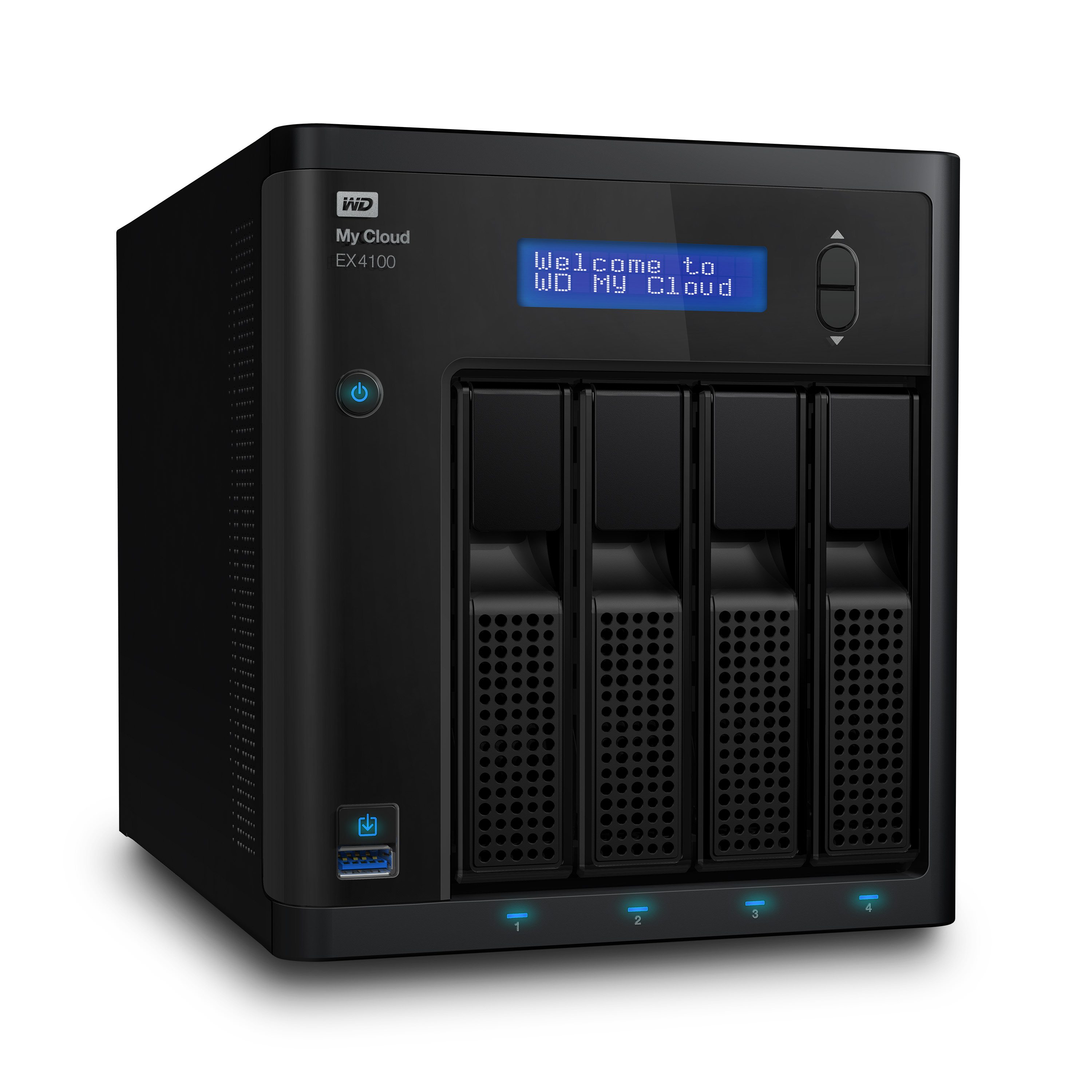
The functionality is typically available as low-cost or free software or, in some cases like Windows XP and Vista, available as part of the operating system. There are some “business-grade” network-attached storage boxes that have the functionality for business continuity as well as the ability to work as DLNA-compliant media servers. A good example of this are the Netgear ReadyNAS units and the QNAP units, including the TS-459U Series 4-disk rackmount “pizza-box” NAS server which would be pitched at the office server room.
The main issue that one will have with this kind of setup will be that the network that you intend to connect the equipment on must be on the same subnet or logical network, served by the same DHCP server. This will be fine for most small-business, and SOHO networks, including the “private” segment of networks that provide Internet access to the public such as wireless hotspots and Internet cafes.
If you are concerned about security of business data or the integrity of business systems, you could run a separate server for the DLNA-presented media data rather than use the main server for this purpose. Then you can lock down the main server as tightly as it should be for the data.
Visual Merchandising
DLNA-based setups can come in to their own when it comes to all sorts of visual merchandising applications. This is more so for small businesses who cannot afford to buy business-grade “digital signage” or find the “digital signage” difficult to manage due to complex setup requirements.
You can have images or videos of products that are always kept fresh and up-to-date and can intermingle these images and videos with up-to-date “electronic signage” that you create with programs like Microsoft PowerPoint. The best example of this being used would be the real-estate agent who uses the setup to show pictures of the houses he has currently for sale or a beauty salon showing examples of the most fashionable hairstyles they have done lately.
A DLNA-compliant network electronic picture frame like the Kodak EX1011 or the D-Link DSM-210 can work wonders here as can any DLNA-compliant network media receiver (or games console) hooked up to a large flat-screen TV or monitor. Similarly, a DLNA-compliant flat-screen TV like one of Sony’s recent LCD TVs can fulfil the same needs here, especially now that the cost of these sets in in affordable territory and the sets are available from most electrical retailers.
The media server can be part of the file server’s functions or can be hosted on a separate box such as a network-attached storage unit. You just need to add the media to this server by using a standard network file-transfer protocol like SMB or FTP.
You will need to make sure that the media server presents the files either by keywords (tags) and / or folders of the file system so that you can file the pictures how you want to file them. Windows Media Player and TwonkyMedia do support working by keywords and folders.
If you use a presentation program like Microsoft PowerPoint to create “electronic signage”, you just need to export all of the slides in your presentation as JPEG files in to a folder available to the media server. This is done in PowerPoint by opening the presentation and selecting “File” – “Save As” and selecting “JPEG” as the file type. You then have the option of exporting the current slide as a JPEG or exporting all the slides in the presentation as JPEG files in a folder named after the title of the presentation.
Background Music
If you are sick and tired of the radio or those business-to-business music services, you can use a computer as a music server, with the music playing out through a DLNA-compliant network media player such as one of those Internet radios.
As I have mentioned in my previous DLNA feature articles, it is very easy to do whether you decide to use a computer or a network-attached storage box as a media server. Most of the network-enabled music players support shuffle-play which can be very useful for this application and a lot of them have a line-out connection so you can connect them to a public-address amplifier or music-on-hold interface.
Education – The media library
A DLNA-based media system can work well when it comes to education. It doesn’t matter whether the idea is to show a video to a class or whether a student is viewing a video they saw in class “once more” in the library.
A capable DLNA media server with a properly-indexed media collection can work wonders here, with the users selecting the AV material through the DLNA media player’s user interface. Most such players can connect to existing AV equipment or the DLNA functionality can be part of the equipment’s functionality.
Similarly, if the media server provides it, you could allow Web-based access via any computer connected to the facility’s network. This can allow wireless-linked computers to be used to “pull up” the learning resources.
Other business-based DLNA applications
DLNA is eventually heading in the direction of a common IP-hosted data system for transferring media between portable and fixed devices. A typical application may include uploading images and movies from a digital camera or camcorder to a “base” computer for editing and viewing. Similarly, there may be the application of downloading AV material from a computer to a smartphone so it can be viewed on that phone’s display.
Conclusion
What needs to happen is that DLNA needs to be viewed as not just being for the home but being for business and educational life as well.
Filed under Network Lifestyle And Activities, SOHO / Small business computer setups by simonmackay on 25/05/2009 at 23:42
one comment
Pandemic Preparedness: Teleworking Best Practices | Wi-Fi Planet
My comments on this topic
In the article referenced from this post, the last few paragraphs talked about being prepared for teleworking whatever the “raison du jour” was. This was because whenever there was a national security incident, a natural disaster or a plague, the concept of telecommuting would be raised through business discussions. But whenever these risks subside, telecommuting falls off the agenda.
I personally consider the concept of teleworking as something to be factored in to everyday office life no matter the national or global situation. One application I think of very heavily would be for workers who end up doing double-duty as family carers, such as for ill or convalescing children; or elderly parents.
As well, it may appeal to people who are approaching the end of their tenure at the business to be able to increase being used to staying home rather than at the office. This is more so with family-run businesses where there is an increased risk of “living in the office” even as their active tenure comes to a close.
Similarly, it could also allow larger office-based employers to reach talent pools that exist in rural communities for some of their office jobs. The employers can be able to then work from home for most of their working month, but come in to the office for meetings and similar activities.
The way to technically prepare for teleworking would be to ensure that there is a good-quality secure Internet link to the office, such as a VPN, and consider the use of a VoIP or other “virtual extension” setup for the telephone. A webcam can be handy if you intend to do some video-conferencing with the office.
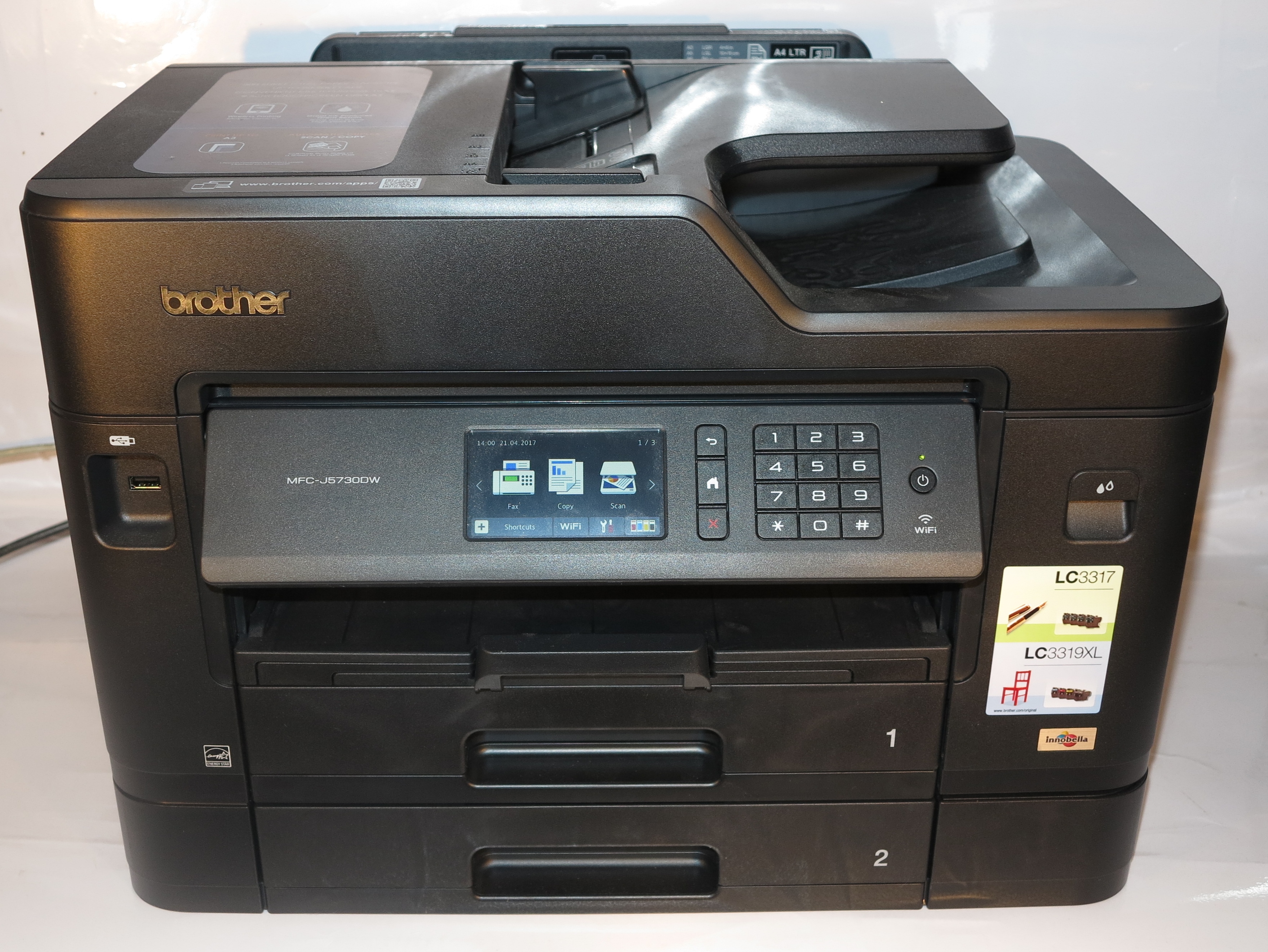
As far as the printer is concerned, make sure that you can print out any workplace documents with it. This may involve making sure that any “remote-desktop” programs can work with your local printer.
Small businesses can look towards using LogMeIn or GoToMyPC as a quick-setup remote-desktop tool, especially if you use “home” versions of Windows operating systems in the office or you don’t have much computing knowledge. If you use a “pro” or “business” version of Windows and have a fair bit of computing knowledge, it may be worth knowing how to use the Remote Desktop functionality.
As far as your VoIP or “virtual extension” setup is concerned, it may be worth making sure that your system can be capable of allowing the same extension number to be easily switched between two or more physical terminals, like a softphone program, VoIP handset or classic fixed or mobile telephone. This can permit the phone system to work with your work-home life.
Once you have a setup that allows you to do your work at home, you can be ready to work from home at a moment’s notice.