Tag: WiFi wireless

BT raises the bar for a carrier-supplied modem router

Article BT brand identity Enquiries about this image can be made to the BT Group Newsroom on its 24-hour number: 020 7356 5369. From outside the UK, dial +44 20 7356 5369. News releases and images can be accessed at the BT web site: http://www.bt.com/newscentre.

UK ISP BT Launches New Smart Hub Wireless Broadband Router | ISP Review

My Comments

BT have offered new consumer-premises equipment that has raised the bar for Wi-Fi performance that has been said to be “beyond ordinary”.

Typically a carrier-supplied modem router has been designed as a low-cost item to provide to new customers who are taking on Internet service through that carrier. This typically had customers purchase modem routers with better specifications from anywhere that sold computer equipment with some of these devices having improved throughput or Wi-Fi reception.

But BT’s latest DSL modem router which is now known as the Smart Hub but could have been known as the Home Hub 6 has circuitry that places its Wi-Fi performance on a par with the better retail DSL modem routers. This circuitry is driven by some highly-strung up-to-date Broadcom processors (Broadcom 63137. 4366 and 43602). It also implements 7 antennas to set up a 3×3 802.11g/n MIMO Wi-Fi segment (up to 217Mbps) on the 2.4GHz band and a 4×4 802.11a/n/ac MIMO Wi-Fi segment (up to 1700Mbps) on the 5GHz band.

This modem router implements a “smart-tune” logic to set itself up for the optimum operating frequency for both the bands when it is set up along with other “smart-scan” logic to keep the Wi-Fi segment working in an optimum manner. There is also extra filtering circuitry added to the Wi-Fi circuitry to deal with overloading from radio activity on the neighbouring wavebands, which is said to happen with UK 4G mobile-broadband deployments.

This kind of technology was causing BT to rate the Smart Hub as the UK’s strongest carrier-supplied Wi-Fi router and I personally see this as appealing to other carriers like Telstra who want to choose the kind of equipment to provide to their customers.

Of course, it has up-to-date Gigabit Ethernet LAN as a four-port switch along with ADSL2+ / VDSL2 modem on the WAN (Internet) side. From what I have read, I am not sure if this modem also offers an Ethernet WAN connection for FTTP or G.Fast (next-generation DSL used for some fibre-copper networks) broadband deployments that implement a separate modem. Similarly, if this modem router implemented a field-programmable “software modem” for its DSL modem, there could be the ability for it to be updated to work with G.Fast technology expected to be used with fibre-copper deployments.

There was also some reference to the BT Smart Hub being compact enough to fit through most of the letterbox slots installed in most UK front doors, with a view of the device being supplied to customers without them needing to be present. But my question about this is whether the size that is quoted is for the unit itself or the unit when it is packed in its box with all its accessories and cables.

BT does sell the Smart Hub for GBP£50 with VAT inclusive or you can have it for free if you choose to “roll over” your BT Infinity Internet service contract or start a new BT Infinity service. Stumping up that £50 for this modem router and setting it up as an access point for your existing wireless router could come a long way as something to extend Wi-Fi coverage or simply “ramp up” an existing home network’s Wi-Fi performance.

How to effectively establish that Wi-Fi-based mobile network

Brother PocketJet PJ-773 Wireless Mobile Thermal Printer

Brother PocketJet PJ-773 Wi-Fi mobile printer – one of the mobile peripheral devices pitched to smartphone and tablet users

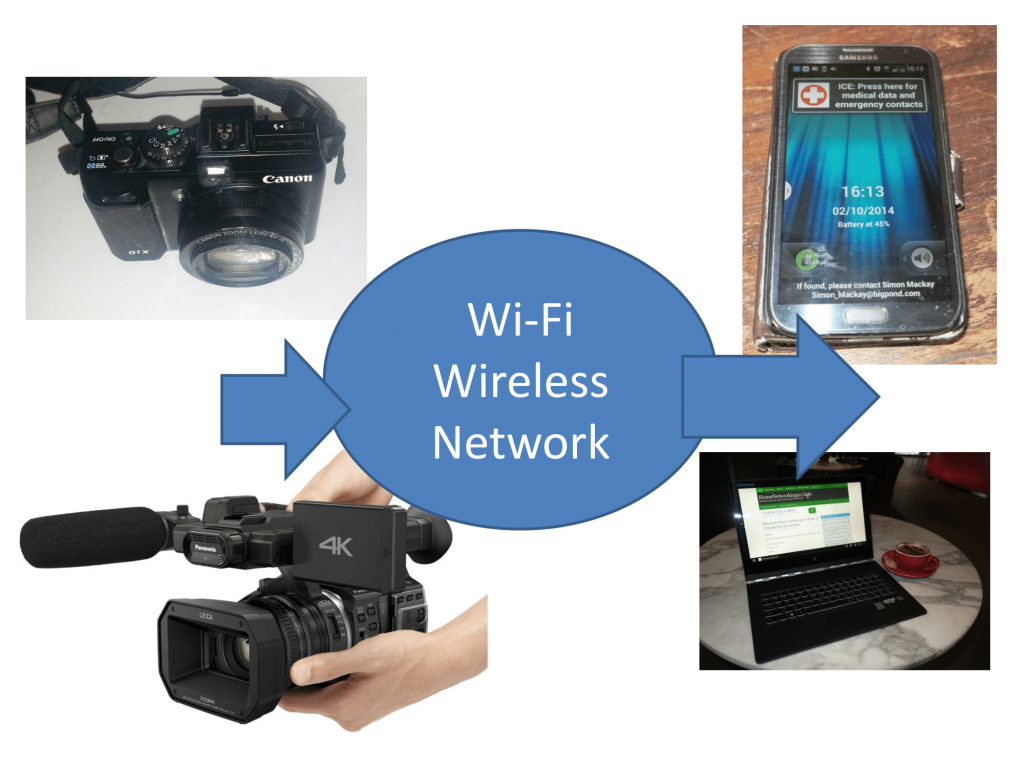
A major trend that has become strong over the last few years is the arrival of mobile network devices that connect to each other and to client computer devices via Wi-Fi wireless networking technology.

These are represented in the form of:

  • mobile network-attached-storage devices
  • mobile printers
  • wireless speakers, and
  • mobile broadcast-LAN tuners that work with terrestrial or satellite broadcast systems,
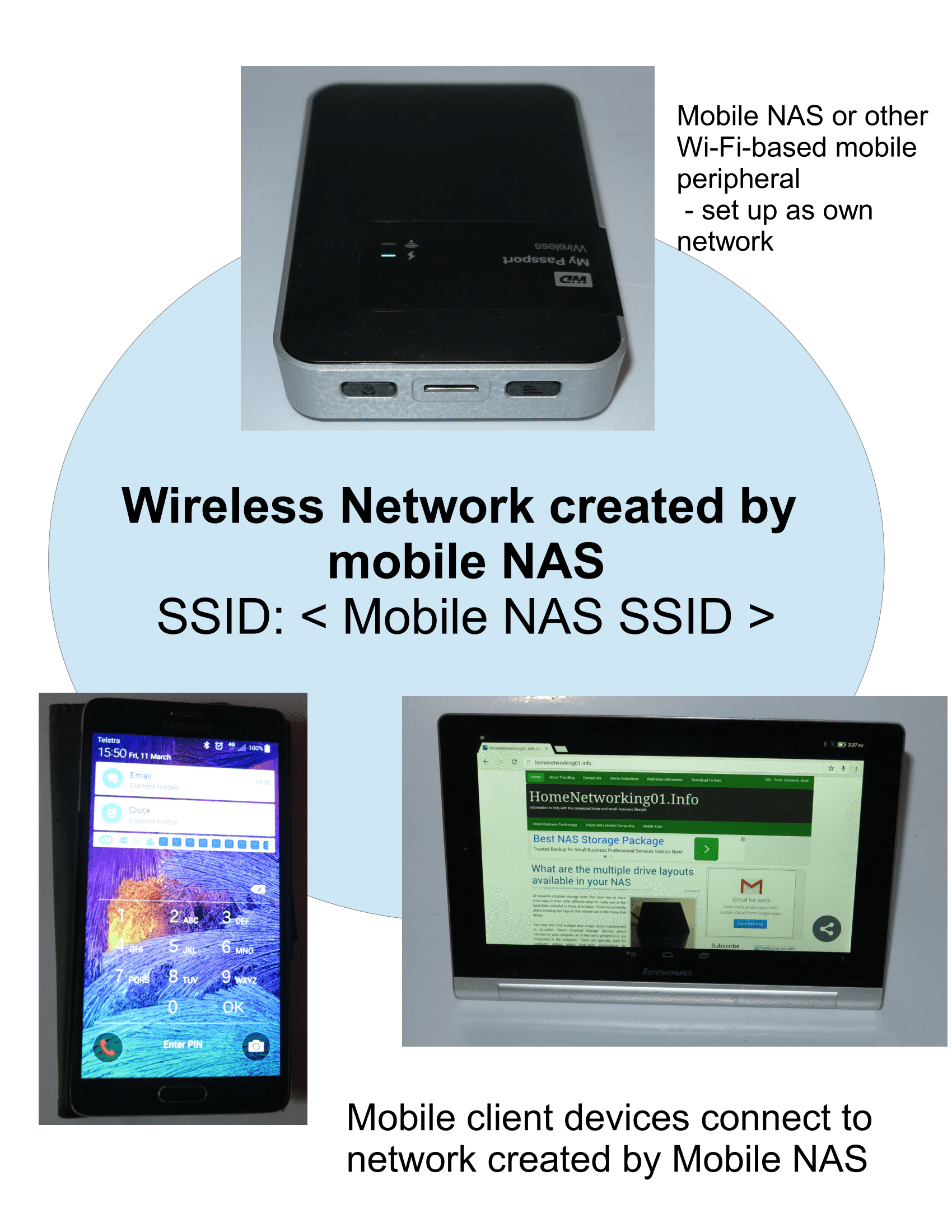
Network setup for mobile NAS and smartphone

Network setup for Wi-Fi-based mobile peripheral devices

What is common about all of these devices, and is treated as a key marketing feature by their vendors, is that they can be set up to be their own access point with their own DHCP server as well as being client devices to existing wireless networks. Some of these devices like most mobile NAS devices are able to work effectively as bridges or routers between an existing wireless network and the network that they create.

This may work well if you are just using the one mobile peripheral device with your mobile client devices but may not work well when you intend to run two or more mobile peripheral devices. Here, you will end up switching between different wireless networks just to benefit from the different mobile peripheral devices.

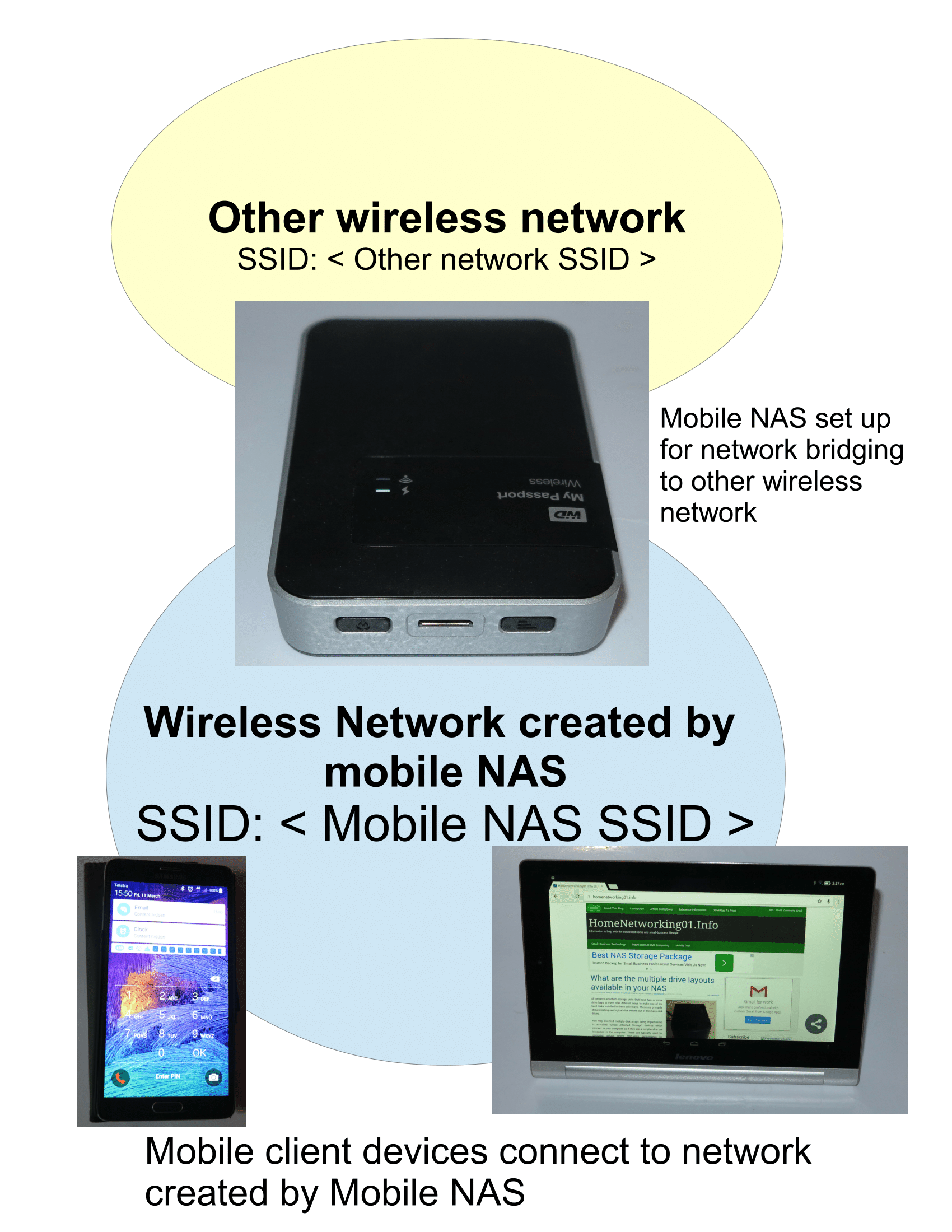
Mobile NAS as bridge setup

Wireless NAS as a bridge between mobile client devices and another Internet-providing network

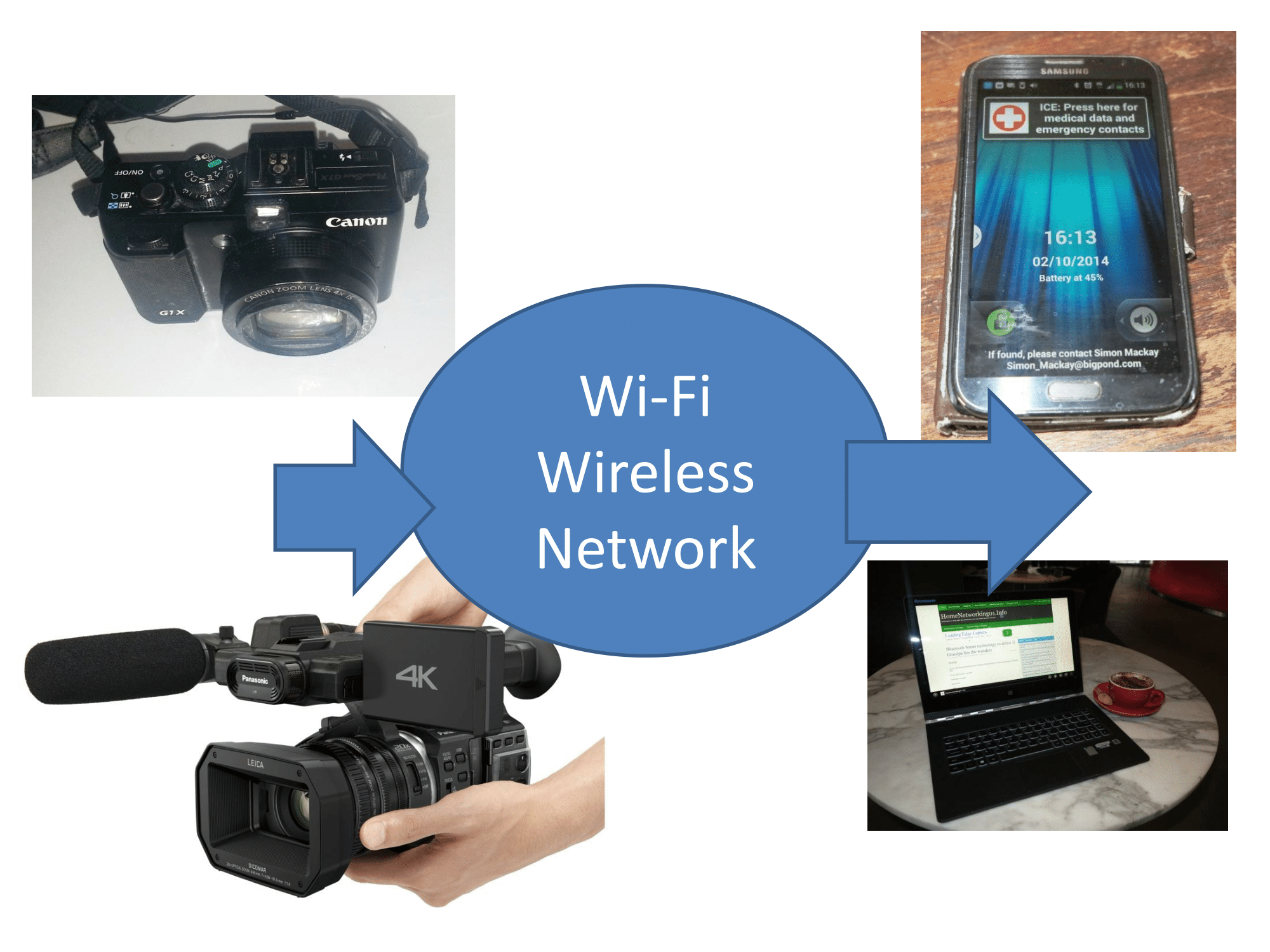
But you may want to run one or more of these wireless mobile devices together to serve multiple laptops, tablets or smartphones. Situations that may come about that will call for these setups would be where you are using a mobile NAS and, perhaps, a camera that has Wi-Fi functionality or one of the new Wi-Fi-capable mobile printers. This will call for you to create a proper mobile wireless network for all of these devices.

Use a router-class device as the main device

Here, you would have to run one wireless network device as a DHCP server and “master” access point and this function can be best served by a router-class device.

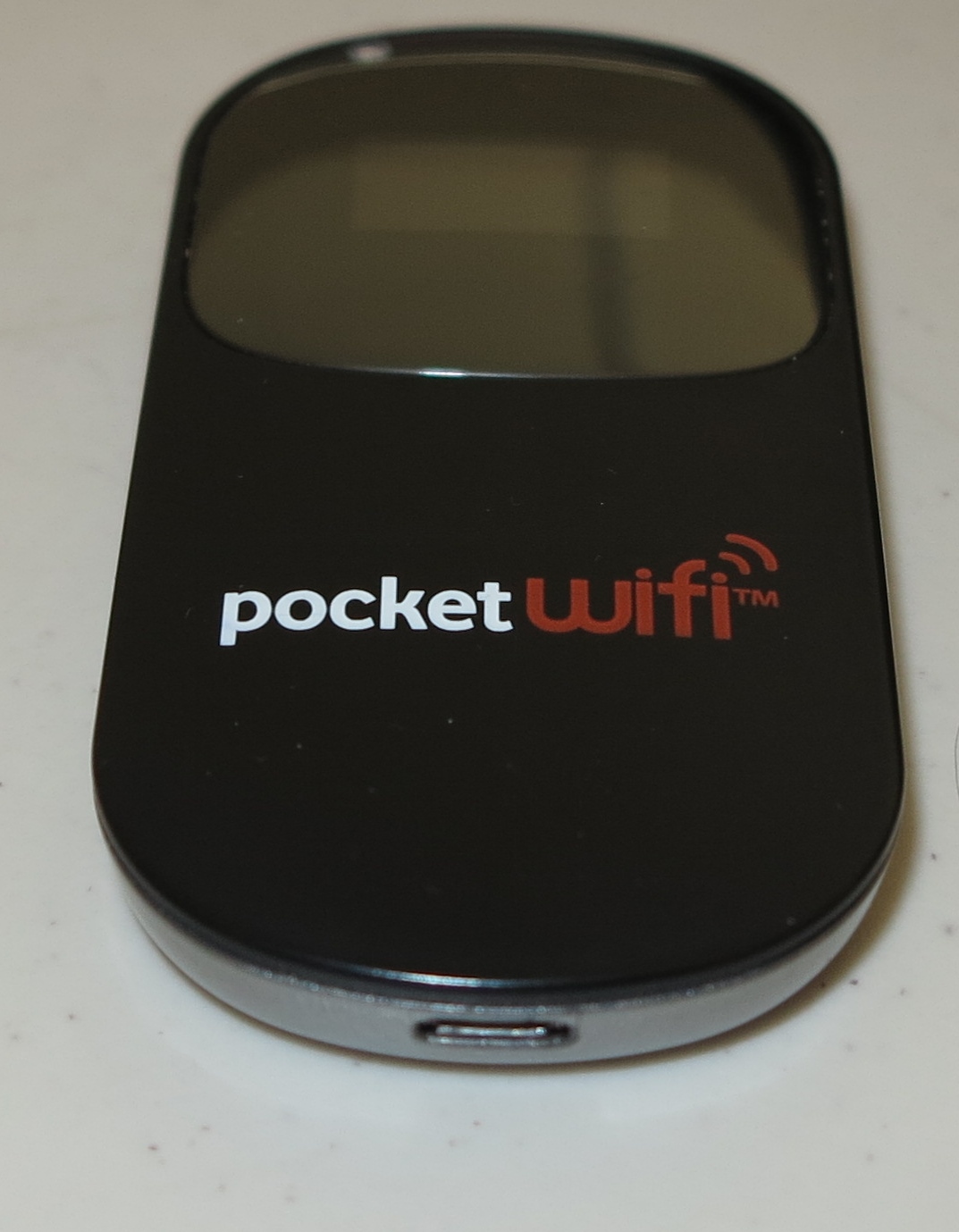
"Mi-Fi" portable wireless router

A typical “Mi-Fi” portable wireless router for a mobile-broadband service

The most common examples of devices of this class that apply to “on-the-road” use are the “Mi-Fi” mobile routers that work with a mobile broadband service or one of the travel routers pitched to work with a hotel’s wired Internet service. Some mobile NAS devices may also do this wireless-bridging functionality in an adept manner and could be the hub of your “travel network”. Similarly, one of the mobile-broadband wireless routers being integrated in to some new cars by the likes of BMW and Chrysler may also answer these needs.

You may think of using your smartphone’s Wi-Fi mobile-broadband-router functionality but this may encumber your smartphone for what you want to really use it for.

Some highly-sophisticated “Mi-Fi” and travel-router devices may also expose an Ethernet connection for LAN use, perhaps through an optional extended-functionality dock. This can come in handy if you want to increase your coverage area with another wireless access point or want to use devices like games consoles with your mobile network.

You may find that you don’t need to run the Internet connection on the Mi-Fi or travel router if you are simply establishing a link between multiple mobile peripheral devices and client devices and aren’t reliant on Internet functionality for their operation. Similarly, by having your mobile devices working this way, you avoid the need to authenticate with a Wi-Fi hotspot that implements Web-based authentication to do something like gain access to your mobile NAS’s data from your iPad.

Set up known wireless network parameters

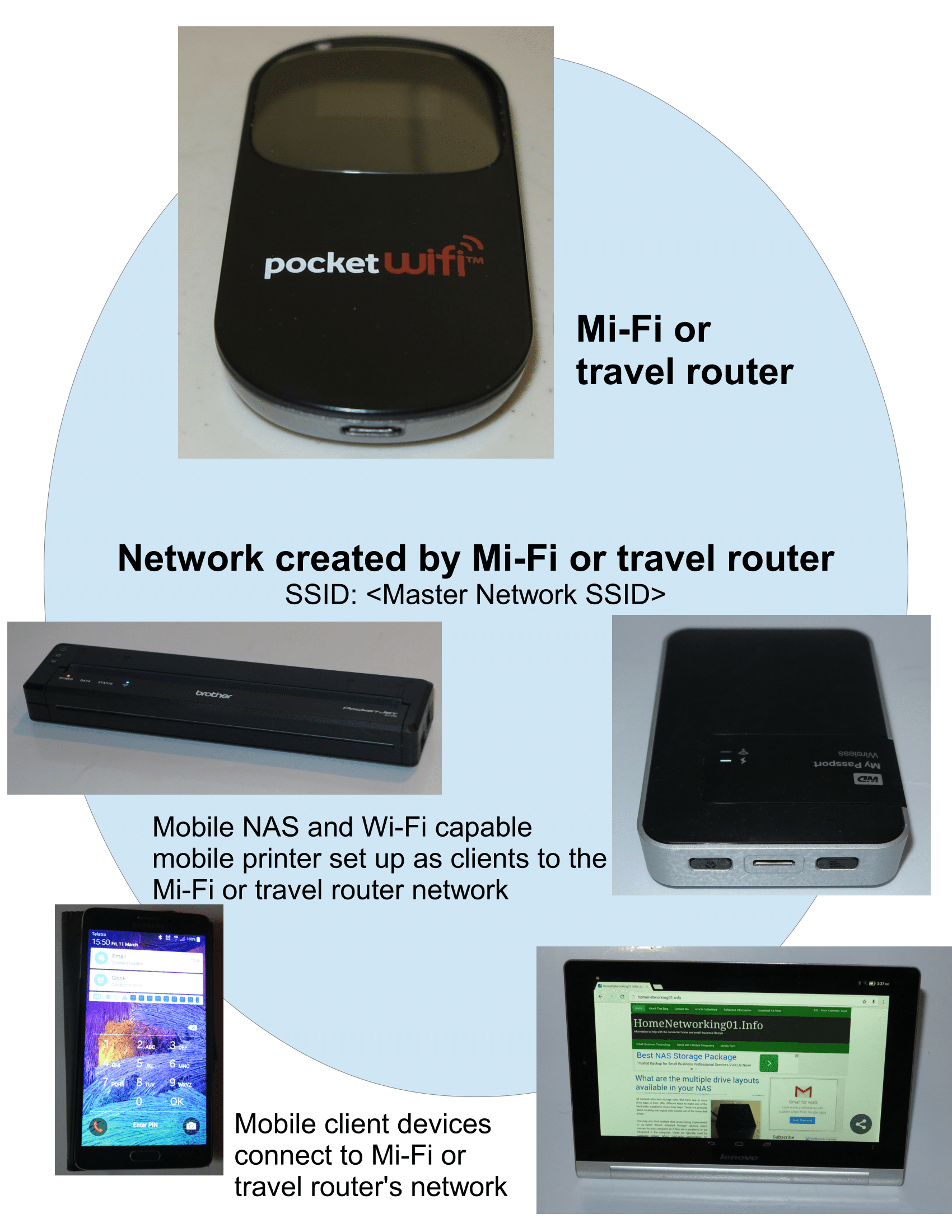
Mobile network wiht "Mi-Fi" router and 2 Wi-Fi-capable mobile peripheral devices

Mobile wireless network for two or more mobile devices and mobile client devices – uses a router-class device like a “Mi-Fi” router

When you set up your “Mi-Fi” or travel router, you make this device the hub of your mobile network and have every device “point” to this device’s local-network by associating with its SSID (wireless network name) and security parameters.

Most of the mobile network devices that work on an “open-frame” approach can be quickly associated to this “mobile hub” thanks to WPS-based push-button setup. For devices that don’t support this quick setup mode like most Apple devices, you will need to note down the “mobile hub’s” SSID and security passphrase. Some “Mi-Fi” devices that have a display may be able to show these details on their display, perhaps at the request of the user.

For that matter, a good practice would be to assign a unique SSID for your “mobile hub” device i.e. your Mi-Fi or travel router. This is important when you use these setups in campgrounds, caravan parks or hotels where many of these devices will be used at once.

All wireless devices to link with router-class device

It will also mean that the mobile NAS, mobile printer or other similar device has to work as a client device rather than as its own access point. This also applies to your computing devices like laptops, tablets and smartphones which also associate with the “mobile hub” device.

When positioning your mobile-network devices, make sure that they are in the range of your “mobile network hub” device i.e. the Mi-Fi or the travel router. All the wireless traffic that goes between these devices will pass through the “mobile network hub” device rather than between the devices themselves.

You may find that if you want to avoid draining your “Mi-Fi” router’s battery too quickly, it may be a good idea to have it run from a USB charger that runs from house current or your vehicle’s cigar-lighter socket. Similarly, a high-capacity USB power-pack can also earn its keep with these devices if you are away from power.

What I stand for when reviewing or researching mobile devices

When I review any device for this Website that is capable of being its own wireless network such as a mobile NAS or mobile printer, I test the device with my home network’s Wi-Fi wireless segment as if it is a client device. This is so I am sure they can work in this kind of setup as well as the highly-promoted “own access point” setup. As well, as part of researching a mobile device that uses Wi-Fi wireless technology as part of its link with client computer devices, I verify that it can work as part of an existing wireless-network segment as well as being its own segment.

Similarly, when I research a mobile router-class device like a Mi-Fi or travel router, I would expect the device to support WPS single-push connectivity along with other essential Wi-Fi connectivity and security standards. Similarly, such a device would have to be easy to configure including setting up the SSID and passphrase. As well, the Mi-FI device can’t be very thirsty with its battery if the goal is to have it as a “hub” device.

Conclusion

Once you are able to set up a mobile multi-device network, you can then be able to use it to store or print data while you are “on the road” without needing to constantly switch networks for each different task.

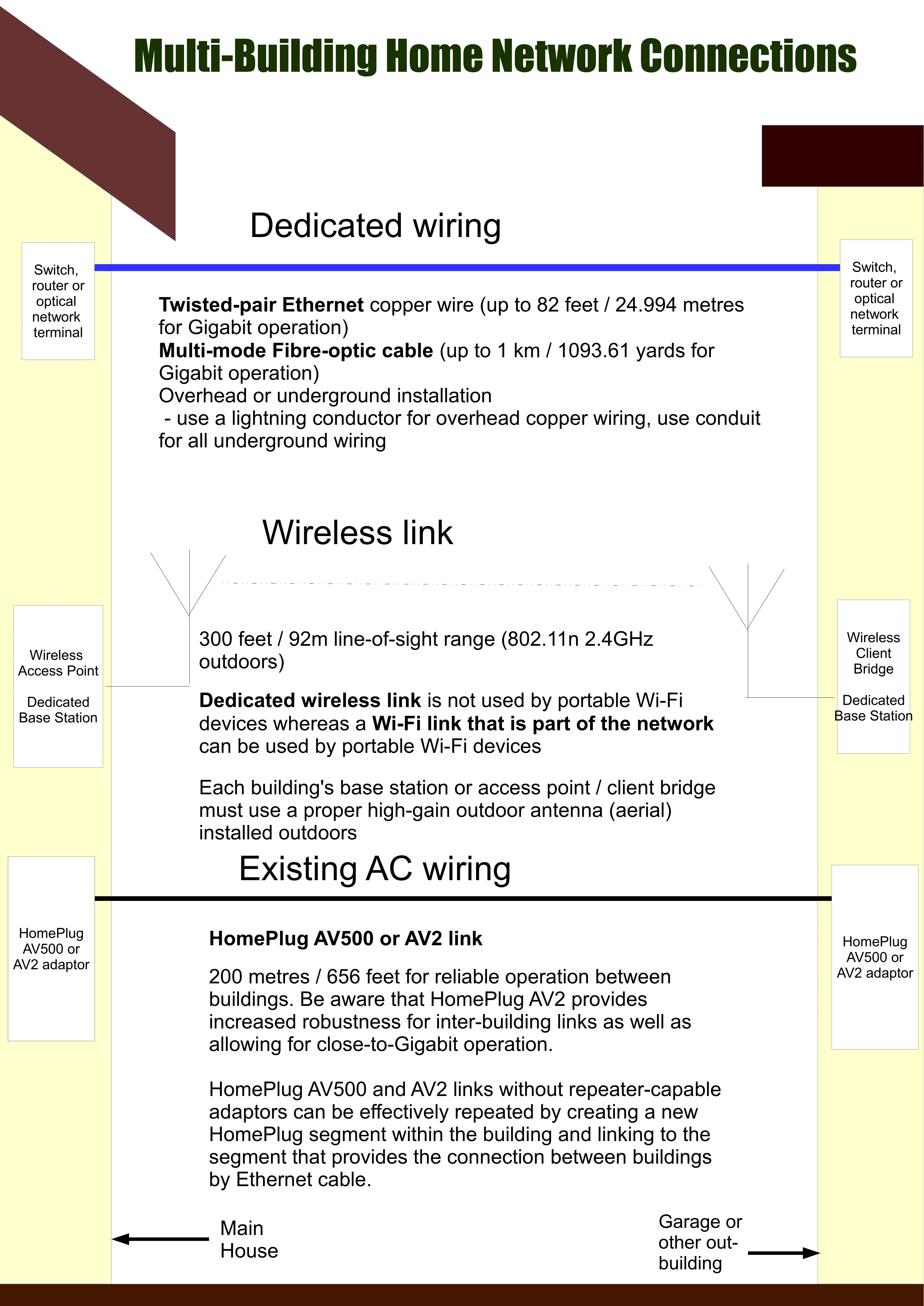
Infographic: Different methods to connect multiple buildings to your network

Previous Coverage

Feature Article: Multi-Building Home Networks

I have covered the issue of bringing your home network and Internet service to other buildings on your property, whether they be a garage, barn or granny flat (mother-in-law apartment).

You may consider this as being of value to, for example, achieve a quieter house by having your teenagers playing their video games in the converted garage; bringing Netflix and similar services to the man-cave or just simply allowing whoever is sleeping in the guest-house to have access to the Internet.

Europeans will benefit from the fact that one right-sized satellite dish could cover your property’s satellite-TV needs including the ability to watch from that granny flat thanks to SAT>IP technology that exploits your home network as a satellite-antenna link.

This will provide what I have been talking about as a single diagram that you can understand.

Methods to link buildings in a multiple-building home network

Methods to link buildings in a multiple-building home network


Google celebrates Hedy Lamarr who is behind how Bluetooth works

Articles

Hedy Lamarr: Five things you didn’t know about the actress and inventor in today’s Google doodle | The Independent

From the horse’s mouth

Google

Celebrating Hedy Lamarr (Blog post)

Video

My Comments

Google is celebrating Hedy Lamarr who was an Austrian film actress who moved to France then America where she gained her footing as one of Hollywood’s most beautiful film stars. They have done this using their animated “Google Doodles” which shows you the pathway from a film star to the home network.

But it wasn’t all about being the most beautiful woman in Europe or starring in these films that made her significant. When Hedy was with her first husband who was a German arms dealer, she had taken an interest in applied science which was part of what made military technology work.

After fleeing Germany, she also wanted to contribute to the Allied war effort during World War II in a more useful way than selling war bonds. She realised that Hitler was using his U-Boats to sink passenger liners and wanted to do something about that.

Hedy Lamarr worked with George Antheil, an avante-garde composer who was her neighbour in Hollywood, to invent a frequency-hopping system for radio communications. This was a tool to allow successful communications to take place without being at risk of radio jamming which the Germans were good at. 

The proof of concept was based around a player piano a.k.a. a pianola and its perforated rolls that had the music and taught the instrument how to play. Here, a piano roll was used to unpredictably change radio equipment between 88 different frequencies with the setup only operating on the frequencies for a short time. The sequence was only known between the controlling ship and the torpedo and it would require a lot of power in those days to jam a large swathe of frequencies. 

This was not implemented by US Navy until the early 1960s where it earnt its keep as part of a blockade of Cuba. But this technology and the spread-spectrum ability that it allowed for ended up as an integral part of today’s digital-radio communications techology. Examples of this include Bluetooth, CDMA used in some cordless phone and mobile phone applications and COFDM which is used in Wi-Fi wireless networking which nearly every home network runs with, DAB and digital satellite radio and DVB-T digital TV.

Here, it is about a film star who appeared through Hollywood’s Golden Era but also contributed to the features essential for mobile computing and home networking.

What is this about “cyberflashing” and how to prevent it?

Samsung Galaxy Note 2 smartphone

Taking control of local data-transfer functionality like AirDrop can help you avoid unwanted surprises

Article

Cyberflasher Airdrops rude images to victim’s iPhone | Naked Security (Sophos)

My Comments

A problem that has started to surface for Apple iOS users is the ability for someone to send gross images to strangers courtesy of the AirDrop feature that newer iterations of this platform have. Situations where this typically happened were when the offender and victim were on public transport or in public areas.

This feature makes it easy to share photos between iOS and MacOS X devices in a local area using Bluetooth and Wi-FI technologies and provides a thumbnail image of incoming photos rather than a dialog box asking if you want to receive the image.

This was feasible with Android and other open-frame mobile operating systems courtesy of Bluetooth Object Push Profile but these platforms. especially Android, hardened themselves against this by making your phone undiscoverable by default and providing a narrow time limit for having your phone discoverable by Bluetooth devices. As well, these platforms required your permission to start receiving the file and you didn’t see one bit of that file until you gave the go-ahead.

Android and Windows improved on this using a passcode that you and your correspondent exchange before a file is transferred and the NFC functionality that is part of recent Android versions requires you to physically touch the backs of the phones as part of instigating the data transfer.

The same situation may also crop up with Wi-Fi Aware as it implements Bluetooth local discovery for ad-hoc Wi-Fi networks created by mobile devices and will require users to be able to take control of what notifications and files they receive on their devices if this technology is for transferring files.

Protecting yourself

A good practice to observe is to turn off the AirDrop feature unless you make regular use of it. Or, at least, set AirDrop’s discoverability settings to “Off” or “Contacts Only” rather than “Everyone” so that every man and his dog can’t discover your phone. You would turn this function on if you are expecting a photo from someone not yet in your Contacts List.

In some situations, you may have to disable Wi-Fi and Bluetooth unless you are actually using these features such as linking to a hotspot or using a Bluetooth headset.

You may find that changing your device’s identity to your initials or something innocuous rather than your first name may work wonders in these situations.

I would also prefer that any local data transfer or similar activity between users takes place in a manner where each participant can see each other. This may be at the same table in a café, restaurant or library, the same seating cluster in a lounge area, the same row of seats in a public-transport vehicle or a similar area of close proximity. As well, such activity should be preceded by relevant conversation.

What must be preserved

If a setup allows for local data transfer between computer devices using a wireless medium, there must be a way of allowing the users to confirm their intent to transfer the data between each other. This means that the sender and receiver know whom the data is coming from and to and must occur before a single bit of the actual data changes hands.

This may be through the sender exchanging a simple passcode to the receiver or requiring the devices to physically be near each other at the start of the data transmission. The latter solution may be in the form of NFC where the users touch the backs of their devices together, or a QR code shown on the sending device’s screen that the receiving device has to scan before transmission takes place.

If a user wants to simplify this process, they could create a “trusted recipients” list which can be their Contacts list or a separately-created list. Personally, I would use all of the “friends” in a social network as this list because that tends to encompass too many people and an account can too easily be compromised.

The same thing must also apply to social networks, online gaming and similar services where one user may want to enrol another user in to their personal lists. This is more important if any of these services facilitate the transfer of files between users or support any form of instant messaging.

Wi-Fi now the expected feature for digital cameras and camcorders

Wi-Fi as a feature for digital cameras and camcordersRecently, I have been going through news articles about the digital cameras that are being launched or premiered this year and most of them are offering a common feature. What is this feature?

It is Wi-Fi wireless-network connectivity which allows you to link your smartphone or tablet with your camera using the same technology that is used to link these devices to your home network and the Internet when you are at home.

One of the key advantages that Wi-Fi wireless connectivity offers is that it offers a wider bandwidth than Bluetooth which would earn its keep with transferring the high-resolution RAW or JPEG pictures to your computer or mobile device.
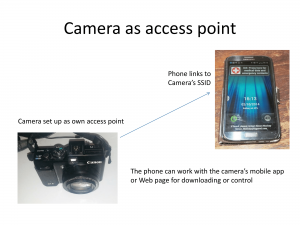
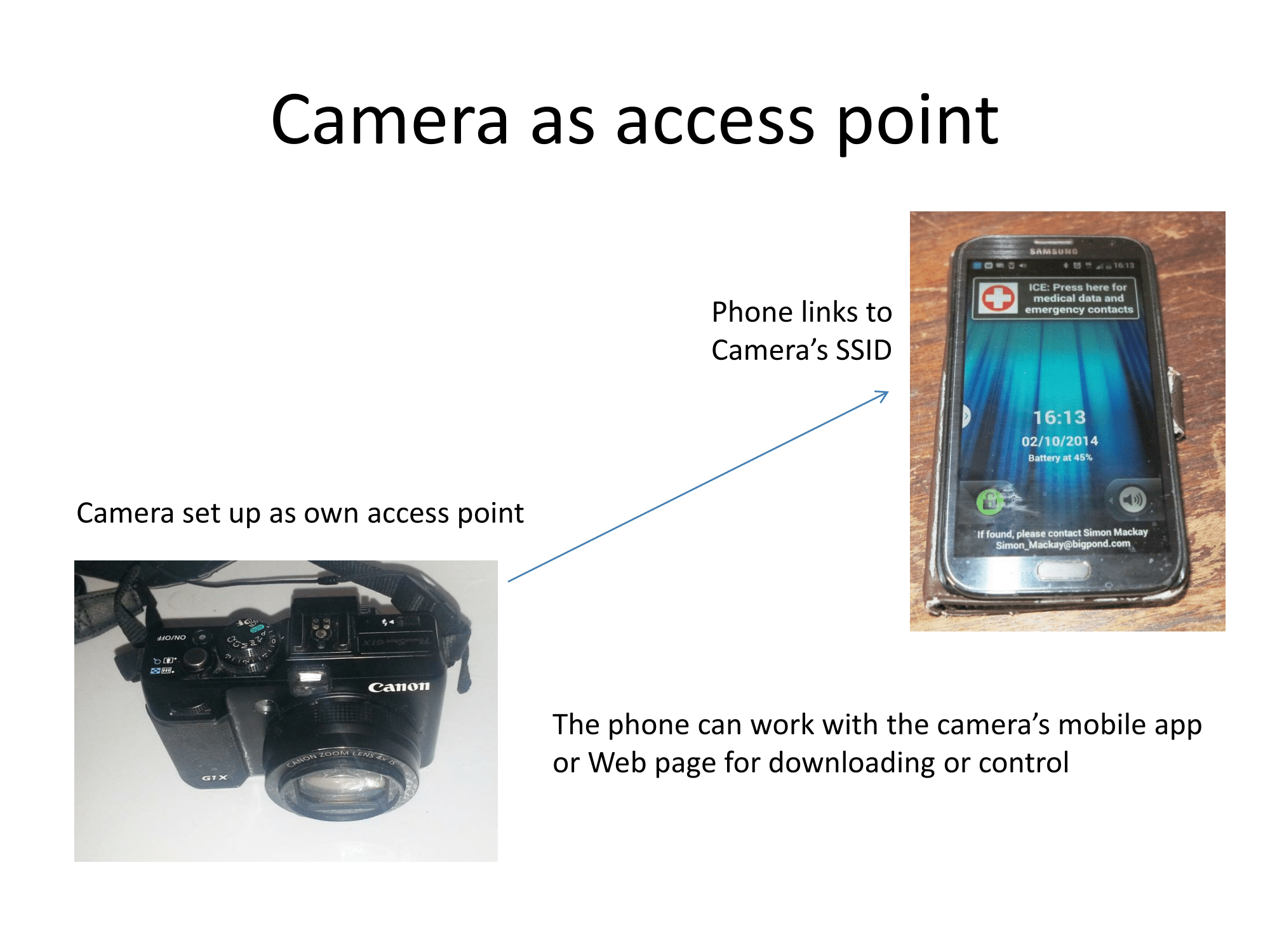
Camera set up as access point

The camera serves as an access point for the smartphone or tablet

The typical situation is that you have to install software on your smartphone, tablet or computer that is written by the camera’s manufacturer to take advantage of this feature. This software would allow you to transfer photos and video from your camera to your computing device or have the computing device’s screen work as a viewfinder for the camera. In a lot of cases, it could serve as a remote control for your camera such as to be able to trip the shutter remotely. If the computing device is a smartphone or tablet, you may have the ability to geotag the shots you took using your camera with the smartphone’s GPS sensor providing the information. As well. some Panasonic camcorders use this software to create a multiple-camera setup using your smartphone’s camera along with the camcorder’s own camera function.
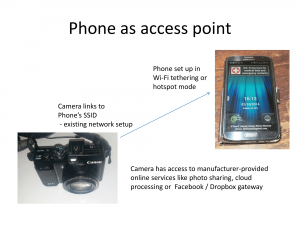
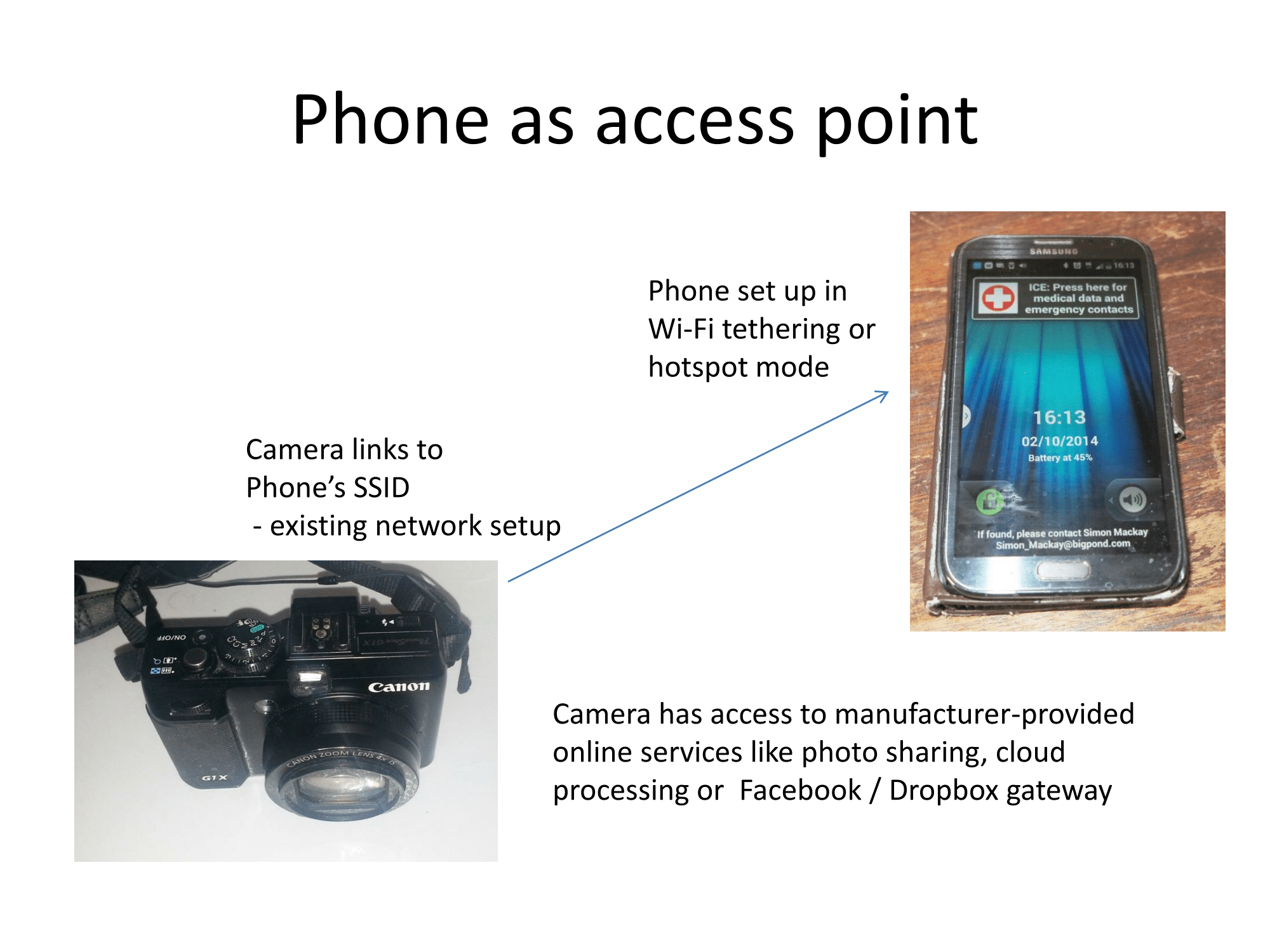
Using your smartphone's wireless-tethering feature as an access point

Using your smartphone’s wireless tethering feature as an access point

As I have highlighted before, Ricoh uses an integrated Web page rather than a client-side app for their GR II digital camera when it comes to remote control. This would appeal to those of us who use regular computers or Windows smartphones as partner devices for our cameras.

In some situations, the camera may offer an “on-ramp” to a manufacturer-hosted Web gateway which allows you to upload and share the pictures using the Web. As well, some of these Web gateways may offer a further “on-ramp” to social-network, image-sharing or file-exchange services that you have accounts with so you can take advantage of these services.
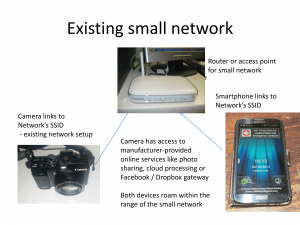
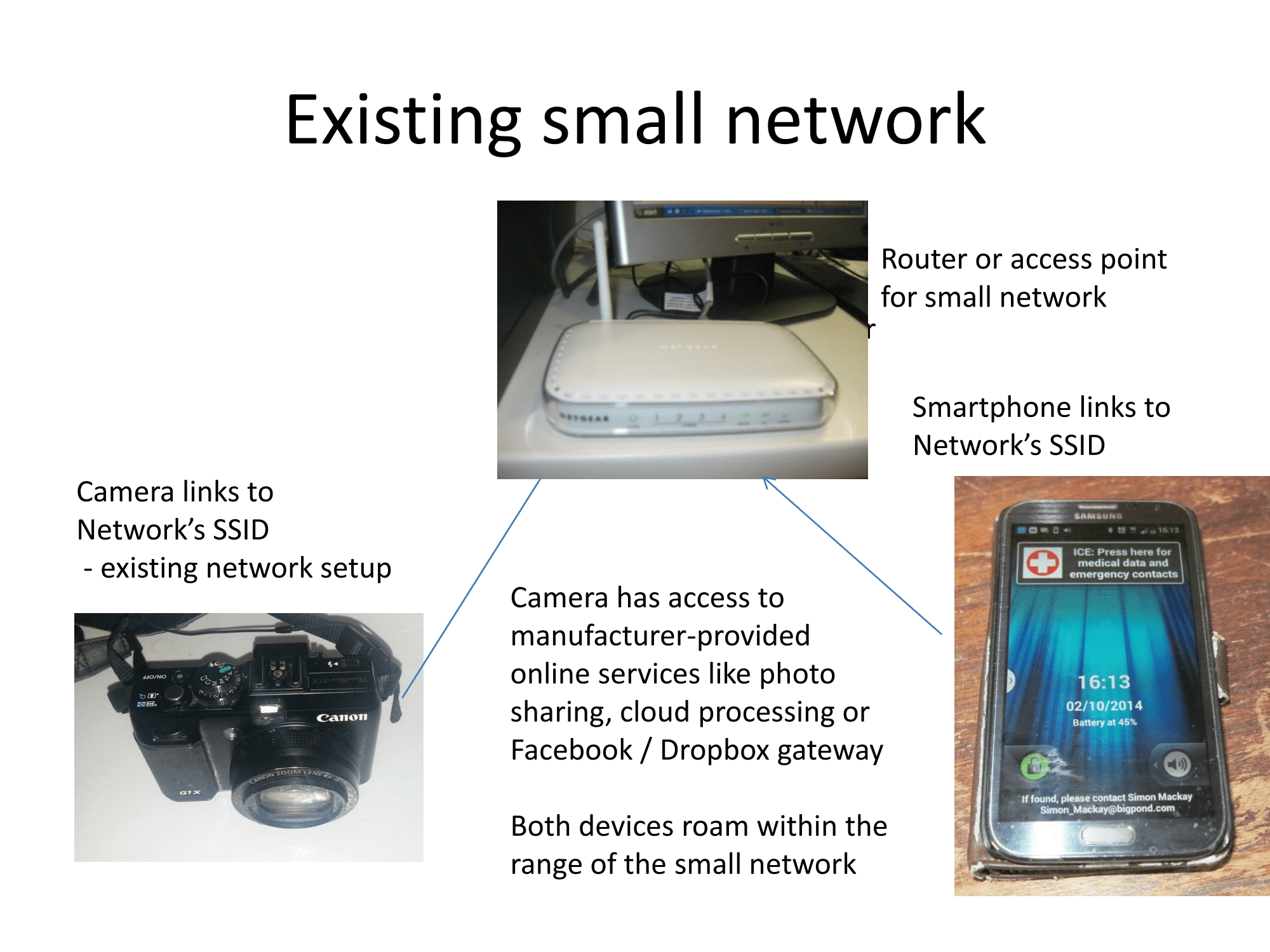
Using an existing network

Your Wi-Fi-capable camera as part of an existing home network

But how can these cameras work with Wi-Fi? Most of these cameras can be their own access point, typically serving one device like a smartphone or laptop. But they also have the ability to connect to an existing access point. This can be of benefit when you use a phone with Wi-Fi-based tethering, a “Mi-Fi” router or your existing home or small-business network.

How to get the most out of this technology

Interlinking with your smartphone
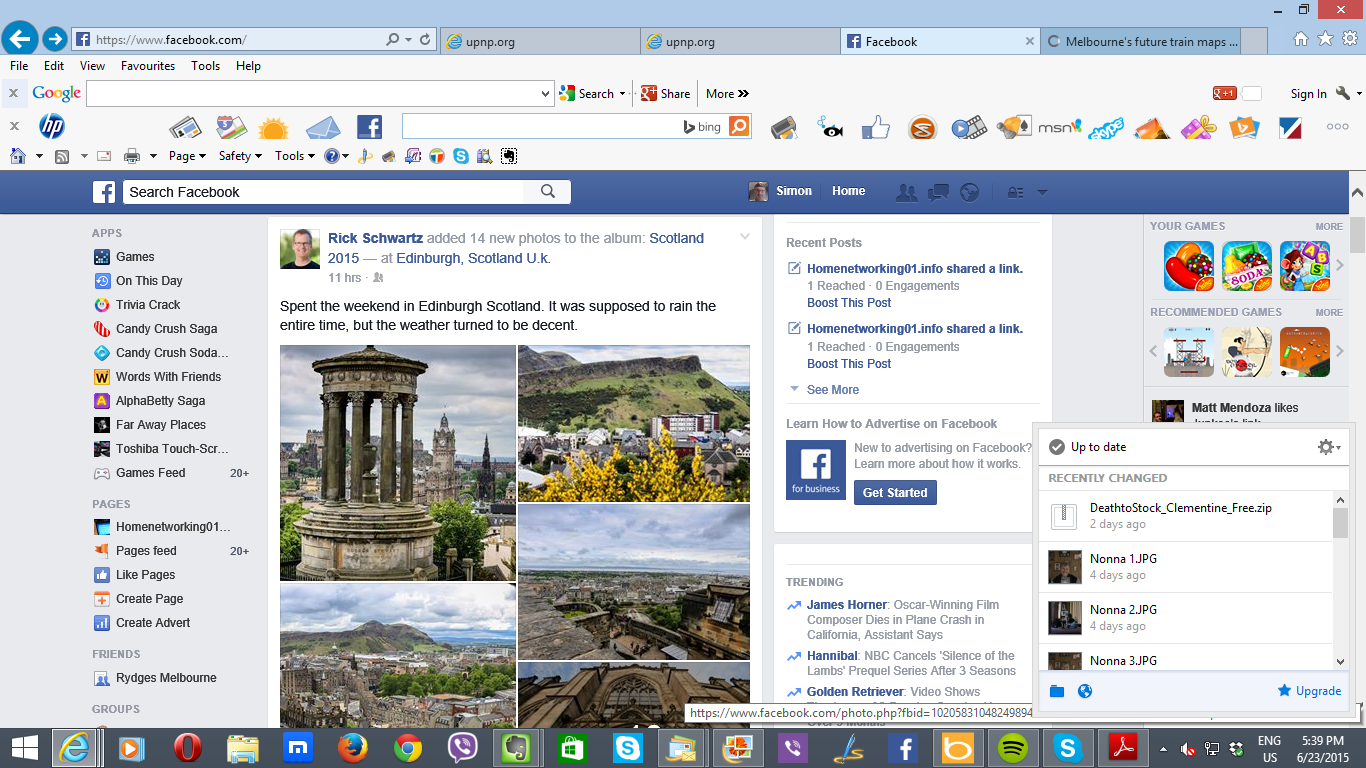
Facebook and Dropbox desktop

Facebook and Dropbox can benefit here

If you use your smartphone or tablet to post pictures on Facebook, Instagram and the like, you can take the pictures you want to post using your Wi-Fi-capable camera rather than the smartphone’s rear-facing camera and these pictures could impress people more. This is because the good digital cameras implement optics that are better than what would be integrated in a smartphone’s integrated camera.

Instagram Android screenshot

… as can Instagram

Similarly, when you take those holiday pictures, you can take advantage of your smartphone’s GPS to geotag the pictures and use them as part of an interactive map that a social network may offer.

Here, you use the camera for most of the photography while your smartphone’s camera can work as a fallback if your application calls for something small and light and you don’t care about the quality. Similarly, your smartphone’s camera would earn its keep with video-conferencing.

The best network setup for the job

The Wi-FI feature along with the “remote-control” functionality will come in to its own when you dig out that tripod. Here, you could be able to interact with the subject yet keep tabs on how it will look in the viewfinder and how the exposure will come off using your smartphone.

An existing network served by a powerful router could earn its keep here if you need to be further away from the camera such as filming a presentation or interacting with a subject. If you are “out and about”, a Mi-Fi could serve this role easily because of it working as an access point on its own battery rather than you finding that the battery is being depleted very quickly during a long shoot.

What needs to be done

DLNA integration

Once you have NAS units, especially mobile NAS units being equipped with the Upload and Download functionaliy for their DLNA MediaServer functionality, these cameras would have to support DLNA MediaUploader functionality to allow you to deliver the pictures you took on to these devices.  Similarly the idea of “throwing” images and footage you just took to a DLNA-capable smart TV via your home network would need to be investigated as a feature for these cameras.

Here, this could be approached through identifying standards and specifications that apply to the photography and videography ecosystem. As well, this concept could be taken further to allow different software to gain access to the camera’s sensor or controls for different applications.

Wi-FI Passpoint support

Another area that may need to be worked on for these digital cameras and camcorders is support for WI-Fi Passpoint. This allows for a simplified yet secure login experience when you use these cameras with a public-access Wi-Fi hotspot like what your favourite hotel or café provides. Here, you are not dealing with a login Webpage which would be difficult, if not impossible, to use with a digital camera because of the absence of a Web browser and reliance on “pick-and-choose” data entry.

The concept of a “trusted device cluster” could be looked at in the context of Wi-Fi Passpoint so you can provide a surefire “local-network-link” between two or more devices that are using a public-access network. Here, it would earn its keep when you are controlling your tripod-mounted camera from your smartphone during a presentation or downloading those pictures to your Ultrabook or tablet while you are in your hotel room.

Wi-Fi as another path to control lighting and other peripherals

Serious hobbyists and professionals will be dealing with advanced lighting setups in order to get the best out of their photographs and footage. This may involve continuous-light devices like video and photo lights along with flash-based devices like Speedlites or studio flash units. LEDs are also making it more feasible to vary the lighting colour of a particular lamp at an instant.

Here, Wi-Fi along with some of the “Internet Of Things” proposals being put forward by the UPnP Forum and AllSeen Alliance could open up the ability to use your smartphone or camera as a control surface for your lighting setup. This would also include being able to trigger flash units manually or in sync with the shutter.

For video applications, Wi-FI technology could also earn its keep with picture-sound synchronisation by working as a “common path” to transmit SMPTE synchronisation data between audio recorders and video camcorders. This could allow for “best-quality” sound recording and multiple-camera setups with devices having their own recording transports.

Conclusion

What I see of this year’s trend for cameras and camcorders to have Wi-Fi wireless network abilities is something that will make them increasingly capable.


Ricoh adds Wi-Fi and an integrated Web page to one of its compact cameras

Article

Ricoh GR II compact digital camera press picture courtesy of Ricoh Imaging

Ricoh GR II – with its own Web server

Ricoh GR II adds Wi-Fi and not much else to GR feature set | Digital Photography Review

The Ricoh GR II Adds Wi-Fi to a Cult Classic | Gizmodo

From the horse’s mouth

Ricoh

GR II Compact Digital Camera

Product Page

Wi-Fi Feature page

Press Release

My Comments

Ricoh has released the GR II compact digital camera which maintains the features and calibre associated with original Ricoh GR compact digital camera camera.

But they added on a Wi-Fi direct link functionality with NFC setup. But unlike other similar setups, there isn’t dependence on you installing a platform-native app on your smartphone or tablet. Rather, the Ricoh GR II camera has its own Web server which shows up a control page which allows you determine how the camera is to take the shot. This includes things like setting up focus and exposure to taking the actual picture (“click”). This will benefit those of us who use a Windows phone or a regular computer to manage the camera.

As well, there is a platform-native “Image Sync” app for the iOS and Android platforms which will also allow you to download multiple pictures to these devices’ storage. This would be of benefit to those of us who are dumping a group of pictures to a Facebook album or Dropbox folder as well as using that picture on Instagram.

Another feature that this camera has is that you don’t need to use a special charger to charge up the camera’s battery. Here, you just connect it to the same USB charger that you use for charging your smartphone or tablet using an ordinary microUSB cable so there is one less item to worry about when travelling.

They could add other functions like a DLNA media server with upload and control abilities so that you could show these pictures on your Smart TV or upload them to your NAS via your home network.

What Ricoh is doing is that they are implementing digital-camera connectivity features that step out of the mold and make these cameras more universal.

Product Review–Brother PT-E550WVP handheld label writer

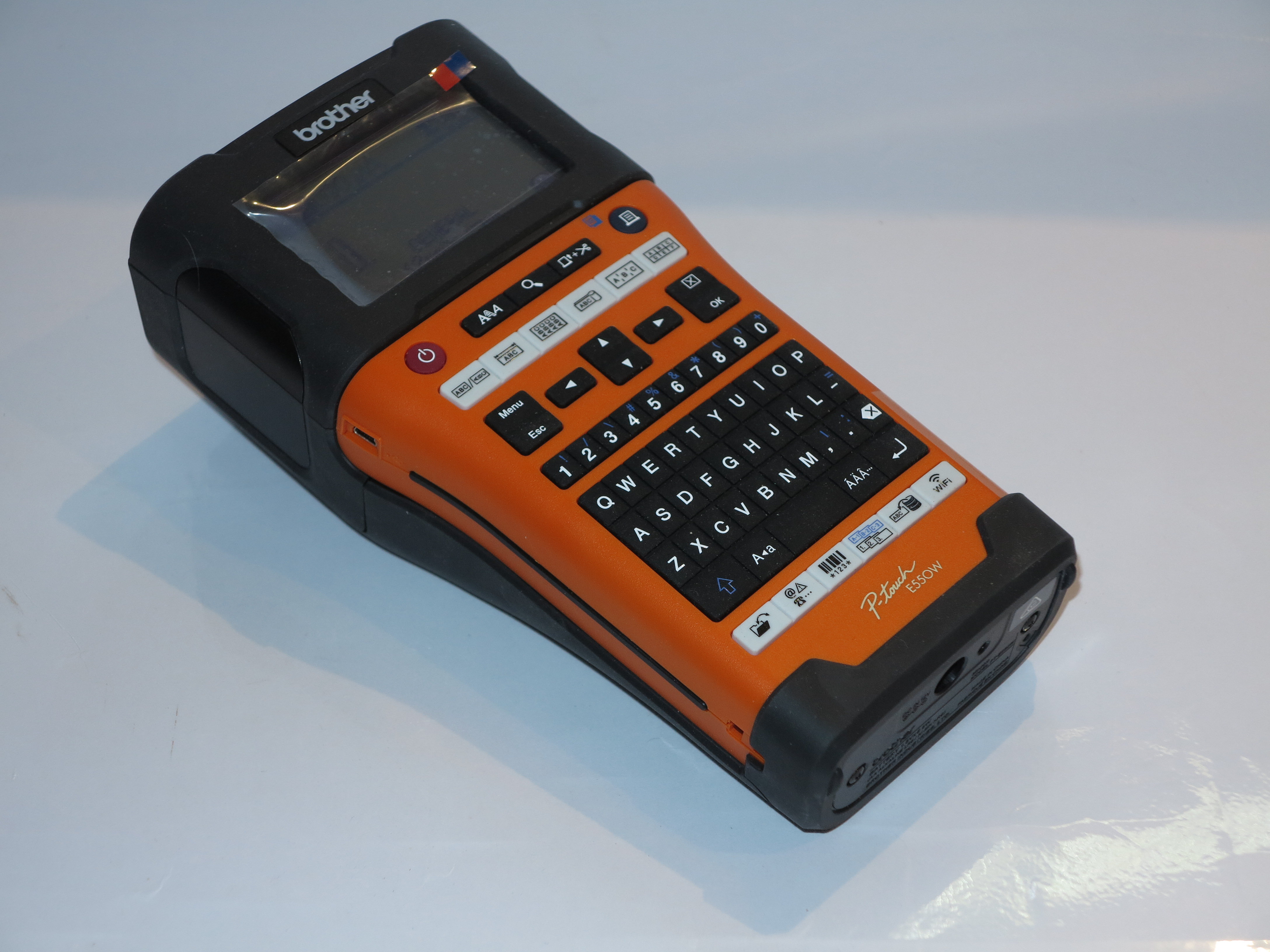
I am reviewing the Brother PT-E550WVP TZe-compliant handheld label writer which is pitched at electricians, AV and IT technicians and similar folk who work with different equipment.  This ranges from those who work out of the back of their trucks or vans to the maintenance and IT departments of different workplaces.

One feature that it has beyond the typical label writer is that it can work with other computer equipment via an existing Wi-Fi network segment or its own Wi-FI network. This allows for you to order labels on your smartphone or tablet and have it turn them out.

Brother PT-E550WVP handheld label writer

Price: AUD$329 Recommended Retail Price

The unit itself

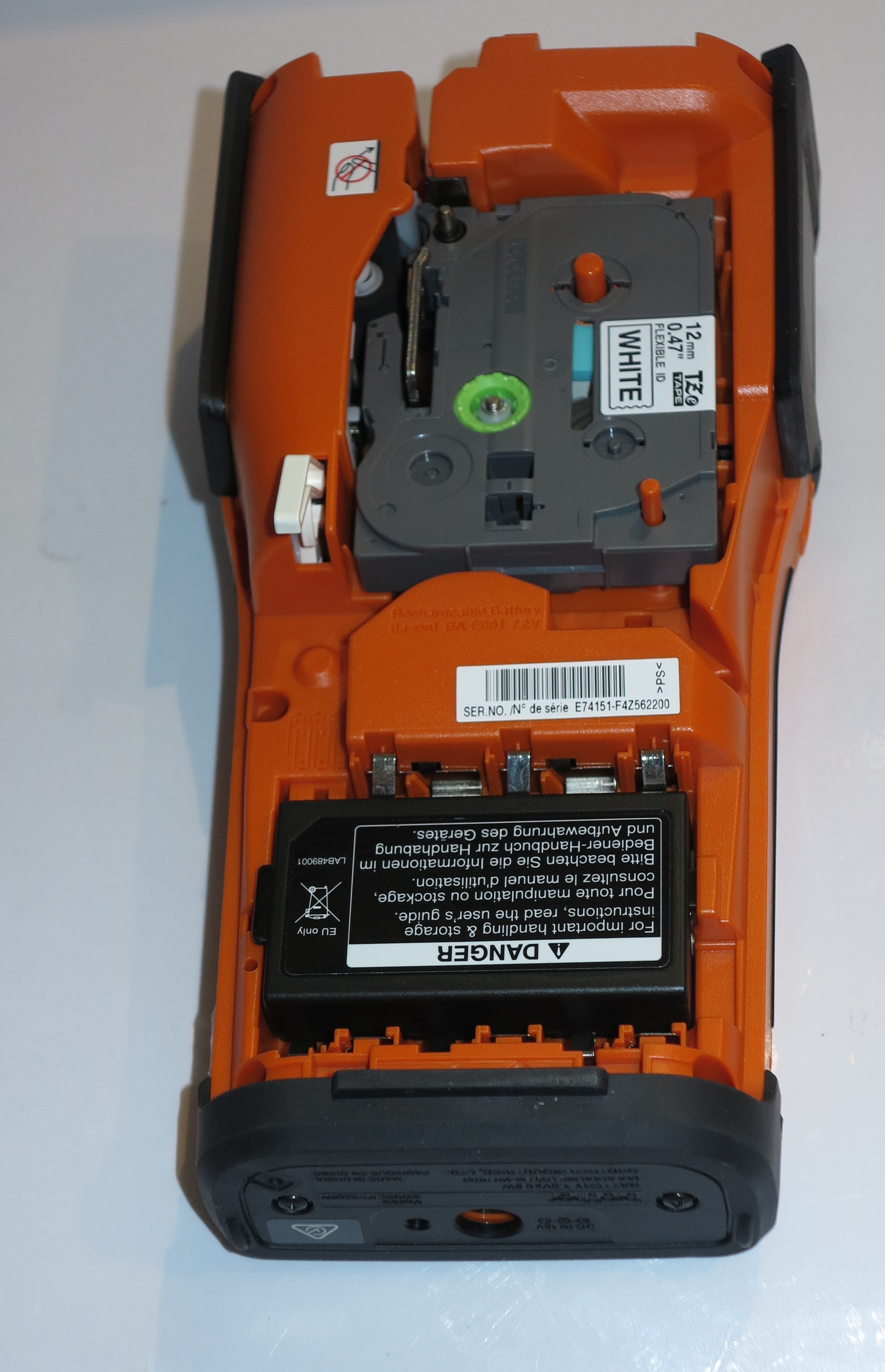
Brother PT-E550WVP label writer with back removed

Where to install the battery and the label tape

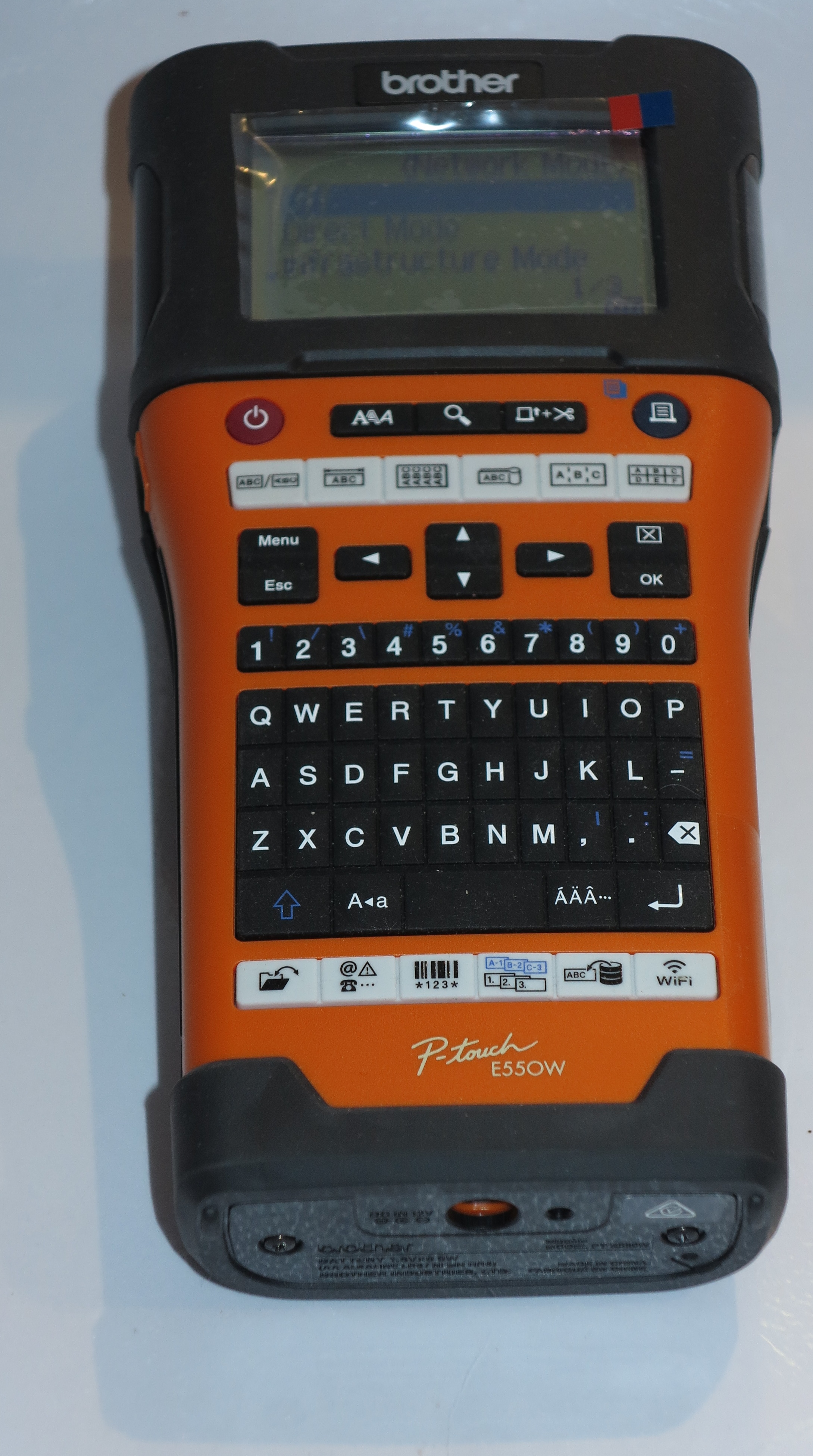
The Brother PT-E550WVP label writer is a large handheld device which has a heavy-duty build and an orange-and-grey housing. It is equipped with a large dot-matrix backlit LCD display that lights up when you are actually using the device, along with a rubberised keyboard.

To load the batteries or label tapes in to this label writer, you have to remove the back cover from this unit by pressing a latch on the top edge. Here. you have clearly-identified compartments at each end of the device for the batteries of the tape.

It has what some people may describe as a “three-way” power supply arrangement where you can run it on mains power courtesy of a supplied AC adaptor/charger, a supplied rechargeable lithium-ion battery or 6 AA alkaline batteries of the Duracell kind. This means that even if you run out of power from the rechargeable battery while on the road, you can go to the convenience store and buy some batteries to complete that labelling project. Here, charging the unit’s lithium-ion battery pack is simple as plugging the unit in to mains power using the supplied AC adaptor.

Functionality

Brother PT-E550WVP label writer keyboard

Rubberised keyboard with accent selector

The Brother PT-E550WVP label writer is based on Brother’s TZe label-cassette platform which means that it can work with all of Brother’s TZe label products which suit different purposes. This includes their HSe series of heat-shrink label tubes that you use to attach to cables.

This label writer has quick access to label templates that are optimised for labelling cables, patch-bays, outlets and the like which can make it an electrician’s or maintenance engineer’s best friend.

As for on-device data entry, the large display makes it easy to see what you are typing in on the unit’s QWERTY-layout rubber-membrane keyboard. The disadvantage with this keyboard is that all the keys are “bunched-up” together rather than spaced out like a calculator’s keyboard. This can be awkward for some users, but you can at least feel which keys are which because each key on the main keyboard has a hemispheric “pimple” shape.

The label writer doesn’t feel extra top-heavy while you are entering text and it still has that comfortable hand-held feel that is expected of this class of device.

You have a dedicated accent key which can come in handy for entering the accents common in most of the Latin languages. This may also appeal to those of you who are learning foreign languages and use labels attached to items as a tool to reinforce your vocabulary. Here, you press the letter you want accented then press the accent key repeatedly until the desired accent appears. In the case of the “ß” used in the traditional German orthography, you type the S letter then press the accent key until the “ß” letter shows up.

As for the output quality, the labels come out of this machine very crisp and clear as has been expected for Brother’s thermal labellers.

You use the Menu and arrow keys to select the advanced functions like the network connectivity, cutting behaviour amongst other things. This leads me to the network connectivity which is one of its key features.

Connectivity

The Brother PT-E550WVP label writer can work as a label printer with a regular computer or a mobile device and can connect to the latter via Wi-Fi. This can be handy if you are wanting to run a batch of labels from your smartphone or tablet such as whenever you are out of the right label tape or you have left the label writer behind. Similarly, you can use this link to transfer databases or label templates created using the P-Touch software.

Brother PT-E550WVP label writer network operation menu screenshot

The user can select between direct Wi-Fi or a Wi-Fi network

This model has answered a problem that was exhibited by Brother’s PT-P750W Wi-Fi label printer where it would attempt to connect to the last Wi-Fi wireless network it used before working as a standalone Wi-Fi wireless device. Here, the user has to select whether to run the label writer as its own Wi-Fi network or have it join an existing Wi-Fi network by using the WLAN menu option on PT-E550WVP’s menu and selecting “Direct” for working as its own network and “Infrastructure” for working with an existing Wi-Fi network.

As for connecting via an existing Wi-Fi wireless network, you can connect this unit to Wi-Fi network segments that use WPS or classic WEP or WPA-Personal password setup methods. This typifies most Wi-Fi home or small-business networks but would preclude business networks that implement user-specific or device-specific authentication along with public hotspots that implement Web-based authentication.

Comments from other people

Brother PT-E550WVP label writerI showed the Brother PT-E550WVP label writer to a friend of mine who works as a maintenance electrician and let him have a play around with this device. He was impressed with this unit’s rugged design and ease of use. This was so much that he would suggest to his workplace to consider buying these labellers for the team he works with.

Limitations and Points Of Improvement

A feature that may be considered nice to have for the PT-E550WP would be to allow the label writer’s keyboard to serve as an external keyboard for a tablet or smartphone. Similarly, this labeller could benefit from an optional car adaptor so it can be charged up from the vehicle’s cigar-lighter socket when you are driving between jobs or want to conserve battery power when you work out of the back of your van.

Similarly, Brother can improve on the display’s contrast to augment its useability. Here, they could implement display technologies like EL-backlit LCD displays or monochrome OLED displays which have a similar contrast to the vacuum-fluorescent displays but don’t consume as much power as those displays.

A function that could come in handy for people who use this label writer as part of IT support would be to print out the SSID and, perhaps, the password of the current network. This may be useful for preparing a network-configuration card to give to the network’s owner or attach the SSID to the router or access point they have configured.

Conclusion – Is it a tool or a toy?

The Brother PT-E550WVP handheld label writer earns its keep for tradesmen and maintenance departments who value a highly-durable label writer and want to have the ability to link it with their portable computing equipment whether now or in the future. Personally, I would consider this label writer to be a viable tool for these kind of users rather than a toy.

Pay-TV providers are pushing for integrating access-point functionality in to consumer-electronics devices

Article

Time for Pay TV industry to get serious about Wi-Fi | VideoNet

My Comments

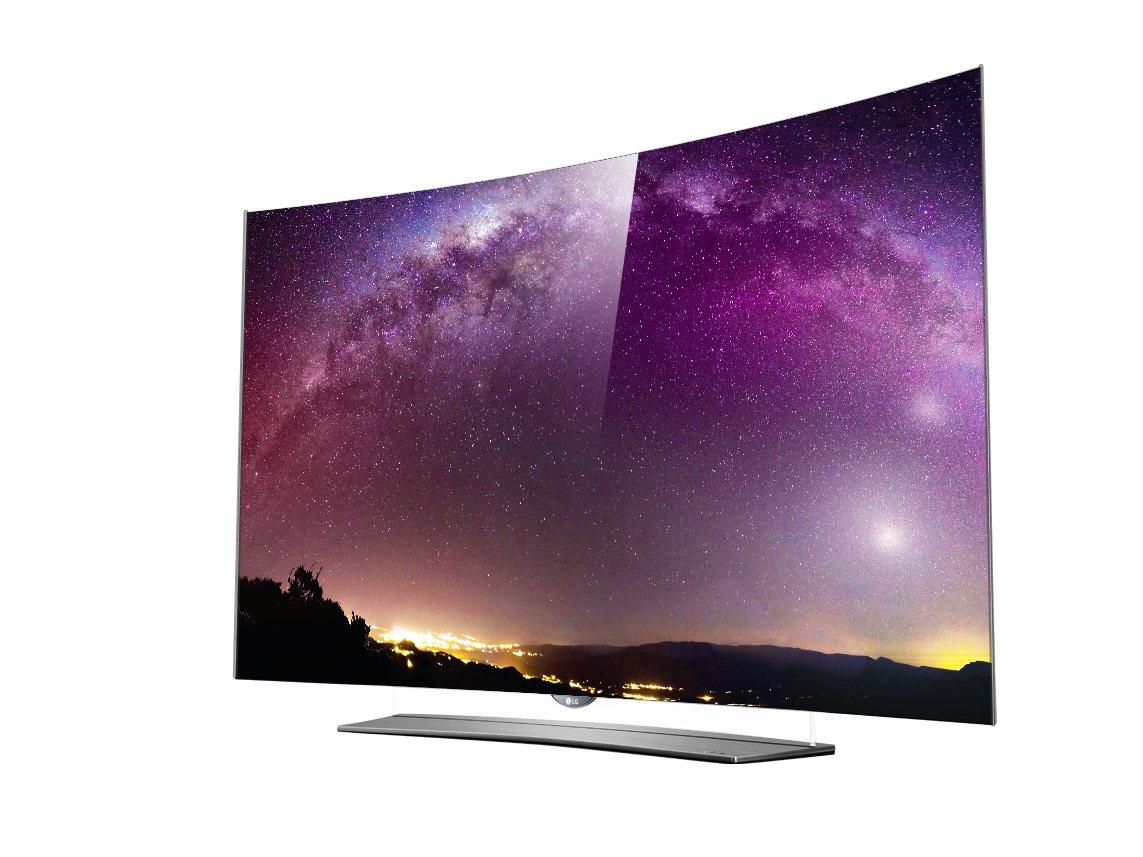
LG's 4K OLED curved TV press picture courtesy of LG America

Could a smart TV like one of these be an access point for your lounge area?

Previously I have raised the idea of having integrated Wi-Fi access point functionality in consumer electronics devices as a way to provide infill coverage for your wireless network. This is due to an increasing number of network-capable consumer-electronics devices like printers, set-top boxes, smart TVs and the like having network functionality in the form of both an Ethernet socket and integrated Wi-Fi wireless networking.

Some of these devices actually repurpose the Wi-Fi network functionality as an access point during their setup routine so you can supply your home network’s Wi-Fi credentials from a smartphone or tablet for subsequent wireless-network operation. But I was drawing attention to situations like a Wi-Fi-capable smart TV installed in the secondary lounge down the back of the house where there isn’t the good Wi-FI coverage and this TV is connected to the home network via a HomePlug AV500 powerline segment, or a premium desktop printer with Wi-Fi and Ethernet used in the garage that serves as the home office and. again, is linked to the home network via a HomePlug AV2 powerline segment.

There was some attention in the TV-technology scene when AirTies put forward their Air 4920 802.11ac concurrent-dual-band wireless-network repeater which was considered capable of pushing out 4K UHDTV data streams reliably. It led to the device winning the Connected TV Award for the Best Consumer Device.  This was due to it also supporting Wi-Fi Mesh functionality which uses a mesh setup in a Wi-FI network.

But TV Connect also showed interest in a 4K set-top box which also implemented the Wi-Fi Mesh technology for receiving the data but having an integrated wireless access point. It was also targeted with the point of view of a broadband provider who provides a multi-play service that includes pay-TV being able to troubleshoot and service the Wi-FI connectivity if the connection is below par.

Of course, wired backbones are used by pay-TV providers to link set-top boxes to the home network typically to provide IPTV services, download video-on-demand content or stream content from a DVR to another set-top device servicing the bedroom TV. Typically this is facilitated using a “no-new-wires” technology like HomePlug AV powerline or MoCA  coaxial-cable which links back to the home network’s router. Why hasn’t the integrated access point functionality been investigated in these setups?

The concept can be easily implemented in to most of these devices using WPS-assisted “network-clone” functionality and automatic tuning for a simplified setup experience. As well, the ability to detect a wired-backbone connection can be used to determine whether to set up the integrated Wi-Fi functionality as a n access point, a standalone Wi-Fi network like a guest network or not run it at all.

At least those in the pay-TV scene are waking up to the idea that an access point which is part of Wi-Fi network infrastructure doesn’t have to be part of a dedicated network-infrastructure device. Instead it can be part of a device that makes use of the network.

Android Wear gains more functionality

Articles

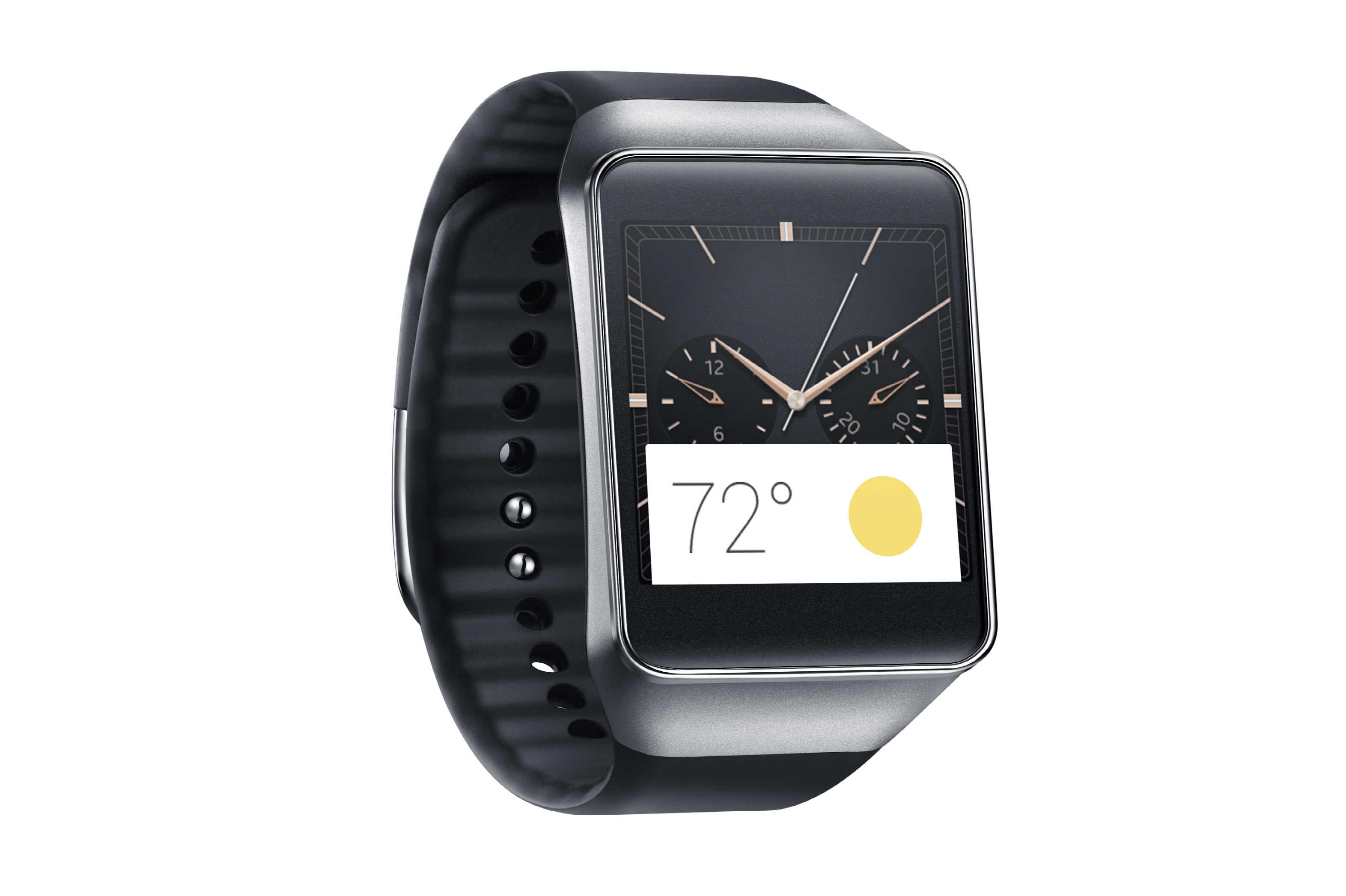
Samsung Gear Live Black Android Wear smartwatch press image courtesy of Samsung

The next iteration of Android Wear adds Wi-Fi to the smartwatch platform

Android Wear gains Wi-Fi, wrist gestures, and always-on apps | SmarterWatching

Android Wear getting big update with Wi-Fi, always-on apps, and more  | Android Authority

From the horse’s mouth

Google Android

Android Wear: wear what you want, get what you need  (Blog Post)

My Comments

A new version of the Google Android Wear wearables pllatform is being rolled out in the coming weeks which will acquire some major functionality improvements. There is talk of having this version rolled out in the coming weeks for most Android Wear devices and an increased likelihood of it appearing in newer watches.

One will be the ability to support an always-on screen with always-on apps like a traditional watch. Here, the apps can show a high-contrast power-efficient display rather than going blank when the the smartwatch isn’t being interacted with so you are able to glance at them for data.

This also ties in with different ways to gain access to other information on your Android Wear smartwatch. Firstly, you can flick your wrist to switch between cards on the display rather than brushing the watch’s face to change app cards. Similarly you can touch the screen in certain ways to show the apps you have or your contacts on your smartwatch.

As we become more addicted to using emoticons and emoji, we can hand-draw the emoticons on the watch face to show up the ones we want in our messages.

But, as far as connectivity is concerned, the new version of Android Wear has support for Wi-FI wireless networking. This is implemented in a way where you don’t even need to have your phone or smartwatch on the same logical network as each other and you can even gain access to your somartphone from your watch even if it is on a mobile-broadband connection. This could encourage smartwatch manufacturers and silicon designers to design Wi-Fi chipsets that consume very little battery power in order to obtain this functionality.

The question I have about this feature is how it will cope with public-access wireless hotspots especially where most will implement the Web-based authentication and provisioning process. Personally, I would like to see “out-of-box” support for Wi-Fi Passpoint technology with this new version of Android Wear to facilitate seamless authentication on suitable networks.

Personally, I see the new version of Android Wear as a sign that Google is putting faith in the idea of integrating Wi-Fi in to smartwatches and other wearables along with simplifying the operation of these devices.