Product Review–HP Envy 120 Multifunction Inkjet Printer

Introduction

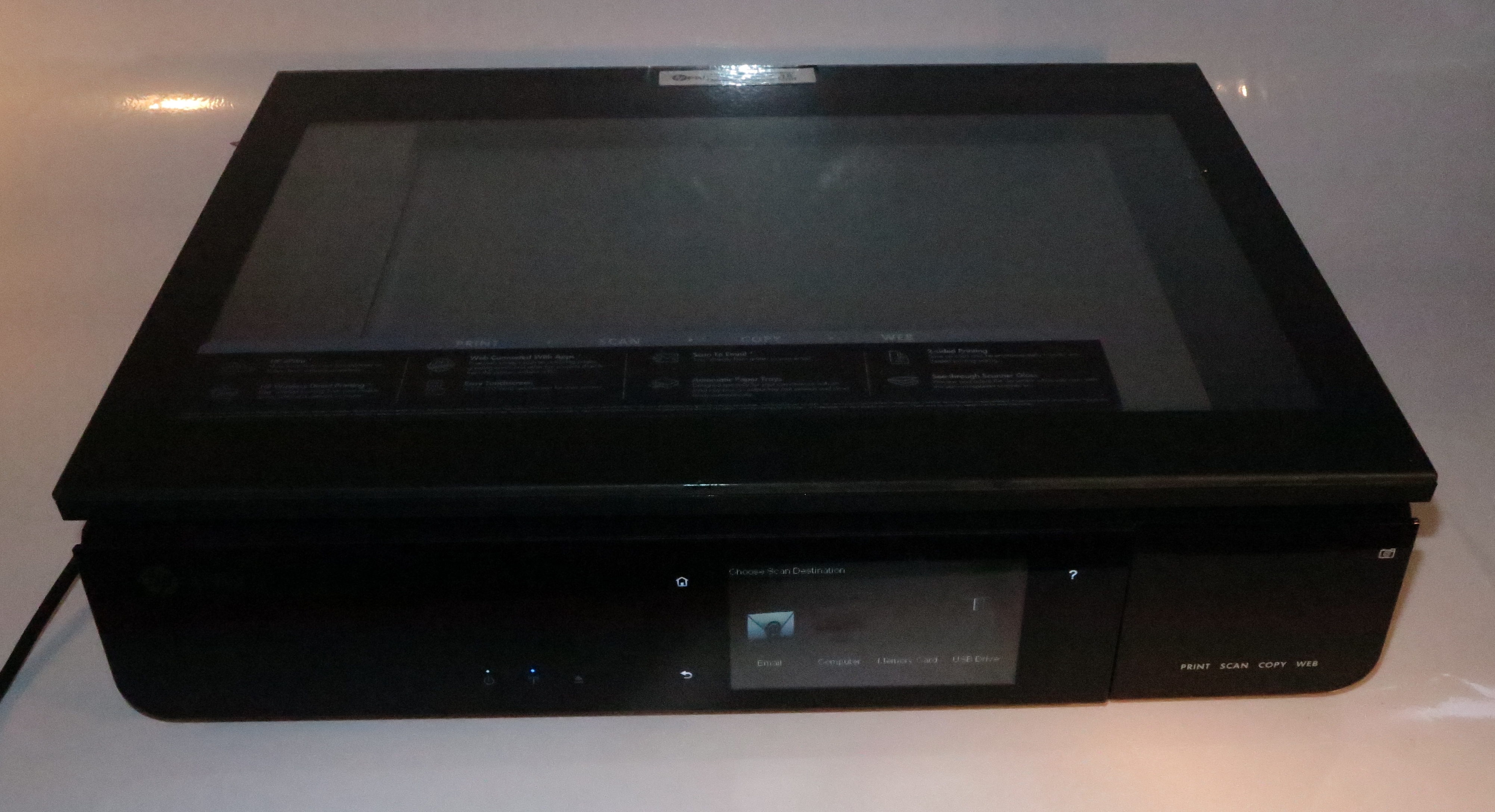
I am reviewing the HP Envy 120 multifunction inkjet printer which is the latest in HP’s “Envy” range of designer slimline multifunction printers. This unit has the same pedigree as the HP Envy 100 printer which I previously reviewed, where it implements a low-profile auto-duplex inkjet print mechanism in a very stylish cabinet reminiscent of home audio and video equipment.

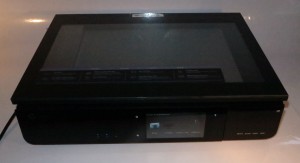
But this model has had a few changes like face-up scanning with a clear glass lid for previewing your originals as well as a swing-open panel for the USB socket and memory card slots. This is alongside the idea of having it finished in an “all-black” housing.

HP Envy 120 designer all-in-one printer

Print Scan Copy Fax /
E-mail
Paper Trays Connections
Colour Colour Colour Colour 1 x A4 USB 2.0
Ink-jet Resolution HP ePrint receive, Scan-to-email 802.11g/n WPS Wi-Fi wireless
Auto-duplex Face-side-up scanning with preview window UPnP Printing

Prices

Printer

The machine’s standard price: AUD$329

Inks and Toners

Standard High-Capacity
Price Pages Price Pages
Black AUD$25 200 AUD$48 600
Colour AUD$30 165 AUD$56 440


The printer itself

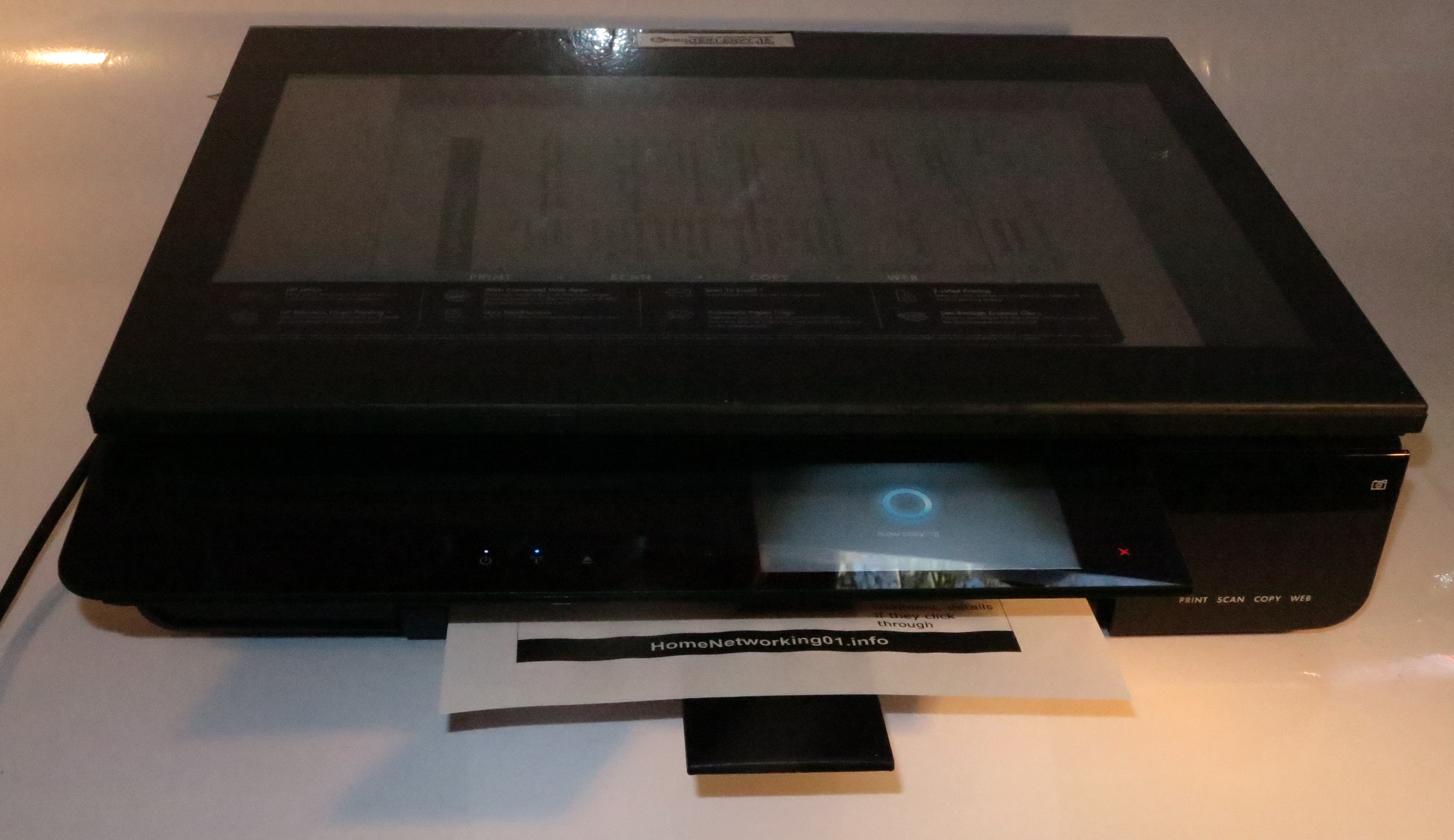
Envy 120 designer all-in-one printer printing a document

The Envy 120 printer when it is printing

Like the rest of the HP Envy printer series, this model conveys the kind of operation you would expect from high-end audio and video equipment like the classic Bang & Olufsen Beosystem 5000 Series hi-fi systems. For example, when a document is being printed, the front panel swings up and a small bar comes out in anticipation of that printed document. Then, when you collect the document, the front panel swings down.

Similarly, when you need to load paper in to the printer, you touch the “eject” button on the front and the paper drawer comes out in a manner not dissimilar to a CD player’s disc drawer. Then, when you have loaded the paper, you either touch the “eject” button or push the drawer slightly to close the paper drawer.

Walk-up functions

The printer is able to copy documents placed in the scanner area or print from memory cards or USB memory sticks using the touchscreen control panel. As well, you can use the HP ePrintCenter functionality to print out a wide range of documents ranging from notepaper to newspapers or comics.

It also works with the HP ePrint “email-to-print” function but also has a “scan-to-email” function which is infact an HP ePrintCenter app. This isn’t dependent on the machine knowing a POP3 or IMAP4 email service but through HP’s ePrint service. When you first set this feature up, you would need to enter your email address in to the printer’s control panel whereupon it would send you a PIN number via email. You enter these details in to the printer and can have them stored there. Subsequently, when the printer shows the “sender and recipient” screen, you can touch the “Modify Recipient” button to determine a different recipient. The documents can be sent as a JPEG or single-page PDF.

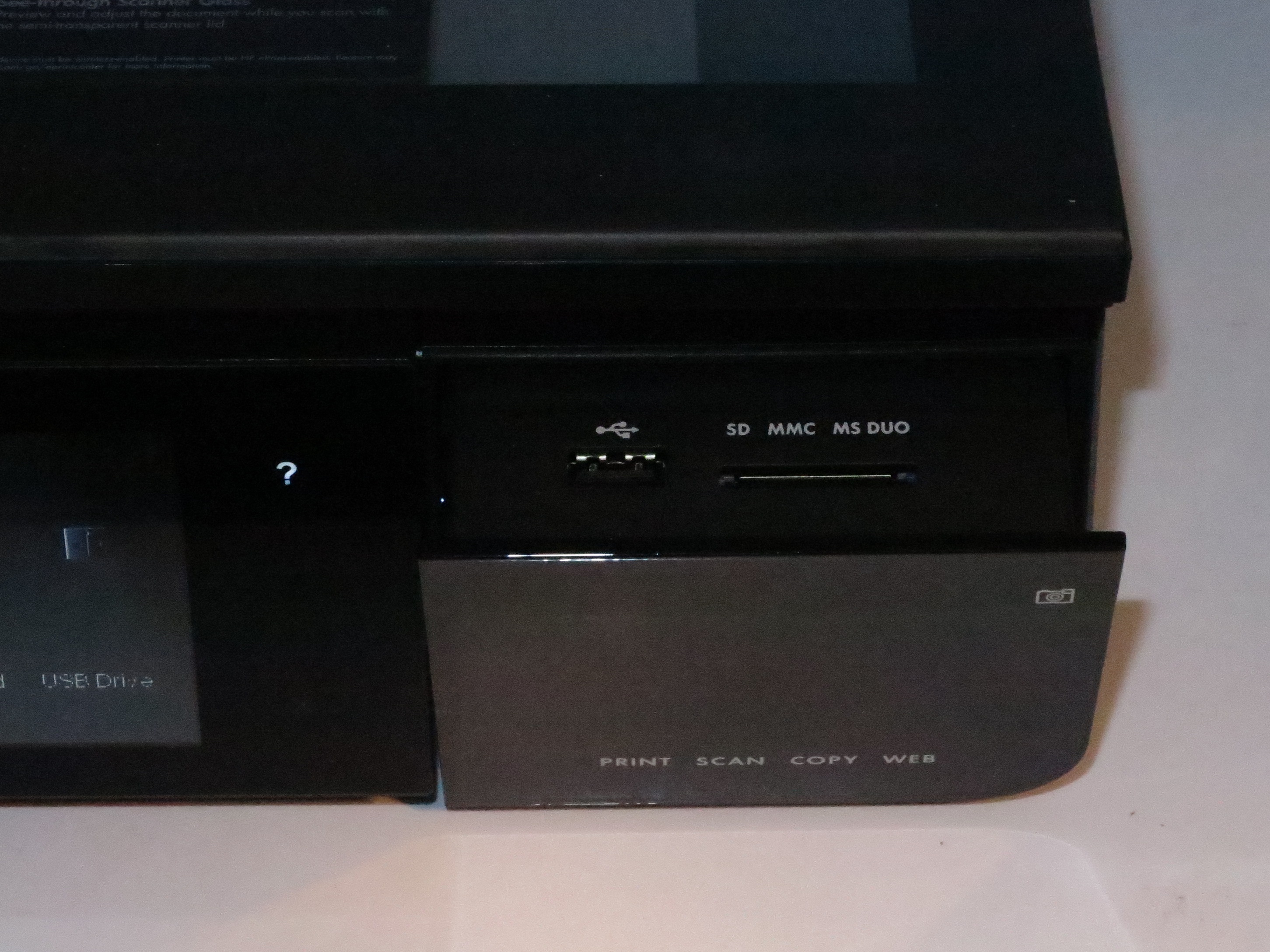
HP Envy 120 designer all-in-one printer card reader and USB port

The USB port (where you can charge smartphones) and the memory card slots behind a swing-down door

The USB socket that is used for walk-up printing from  and walk-up scanning to USB flash drives and similar devices also has been optimised as a device-charging socket. If you connect a smartphone, external battery pack or similar gadget to this socket, it will supply power to the device in order to charge it or avoid compromising the device’s battery runtime. This even happens when the printer is turned off using the on-off button on the front, This socket, along with the SD card slot that serves the same purpose of walk-up printing and scanning is hidden behind a hinged door on the front of the Envy printer.

Mobile-device functions

The HP Envy 120 works properly with the iOS and Android mobile devices using AirPrint (iOS only) or the HP ePrint app for both platforms. This app can work from JPEGs, PDFs or text files and can allow the printer to print both sides for multipage documents.

It does also support UPnP-Print for those devices that are willing to exploit this standard for network-based driver-free printing. At the moment, we don’t see any consumer devices on the market that are willing to exploit the UPnP-Print function but this could be relevant to cameras or interactive-TV applications.

Computer functions

I loaded the latest full-function driver software from HP’s Website and this loaded and installed very promptly without issues.

There is a problem that if the PC comes out of “hibernate mode”, it takes a bit too long to discover the printer on the network for scan-to-PC operation and shows up an error message as if the printer wasn’t there. But it can scan to the computer properly.

For printing, the print driver was very responsive and didn’t show any extra unnecessary information through the print process.

Print quality

The HP Envy 120 was able to turn out documents with a similar quality to other consumer inkjet printers. But when it comes to photos, it can lose a bit of the definition compared to the original Envy 100. Here, it also yields darker images with reduced contrast. Of course, this wouldn’t be a match with the Photosmart printers which yield higher photo quality for HP’s consumer inkjet printers.

When the Envy 120 prints on both sides of a page, there is a slight shift between the front and the back of the page. This can be annoying if you are using this feature for desktop-publishing especially with luggage labels and similar odd-shaped documents.

Scanning

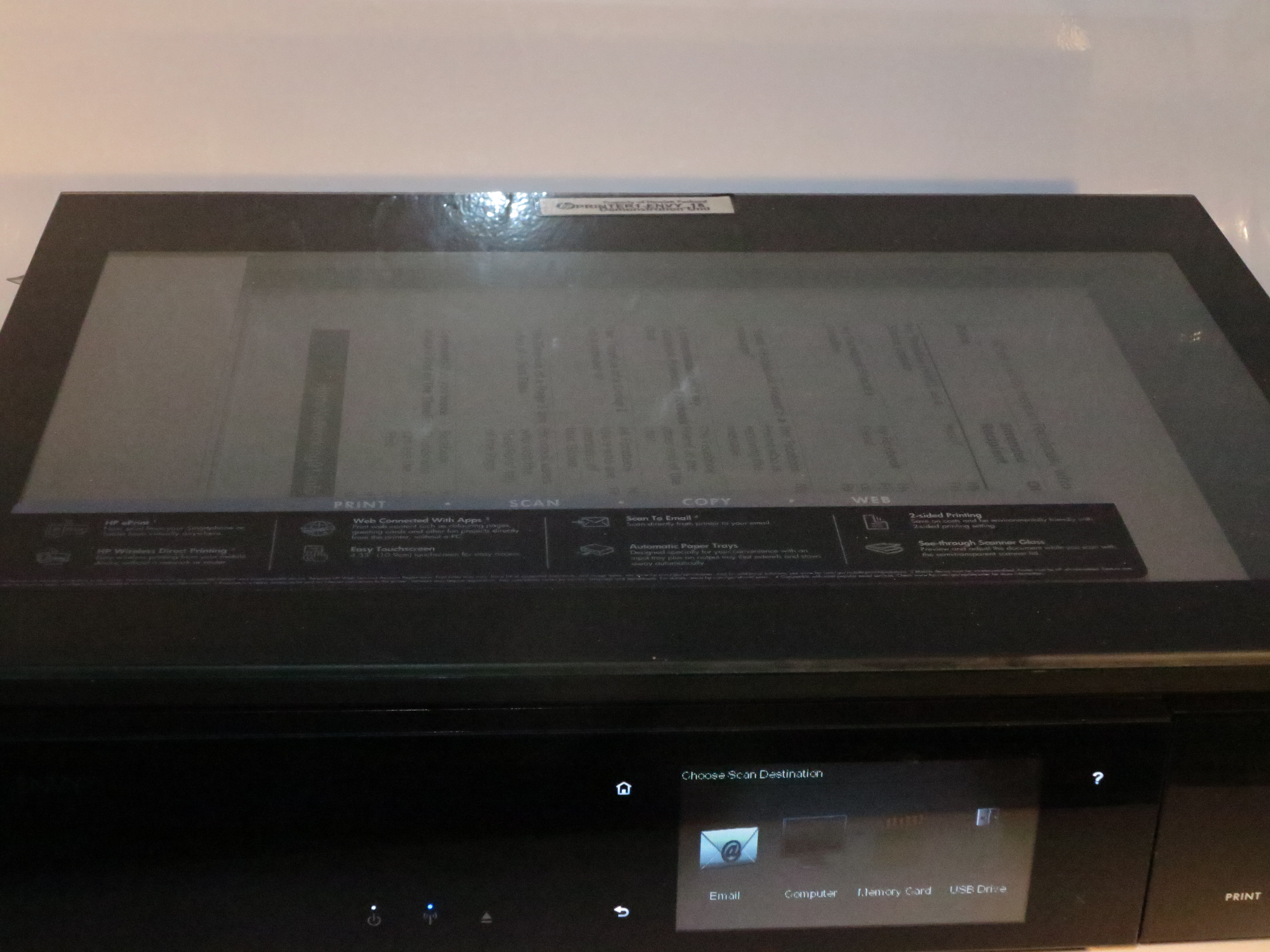
HP Envy 120 designer all-in-one printer see-through scanner lid

See-through scanner lid

The scanner has the scan head integrated in to the lid so as to provide a “preview” window for how you scan or copy the documents or photos. This can work well for snapshots and single-page documents but can be difficult to use when it comes to working with bound material such as copying out recipes from a cookbook to avoid damaging that cookbook in the kitchen.

Limitations and Points Of Improvement

One weakness across the HP Envy printers and the slimline printing mechanism is that they use two ink cartridges – one black cartridge and one “three-colour” cartridge. This can make these printers expensive to run especially if you consider regular use out of them because if you run out of one colour in the colour cartridge, you have to replace that cartridge.

Here, HP could improve on the low-profile auto-duplex print mechanism by using separate cartridges for each colour. It can also allow HP to use photo-grade inks that are used with the Photosmart series of inkjet printers, thus giving the Envy series deluxe credentials in the output as well as the looks.

The other weakness with this model is the scanner design not being able to work with bound material very well due to the it working “face-side-up”. This could be improved with a lid that uses a pantograph-style or “Z-style” hinge so it can lie flat on the bound material during scanning thus achieving best results.

Conclusion and Placement Notes

Like the HP Envy 100, I would see this printer work more as a secondary printer to keep in a living area where you value elegance and aesthetics. This also would appeal to households who want a multifunction printer but use it on an ad-hoc basis and also value the aesthetics. For example, this could exist in a family room, living room or main hallway while a workhorse printer could be mainly used in the home office for the big runs.

It wouldn’t impress people who place value on the price of the printer or the cost to keep it running especially as a primary workhorse machine.

Send to Kindle
Print This Post Print This Post

Achieving a failover printer setup in your business

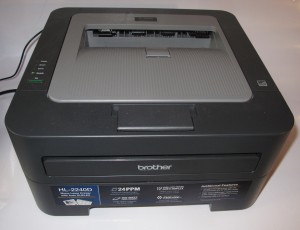
Brother HL-2240D compact monochrome laser printer

Brother HL-2240D compact monochrome laser printer – an example of a workflow printer

I have come across situations with small offices such as clinics who run one or more dedicated laser printers that turns out receipts, invoices and other documents as part of the customer-facing business workflow. Some offices may run the printers also for some back-office requirements like preparing reports or balance sheets for that workstation.

But there is the situation where the printer can break down, usually with a mechanical failure like frequent paper jamming. This can happen more frequently as a machine ages and is worked hard in a busy office. It is analogous to that situation most of us experience when a car gets to that point in its life where it frequently lives at the mechanic’s workshop and drills a hole in your pocket because it is always breaking down.

This situation can impair the business’s workflow especially as one has to work out how to rectify a paper jam or, in some cases, reset the machine. As well, no woman would want to ruin their beautifully-done fingernails knocking them on the machine’s internals while removing jammed up paper.

In these situations, it is a good idea to set up a failover printing arrangement where you have other printers that come in to play if the workstation’s primary machine fails. This is easier to achieve if all of the printers accessible to the office or reception area are linked to the network.

For example, you could use a multifunction for this purpose even though each workstation computer has a dedicated laser printer like the Brother HL-2240D or Dell 1130n. The multifunction printer, which is often expected to serve as the main copier and fax machine for the organisation, could be a machine like the Brother MFC-8370DN or HP LaserJet M1536dnf for a monochrome variety or a Brother MFC-9460CDN or HP LaserJet Pro Color M475 Series for a colour variety. Even one of the high-end business inkjets like the HP OfficeJet Pro 8600 could do the job just as well.

Some environments that have two or more workstations may prefer to have one workflow printer per workstation. Here, it would be preferable to connect the printers via the network rather than directly to the workstation computers. Here this can allow the other workflow printer to be used as a failover measure.

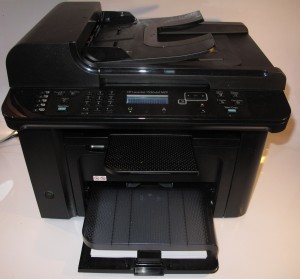
HP LaserJet M1536dnf monochrome laser multifunction printer

HP LaserJet M1536dnf monochrome laser multifunction printer – an example of a multifunction expected to be a small business’s copier and fax

But what you would have to do is to set up the workstations to use the printer that is local to them as well as this main multifunction printer or other workflow printer. This may be as simple as adding the driver set for the main printer to the computers or it may also require the line-of-business software to be set up to allow the use of two or more printers.

As far as default printers are concerned, you would have to set the primary dedicated printer as the default machine, then have the users select the main multifunction printer as a secondary printer whenever their primary printer fails. This can be done as part of ordering the print job in most software or going to the Printers option in the operating system and setting the multifunction printer as the default while the single-function workflow printer is out of action.

If you run a server-driven printing environment, it may be worth looking at options that allow failover printing so that print jobs that come from one workstation appear at particular printers in an order of availability.

Once you look at this option for setting up multiple printers in your office or reception area, you could then be sure of an arrangement where a printer failure doesn’t impede on your business workflow or affect how your business is perceived by the people your business benefits.

Send to Kindle
Print This Post Print This Post

Product Review–HP OfficeJet 6700 business colour inkjet multifunction printer

Introduction

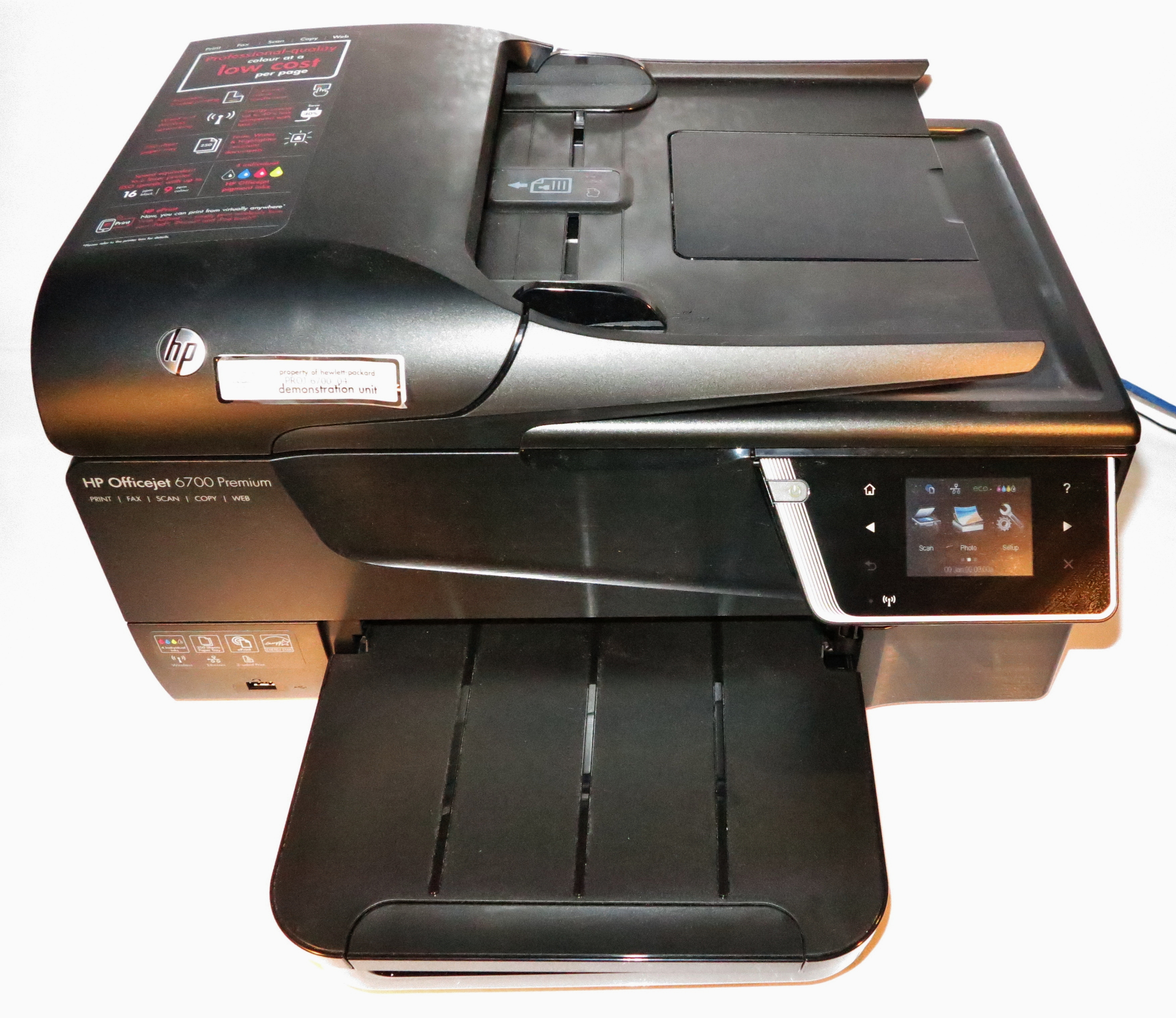
I am reviewing the Hewlett-Packard OfficeJet 6700 Premium business colour inkjet multifunction printer. This is the successor to the OfficeJet 6500 series of network multifunction colour inkjets pitched as a SOHO or small-business printer and has a similar capability to these printers. They have money-saving functions like a four-cartridge ink system and automatic duplex printing as well as a Super Group 3 colour fax and automatic document feeder.

But this one, like the OfficeJet 6500a, also supports the HP ePrint ecosystem and Apple AirPrint abilities which allows email-to-print as well as app-driven walk-up printing. They also use a different cartridge to their predecessors but which cost similarly and have a similar page yield to these ones.

HP OfficeJet 6700 Premium business inkjet multifunction printer

Print Scan Copy Fax /
E-mail
Paper Trays Connections
Colour Colour Colour Colour 1xA4 USB 2.0
Ink-jet Resolution ID copy Super G3 Ethernet, 802.11g/n WPA2 WPS Wi-Fi
Auto-duplex Automatic document feeder HP ePrint receive

Prices

Printer

Recommended Retail Price: AUD$279

Inks and Toners

High-Capacity
Price Pages
Black AUD$49.12 1000
Cyan AUD$24.26 825
Magenta AUD$24.26 825
Yellow AUD$24.26 825


The printer itself

The HP OfficeJet 6700 is the typical size of a SOHO / small-business inkjet multifunction and, like most HP printers offered nowadays, has the paper concealed in a tray that is fully closed. It is not as well-built as the OfficeJet 8600 Series but is still well built as expected for an office printer.

Walk-up functions

HP OfficeJet 6700 Premium control panel detail

The touchscreen control panel

The OfficeJet can become a high-quality colour copier which can also support ID copy abilities. It also can become a colour fax machine which works to Super G3 fax standards.

The USB port on the front of the machine is for walk-up printing of photos held on memory keys or memory-card adaptors. It can support walk-up scanning of documents to the memory key but doesn’t support walk-up printing of PDF or similar documents. As well, it could benefit from working as a print device with PictBridge-enabled cameras.

The ePrint apps allows the printer to work as a “walk-up” stationery or newspaper printer and even has access to the various document repositories like DropBox so you can have documents available to “print on demand”.

Computer functions

The driver software setup was very quick and it didn’t need the printer to be fully awake for the computer to discover it. Even as the installer was loading the software on to my hard disk, the printer was being discovered as a destination device while it was in the dormant mode with just the standby light glowing.

The print driver doesn’t draw too much on the computer’s resources and is able to give a rough preview of how the print job would appear with the current settings. It even provides just the basic setup options with the ability to go to the advanced options by clicking the “Advanced” button. This tactic avoids the need to think of “hope I have set it up correctly” and can benefit those of us who may find the computer difficult to use. Similarly, the scanning function that is part of this driver responds properly to control-panel-initiated scanning and doesn’t take up too much resources.

Like nearly all HP network-capable printers, this printer supports the HP ePrint system which I have covered a lot on HomeNetworking01.info. This has the printer having its own email address so you can send documents to the printer at that address. It also has the ePrint Apps facility so you can turn out newspapers, forms and similar documents.

Print quality and useability

HP OfficeJet 6700 Premium front-load ink cartridges

Front-loading ink cartridges rather than lifting a heavy lid

Like its bigger brother the HP OfficeJet Pro 8600 Plus, the HP OfficeJet 6700 has a front-loading arrangement for the ink cartridges. This avoids the need to mess with a heavy lid when you need to change the inks. But the print area isn’t illuminated which may be of concern if you had to identify the location of a paper jam in the print path.

The speed in which a document is printed was very quick where it took only a few seconds to turn out one side of a document. The dwell time that has to occur between printing each side of a double-sided document was around a few seconds and could be capitalised on by slowly retracting the paper in to the duplexer while this occurs rather than pausing then retracting the paper.

Speaking of this, I did a registration test on the auto-duplex function to see whether there was any drifting when a double-sided document was printed. The duplex print of the “Stop The Traffik” download-to-print door-hanger was exact in such a way that you could print then cut out the document exactly. This is a bonus for those of us who do desktop publishing and want to print booklets, door hangers, luggage tags and other documents where an exact lineup between front and back are critical.

As I have observed from this, the printer has been very reliable with the basic print job which uses regular office paper. It didn’t matter whether the job was turned out on one side or both sides.

The HP OfficeJet 6700 has a problem with the scanner when it comes to handling bound documents like books. Here, the unit shows up paper-jam error messages relating to the automatic document feeder if the lid is partially open and allowed to rest on the document, usually to allow optimum copying of these documents.

The  HP has shown a problem with loading and handling photo-grade glossy paper and doesn’t even support this paper as far as the driver is concerned. I even noticed that it shown up “out-of-paper” error conditions when it tried to feed the glossy paper where I had set the driver for “other brochure papers”. However, it loses definition in some areas and is weak with some blue colours but is OK with other colours including flesh tones.

Limitations and Points Of Improvement

Being a cheaper printer, the HP OfficeJet 6700 has a smaller display which may affect useability with some older people.

The automatic document feeder could be worked on so as to allow the user to partially close the scanner lid when they scan or copy bound documents. As well, like many multifunction printers equipped with this feature, it could be able to handle till rolls and thermal receipts in varying conditions when users scan these as part of receipt reconcilement for tax or expense reimbursement.

Similarly, the HP OfficeJet 6700 could be set up to work reliably with glossy photo paper so as to handle photo printing tasks, which may be asked of in a SOHO environment.

The walk-up printing abilities could be improved with an SD card slot for camera SD cards, PictBridge support and / or the ability to print PDF and XPS files off the memory keys.

As far as connectivity goes, this printer should support IPv6 as this next Internet standard is becoming a “given” amongst business computing hardware and will be a standard for all network and Internet setups. Similarly, the fax could work as a T.37 / T.38 Internet fax endpoint as we move away from the traditional circuit-based telephony setup towards IP-based telephony.

Conclusion and Placement Notes

HP OfficeJet 6700 Premium multifunction printerI would recommend that people purchase the HP OfficeJet 6700 printer as an entry-level printer for small-office / home-office use where photo printing is not important but fax use is important. This is more so if you want to use a business-grade printer in your home because of its high-capacity ink cartridges.

It could also work well as a colour inkjet multifunction printer that you may use in your workplace as a secondary or “particular-user” printer. This may include applications like a reception-desk printer where you want one machine as a fax and ePrint endpoint.

Send to Kindle
Print This Post Print This Post

Troubleshooting a network printer that you can’t print to

Dell 1130n compact monochrome laser printerYou may find that you cannot use your printer or multifunction from your computer via the network yet find that it can perform standalone tasks such as copying and faxing for example. It is even though the printer used to print from the computer via the same network connection just before the problem surfaced.

In the case of multifunction printers, you may not be able to start a scanning job destined for your computer from the machine’s control surface or, at worst, scan to your computer at all. This is although you previously were able to scan that way before. It can also affect computer-based faxing for fax-equipped multifunction printers.

This is a situation I have ran in to myself with my computer and my inkjet multifunction printer on many occasions. But I have also assisted a small company whom I deal with regularly that faced similar problems with two of their colour laser printers that are connected to their business’s network.

There are two main problems that can cause you not to print to your network printer even though you could previously print to the same machine.

Driver software and operating-system problems

If the fault occurs with one particular computer rather than all computers and devices that use the same printer driver software, the driver software or its configuration may be balky.

This may happen if you have continuously added and removed many printers from the same computer, something I have encountered as I install and remove many different review-sample printers from my desktop PC through the course of adding content to this Website.

Check and reinstall the driver software

In some cases, this problem can be caused by faulty driver software and you may have to download the latest driver software from the manufacturer’s Website. It is infact a process I encourage people to do when installing new hardware because the software supplied on the CD in the device’s carton may he “rushed out” in a bid to get the device to market quickly.

Check the state of the operating system’s print functionality

Similarly, it may be worth rebooting the computer because the print spooler (the software that manages the printing function) in the operating system may have stalled. On the other hand, you may have to manually start the print spooler. In Windows 7, this would be found by searching for “Services” in the Start Menu’s Search option, whereupon you look in the list for “Print Spooler” and make sure that’s started.

Network interface not working

If this happens with all of the computers in the network, it may be due to the printer itself losing connection with the network. This may also affect other network functions like IP-based faxing, HP ePrint or other Web-based features.

Check for faults with the network

Check for obvious faults with the network connection like faulty Ethernet leads, infrastructure equipment like a router, switch or HomePlug bridge turned off or not functioning or, in the case of Wi-Fi setups, the quality of the wireless signal.

In some cases, you may have to turn the network-infrastructure device off at the AC power for a few seconds because it may have “frozen” due to something like a power surge. Use the network-status option on the printer’s control panel menu to check that it can “see” the network after you check these factors.

Reset the printer’s network connection

Sometimes, you may have to force a network reset on the printer. This can be done through an option that is, again, found on the same setup menu on the printer’s control panel. On the other hand, you may have to simply unplug the machine from the AC power, waiting a few minutes, then plug it back in.

Conclusion

Once you know how to tackle these printer problems, you may then be able to see longer service life from your equipment.

Send to Kindle
Print This Post Print This Post

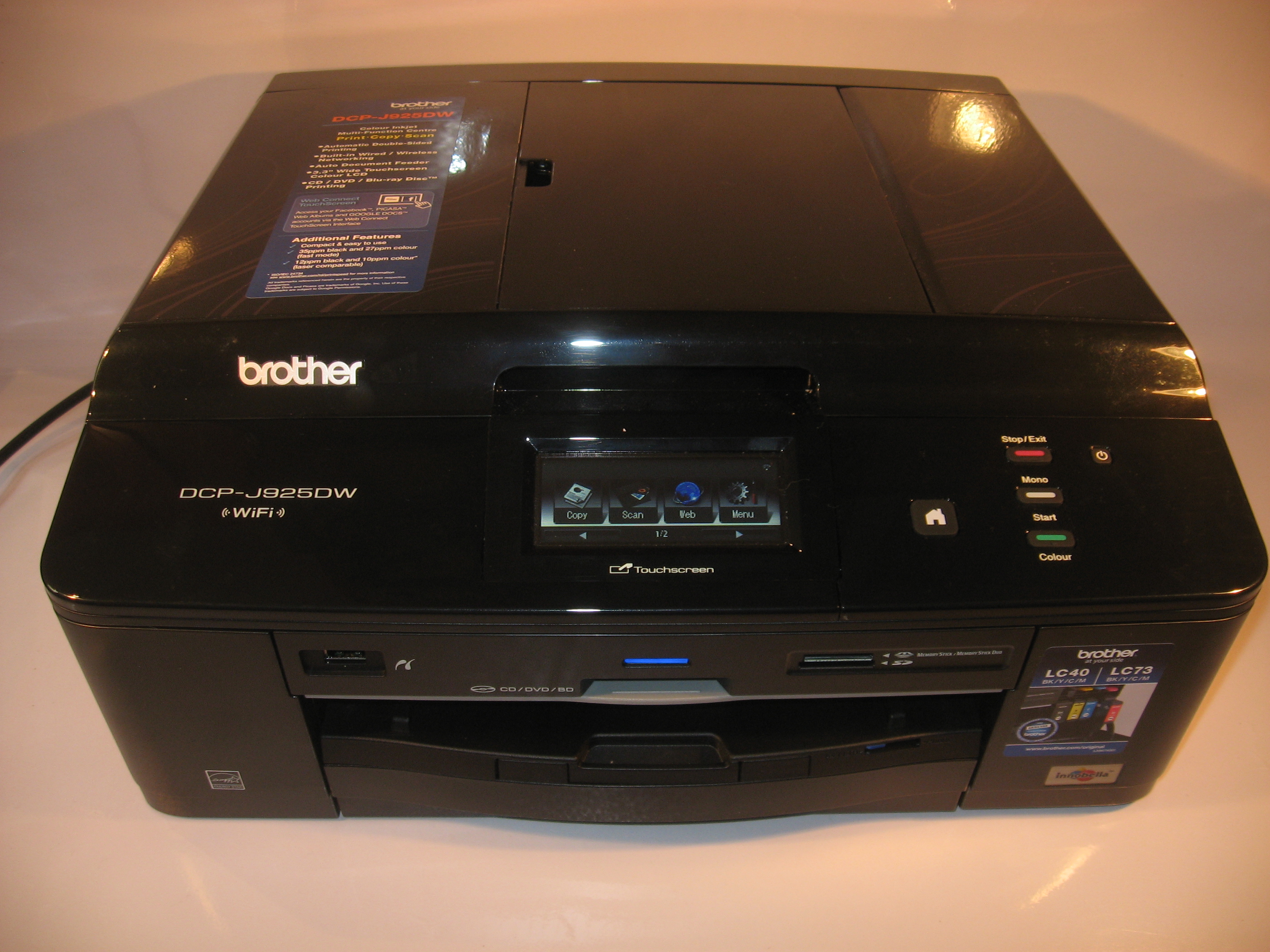
Product Review–Brother DCP-J925DW multifunction printer

Introduction

I am reviewing the Brother DCP-J925DW multifunction printer which is part of Brother’s newest run of A4 inkjet all-in-one printers that are destined for the home and home office. There are variants of this model that have integrated fax functionality.

Brother DCP-J925DW multi-function printer

Print Scan Copy Paper Trays Connections
Colour Colour Colour 1 x A4, 1 x 4×6” photo USB 2.0
Piezoelectric Ink-jet 2400 dpi Resolution Optimised book copy CD print 802.11g/n wireless,
Ethernet
Auto-duplex Automatic Document Feeder

Prices

Printer

Recommended Retail Price: AUD$179

Inks and Toners

Standard High-Capacity
Price Pages Price Pages
Black AUD$28.95 300 AUD$39.95 600
Cyan AUD$16.95 300 AUD$23.95 600
Magenta AUD$16.95 300 AUD$23.95 600
Yellow AUD$16.95 300 AUD$23.95 600

There is a pack of the high-capacity ink cartridges available for AUD$109.95.

The printer itself

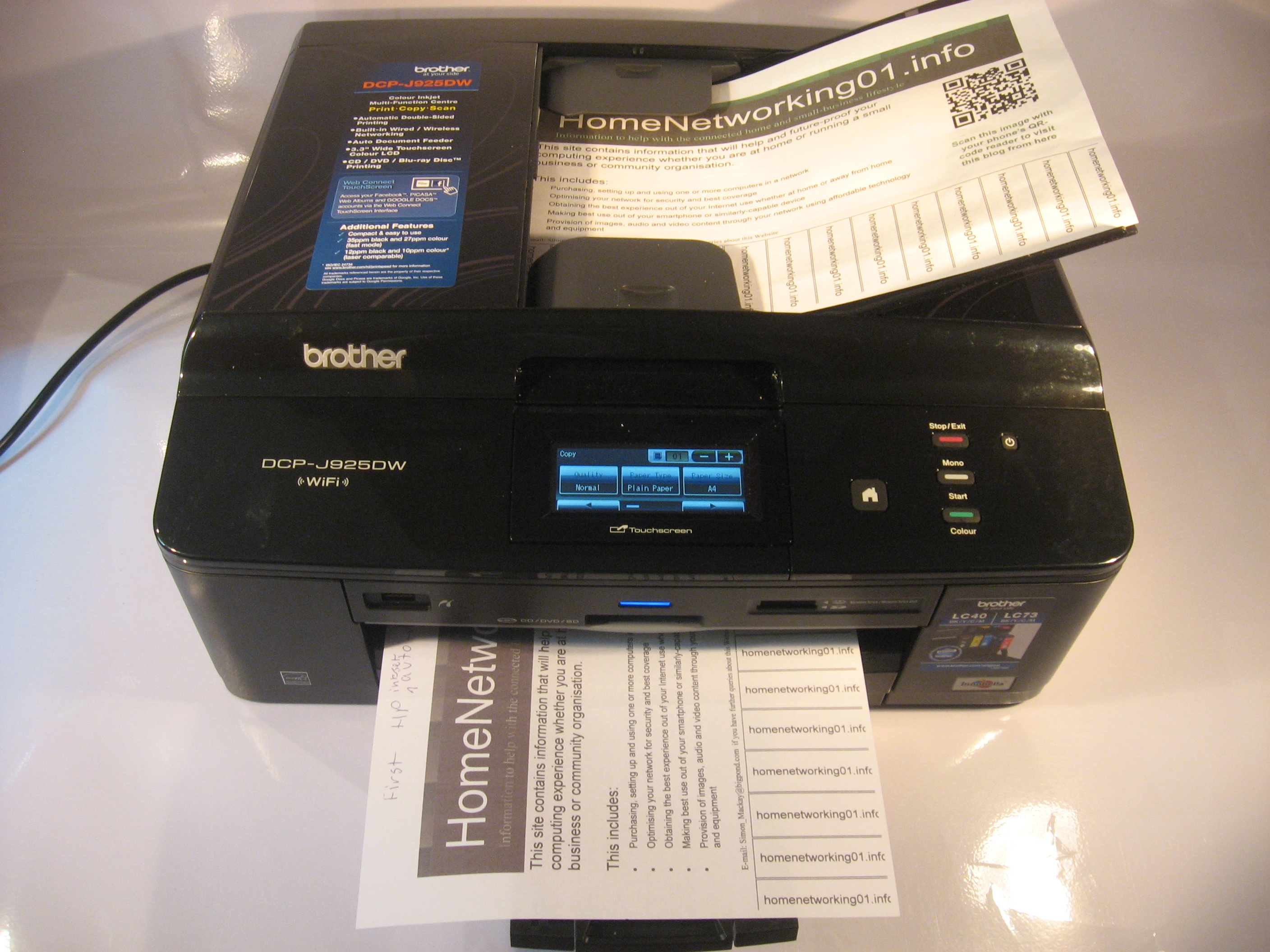
The Brother DCP-J925DW is housed a a relatively shallow chassis with a shallow automatic-document-feeder lid that has a swirl-type pattern. This has been made possible through the use of Brother’s “capillary” system with the ink cartridges mounted up front rather than on the printhead.

Brother DCP-J925DW multi-function printer front-loading ink cartridges

Front-loading ink cartridges

The printer has a single tray but there is a mezzanine tray that is used for 4×6” snapshot paper so you can print out photos as snapshots, a different method to what HP has done for some of their high-end Photosmart printers where these have totally separate paper trays. It also has a DVD/CD printing mechanism so you can print on to inkjet-printable optical discs.

Setup

This printer can connect to your network via Wi-Fi or Ethernet and the Wi-Fi setup experience was surprisingly easy. It needs the time to be set in order to work with the Web-connected printer functionality, but Brother could implement an NTP-based clock setup option rather than requiring the user to set the time, just asking the user for their time zone and whether their time zone observes daylight-saving time.

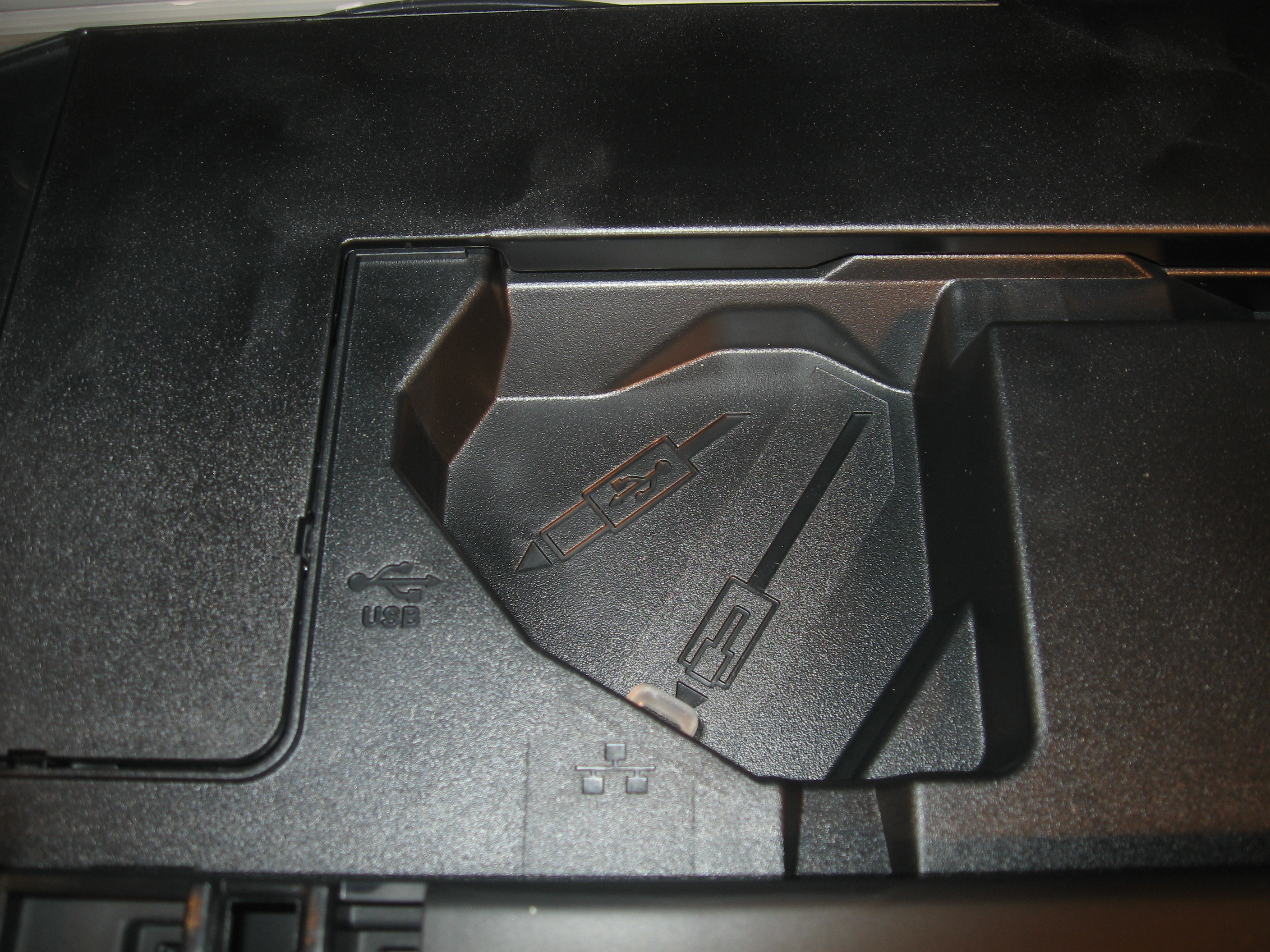
Brother DCP-J925DW multifunction printer - sockets under lid

You have to lift the lid to plug the printer in to the Ethernet network or USB-connected computer

Like other Brother inkjet printers, this printer has the the inks loaded in the front and obviates the need to lift a heavy lid to replace the cartridges. But, like the MFC-J6910DW that I previously reviewed, it requires you to open the lid to find the USB and Ethernet sockets if you need to connect it directly to the host or to an Ethernet network.

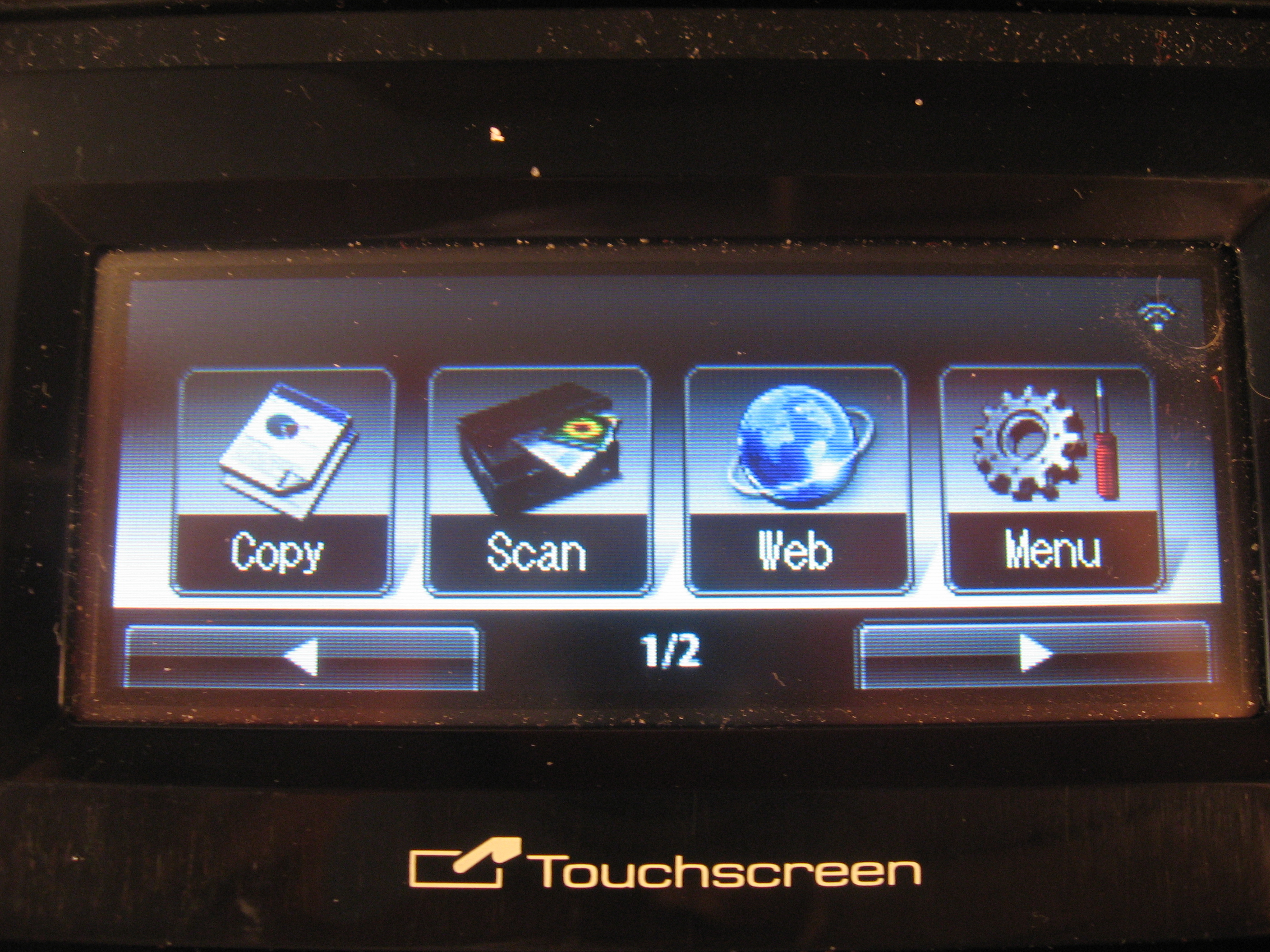
Brother DCP-J925DW multifunction printer touchscreen

Touchscreen control panel

The control panel for this printer is primarily a touchscreen LCD but there are two start buttons and a cancel button as well as an on-off button. Compared to the HP touchscreen printers, this provides for surefire “start” and “stop” controls on the printer for those of us used to the traditional buttons. The screen may be found to be too small for some activities like choosing pictures to print and may be hard to read for those of us with limited sight.

Walk-up functions

The automatic document feeder is one of those types that draws the document under and ejects it out the top. This can be confusing to operate because most of these printers require you to feed the document in on a top shelf and they will eject the document underneath.

The Brother DCP-J925DW can copy as expected with one-touch ease but also has an option for improved book copying which may please those of us who copy a lot of material out of books and other bound documents. Think of copying those recipes that friends need out of those cookbooks as you “cook up a storm”.

Brother DCP-J925DW multi-function printer with paper loaded

Printer loaded with input and output documents

There is also the ability to print from directly-connected digital cameras or camera memory cards with the functionality that is expected of that feature.

The printer also works properly with the Brother iPrint&Scan mobile app so can print images and PDFs held on your smartphone. It can also scan to your smartphone with the phone saving the images as JPEGs.

The WebConnect online services that Brother provided allows for “hot-seat” use by multiple people and work with the popular social networks and photo-sharing services. As far as Facebook is concerned, it only offers uploading of images to the user’s Photo Albums from the scanner or camera card.

Computer functions

The Brother DCP-925DW’s software installed properly but couldn’t determine by itself which network adaptor it is connected. You had to determine whether you were using a wired or wireless connection which can be confusing if your printer was connected via Ethernet and the computer was connected via Wi-Fi or vice versa.

In, use, the driver showed the same level of useability as the software supplied with other Brother printers that I reviewed. This included highlighting the options that are in force and even using the “pages” graphics to show the kind of duplex or booklet printing that was in force when you used these features.

Useability and Print Quality

The Brother DCP-J925DW printer is quick at turning out documents but takes a very long time at turning out A4 photos on the glossy paper. This may be helped with an increase in memory and processor speed.

As well, it can print on both sides of the page very accurately with a minimum time penalty, which can be of a bonus if you rely on auto-duplex printing as a desktop-publishing tool, not just to be “green”. This was exemplified by my printing out a “download-to-print” door-hanger flyer from the Stop The Traffik anti-human-trafficking website that was pitched at hotels as a guest-awareness measure about this problem.

There is a high-pitch tone from the printhead when the Brother printer is pausing during a job and this may annoy some people, but would be expected of piezo inkjets because of the way they work.

When the Brother DCP—J925DW prints out photos, the pictures turn out darker and more defined compared to its HP and Canon home-use peers that I have reviewed. There is also a strong yellow component in these photos compared to the Brother A3 printers that I reviewed but this yellow is similar also to the same HP inkjets.

Limitations and Points Of Improvement

As I have said before, the Brother DCP-J925DW could benefit from a faster processor and more memory so it can handle larger or more detailed print jobs more effectively.

The touchscreen control panel could be made larger so it is easier to read, in a similar vein to the touchscreen control panels on the recent HP multifunction printers. This would make the printer easier to use for older people or those of us with poor eyesight.

The automatic document feeder could be improved in its useability by indicating where the original document should sit under and preferably in a contrasted colour. This can help with newer users who have upgraded from other multi-function printers that use the orthodox automatic-document feeder.

The Web-connected functionality could support a few more features like email-to-print or the ability to print from Facebook image collections. It, like the other Brother printers, could also benefit from UPnP Printer functionality so as to support network printing from digital cameras and interactive-TV applications.

Conclusion and Placement Notes

I would position the Brother DCP-J925DW as a cost-effective general-purpose home-use printer for the connected home as an alternative to the HP Photosmart 7510 if you don’t worry about fax or ePrint capabilities. It can also work as a secondary printer that could do supplementary work to the main laser or inkjet multifunction printer, such as in a study or rumpus room.

Send to Kindle
Print This Post Print This Post

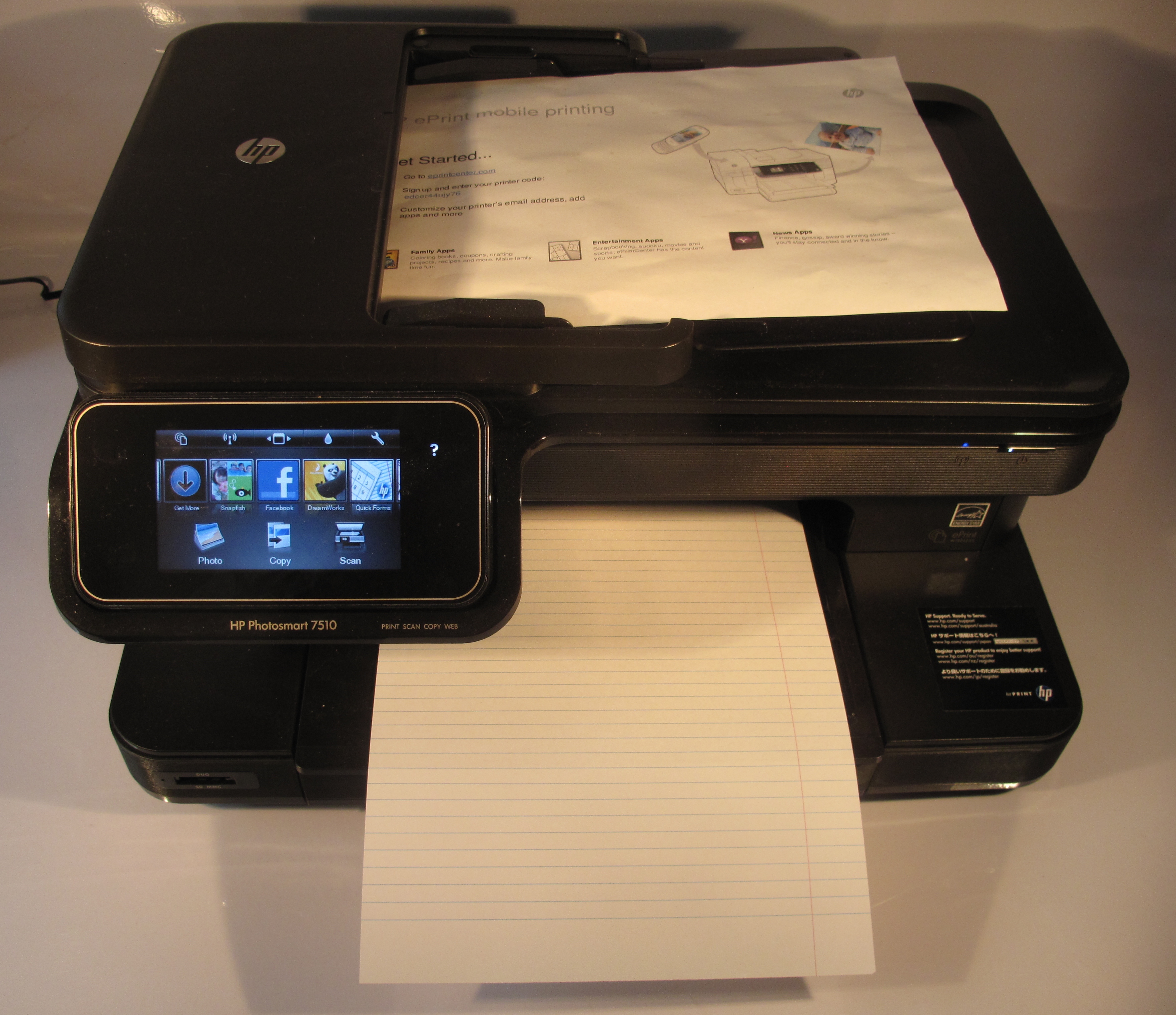
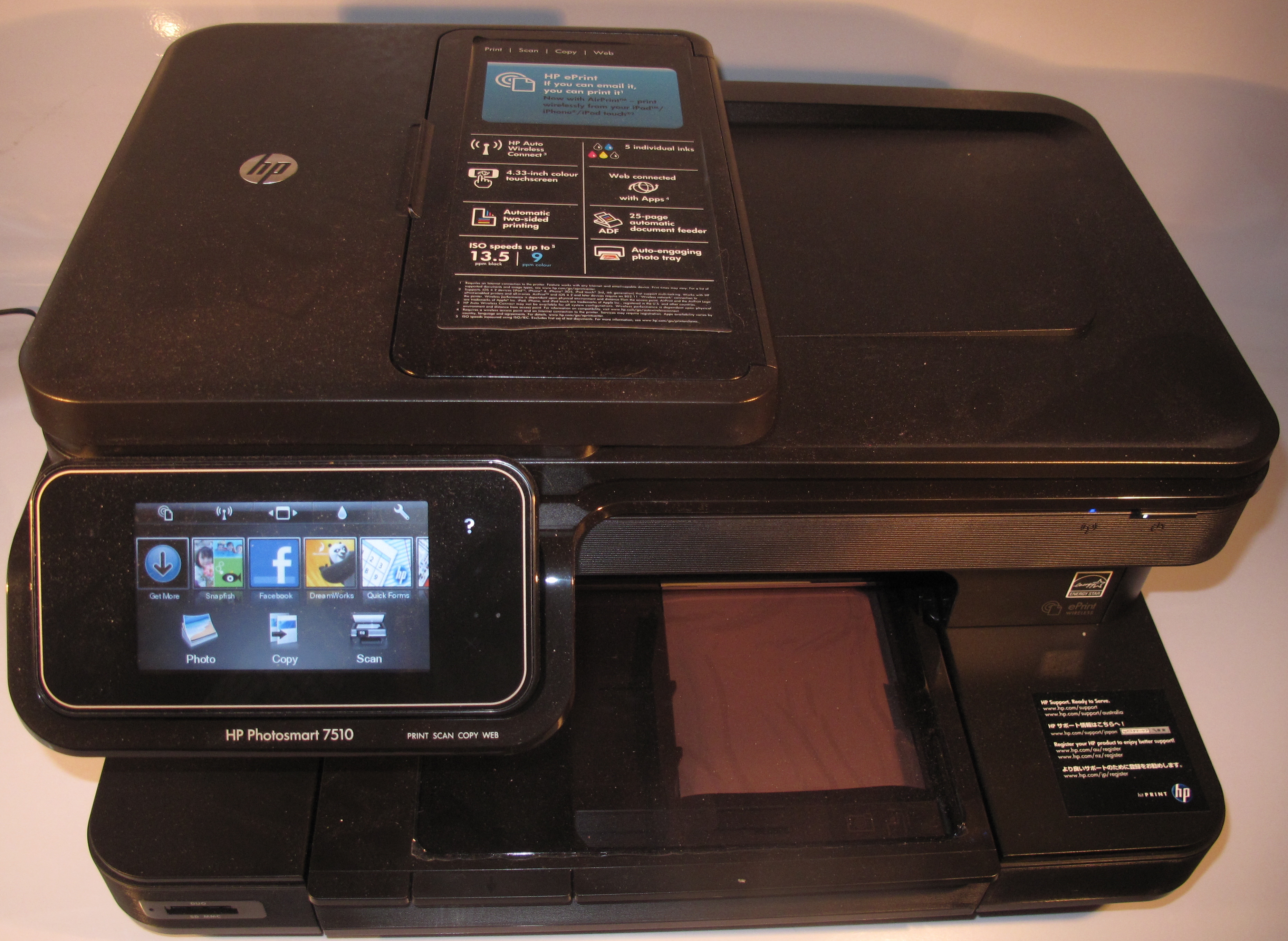
Product Review–HP Photosmart 7510 multifunction inkjet printer

Introduction

I am reviewing the new HP Photosmart 7510 multifunction inkjet printer which is the top-end model of the new Photosmart lineup. It has been redesigned in a manner to make it more suitable for home use with an emphasis on it being in the living areas of the house. Of course, it will have the printing, scanning and copying abilities and is a citizen product of the Internet-edged home network with HP’s ePrint email-to-print and Apple’s iOS AirPrint functionality.

HP Photosmart 7510 multifunction inkjet printer

Print Scan Copy Fax /
E-mail
Paper Trays Connections
Colour Colour Colour Colour 1 x A4, 1 x 4×6 photo USB 2.0
Ink-jet Resolution Copy preview, Auto-optimise copy functions HP ePrint email-to-print Options 802.11g/n WPS Wi-Fi wireless
Auto-duplex Automatic Document Feeder UPnP Printer Device

Prices

Printer

Recommended Retail Price: AUD$249

Inks and Toners

Standard High-Capacity
Price Pages Price Pages
Black AUD$18.70 250 AUD$51.20 800
Cyan / Colour AUD$16.76 300 AUD$29.56 750
Magenta AUD$16.76 300 AUD$29.56 750
Yellow AUD$16.76 300 AUD$29.56 750
Photo black AUD$16.76 1500 AUD$29.56 4500

By the way, it is also worth noting that Officeworks does sell a pack of black, cyan, magenta and yellow high-capacity cartridges for AUD$110 at the time of publication.

The printer itself

The HP Photosmart 7510 is finished in that very dark brown colour which may be described as either “antique brown” or “coffee brown”. This is part of the new “earthy-brown” colour trend for interior design but the colour would allow the printer to blend in well with living areas that are replete with the antique or classic wooden furniture.

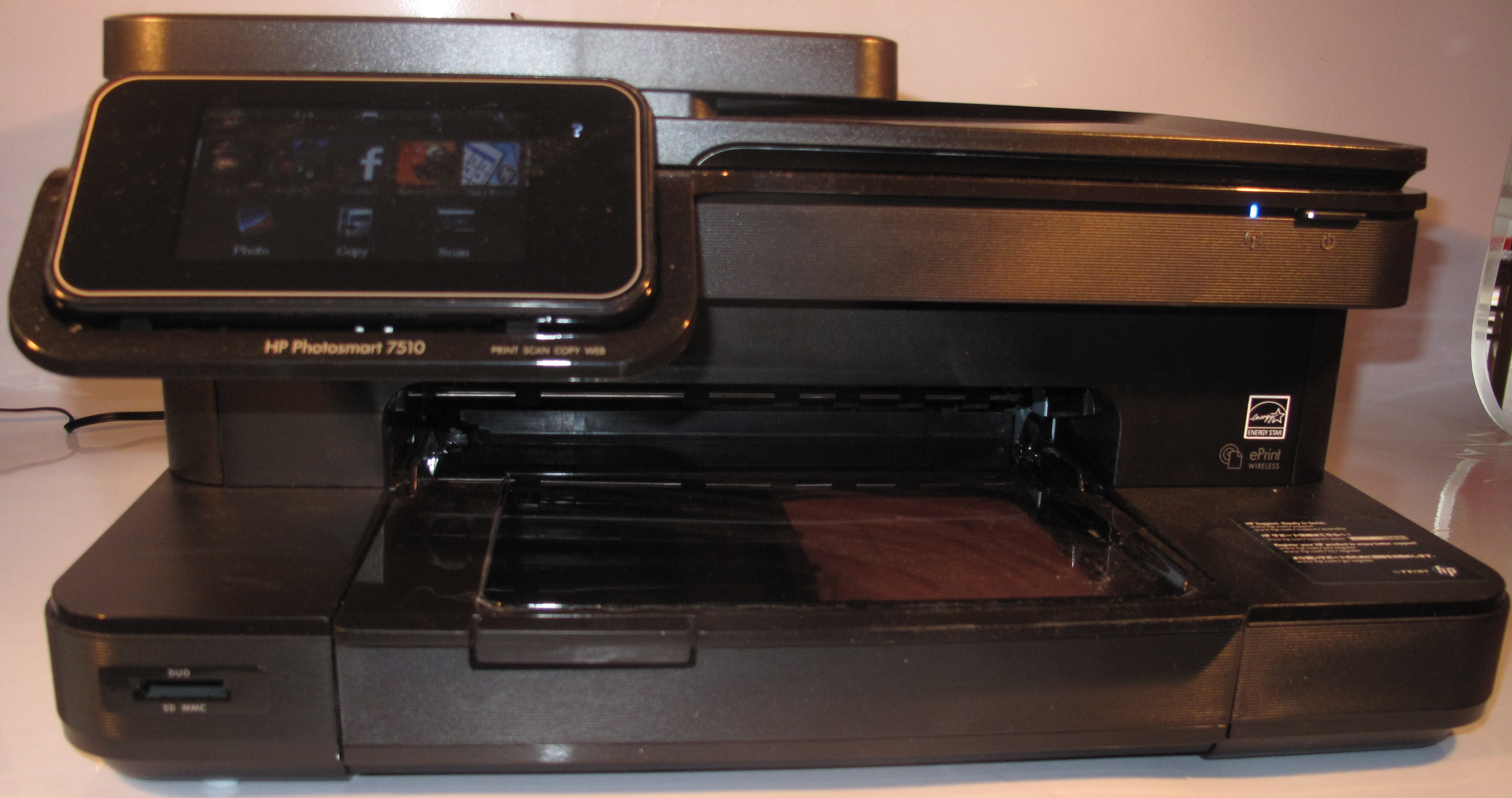
Unlike the typical inkjet printer, this multifunction printer is set on a base that extends to the length of what would be the typical A4 paper tray on these printers. The front of the plinth drops down smoothly just by you lifting a perspex lid in the area where documents would land when they are printed. There is another part of that lid which exposes the photo-paper tray for when you turn out snapshot photos. This may limit its ability to be positioned on the top of narrow furnture but would make it look the part on that desk, sideboard or large upright piano.

Part of being the top-end model of the Photosmart home inkjet printer series, the Photosmart 7510 is equipped with a low-profile automatic document feeder that would come in handy with scanning or copying documents. US-supplied models have access to the eFax service which allows for Internet-driven “virtual fax machine” functionality.

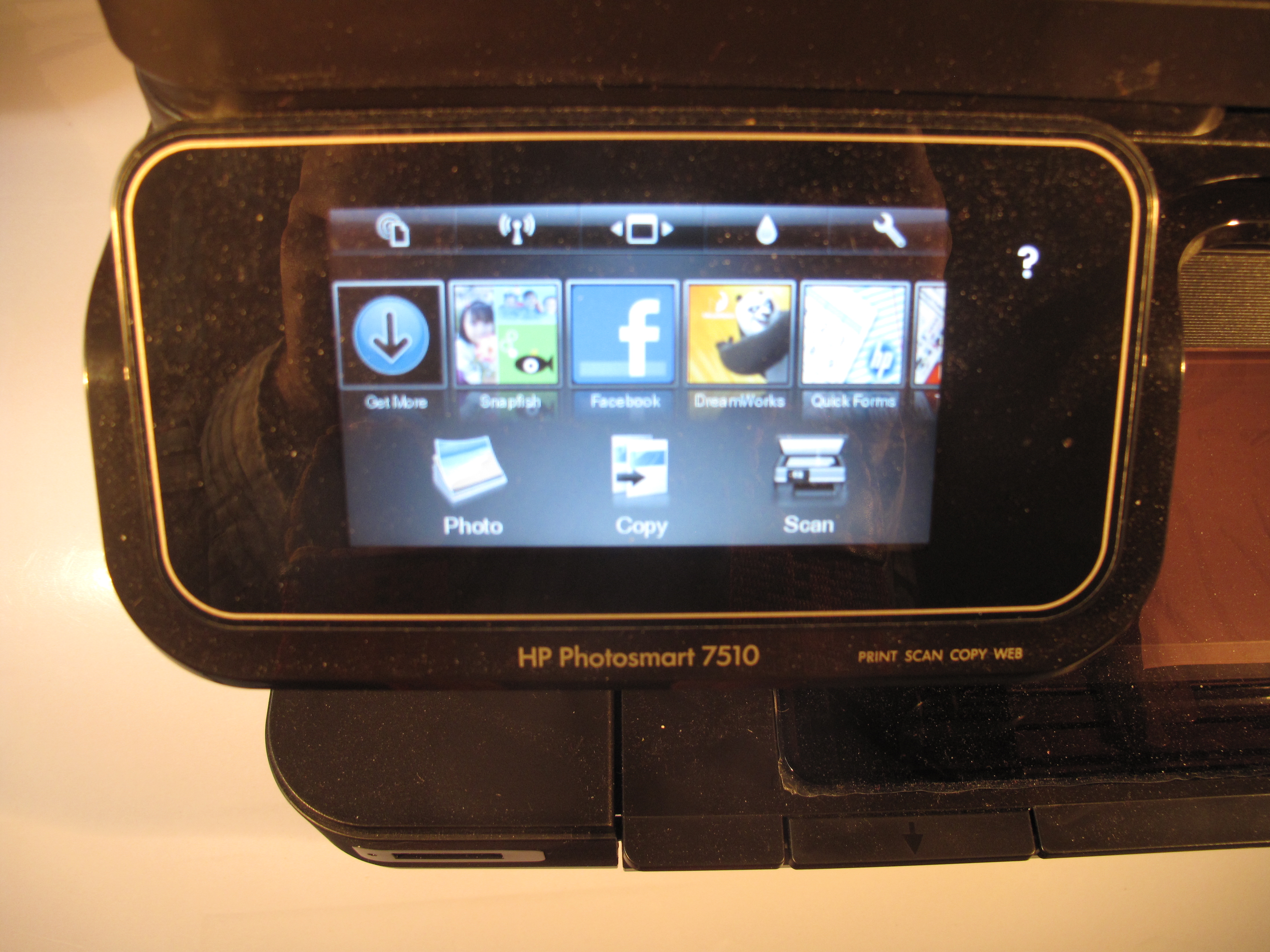
HP Photosmart 7510 control panel

Touchscreen control panel

As part of the recent trend for HP Photosmart and OfficeJet printers, you control the Photosmart 7510 using a touchscreen. This improves the useability of these printers through the setup phase and when you want to do any printing or copy jobs at the printer.

Like all the other recent Photosmart printers that I have reviewed, this printer uses the 564 and 564XL ink cartridges. This means that you have the benefit of the multi-cartridge colour printing that they offer, thus making them economical to run.

Setup and Network Connectivity

The only network connection for the HP Photosmart 7510 printer is a Wi-Fi connection. If you enrol it with your Wi-Fi home network from the control panel, it doesn’t recognise punctuation in passphrase entry. Therefore, you have to use USB-Wireless setup procedure from your computer to enrol it with non-WPS networks that use punctuation in their passphrases.

Similarly, the Photosmart printer doesn’t support IPv6 connectivity, which is a common amongst network equipment targeted at the home user. This is even as IPv6 is becoming more relevant with the home network especially with next-generation broadband services. On the other hand, this printer does work as a UPnP-compliant printing device, a feature that should be exploited with digital cameras and interactive-TV applications.

Other than that, this printer makes the setup very easy, through the use of animations to show you through preparation procedures.

Walk-up functions

This HP printer supports the full gamut of HP ePrint functions like email-to-print and printer apps. It can also work with the AirPrint mobile-print setup for Apple iOS devices.

There is the option to preview your original on the control panel screen when you scan or copy from the scanning platen. You can’t do this for documents scanned from the automatic document feeder. Other than that, it doesn’t have copying functions that business would find handy like ID copy.

HP Photosmart 7510 multifunction printer - head on

Head-on view with paper door and SD card slot on front of base

Like other multifunction printers, this printer has a camera-card slot on the front of its plinth so you can print from your digital camera’s card or scan documents to a memory card.

Computer functions

When it came to installing the printer’s software, I didn’t have any trouble with this. Even having to move the printer from USB to Wi-Fi operation was a relatively smooth operation.

The driver software doesn’t take up much memory space or processor time thus not impairing the computer’s performance. Even the scan monitor had behaved very consistently, accepting jobs that were started from the printer’s control surface and turning them out without “taking over” the computer. This was infact a more reliable experience than what I have had with previous HP software.
Printer useability and output quality

There is significantly reduced noise level from the HP Photosmart 7510 during a print job compared to earlier Photosmart printers,with no distinct noise from printhead marking the paper. This is more so when turning out regular documents. But the printhead noise may be noticeable during photo printing.

HP Photosmart 7510 multifunction inkjet printer with paper in scanner and output

Automatic document feeder

There have been some improvements on the automatic-duplexing front. The time that it takes to “flip” the page to print on the other side has been reduced to around 5 seconds, thus making a reduction in the time penalty for printing both sides. But, like with other HP inkjet printers with this feature, the Photosmart still requires a margin at the top and bottom of the page for this function to work.

The text and graphics on regular documents is very sharp, more on a par with the other Photosmart predecessors. As for photographis, they come out with a slightly dark image with reduced contrast. Some colours like the reds stand out more but blues are not all that strong. As well, you don’t have the vivid flesh tones.

Limitations and Points for Improvement

One omission that I have about the Photosmart 7510 is that it could have a walk-up USB socket on the front for printing from PictBridge-capable cameras, USB memory keys and card readers for future card formats. It could also benefit from an Ethernet socket on the back so it can work with other network technologies like HomePlug.

As for the auto-duplex functionality, HP should look at the issue of having its Photosmart and OfficeJet inkjet printers be able to print “to the edge” of the paper when printing both sides. This would make the function not just as a “green” function but more so as a desktop-publishing aid when it comes to printing documents where alignment on both sides is critical.

Conclusion and Placement Notes

I would recommend the HP Photosmart 7510 printer as a household printer for a busy household, especially if there are many guests coming through; including the previously-mentioned “family house” scenario. This is due to using the efficient five-cartridge printing mechanism which allows you to buy the colours that you need. It would work well as a SOHO printer for those of us who don’t rely on fax technology and fit in  with those houses where there is high value being placed on aesthetics; especially if there is a lot of that antique furniture in place.
Send to Kindle
Print This Post Print This Post

Product Review–Brother MFC-7360N monochrome multifunction laser printer

Introduction

I am now reviewing the Brother MFC-7360N monochrome multifunction laser printer which is part of a series of newly-released monochrome-laser multifunction printers released by this company. This unit is positioned as a “step-up” model above the MFC-7360 entry-level direct-connect model. The midrange model in this series is the MFC-7460DN which can print on both sides of the page as well as become future-proof by supporting T.37-compliant Internet faxing. The top-shelf model is the MFC-7860DW which also has 802.11g WPA2 WPS-compliant Wi-Fi connectivity and can accept output from smartphones and tablets equipped with the Brother iPrint&Scan app.

They all have the same new “compact monochrome laser” print engine as the Brother HL-2240D printer that I previously reviewed and its peers such as the HL-2270DN network model that I also recommend. Here, this xerographic-print engine is a full laser type and can yield a simplex print speed of 24 pages per minute.
Brother MFC-7360N monochrome laser multifunction printer

Print Scan Copy Fax /
E-mail
Paper Trays Connections
B/W Colour B/W B/W 1 x A4 USB 2.0
Laser Xerographic 2400dpi G3 Multi-purpose slot Ethernet
Automatic Document Feeder IPv6

Prices

Printer

The machine’s standard price: AUD$349.99

Inks and Toners

Standard High-Capacity
Price Pages Price Pages
Black 69.99 1200 $118.99 2600

Servicing and Other Parts (Laser Printers)

Price Pages
Drum Kit AUD$129.95 12000

The printer itself

This unit uses the typical control panel layout as common with most machines in its class but the LCD display could benefit from backlighting. Here, I had to set the display contrast to maximum to gain best readability; and is something that could be improved upon.
Brother MFC-7360N monochrome laser multifunction printer control panel

Control panel

Setup

This unit has the same Brother fax-setup wizard with one name and fax number as a station ID, so you don’t have to determine a separate station ID for transmitting and receiving. It also can work properly with a dedicated fax line or a shared fax line, whether through a distinctinve ring (Faxstream Duet) setup or a CNG-detect arrangement.

It can be set up on an Ethernet (or HomePlug) network with plug-and-play operation for most small networks and is IPv6 ready. Of course, when the time comes to enable the network for IPv6, the user just has to go to the Network menu on the control panel and select “IPv6” and set that to “On” before turning the unit off and on in order to have it as part of the IPv6 network.

It could benefit from NTP-based Internet time synchronisation with time-zone selection so the user doesn’t have to set the clock when they set up or shift this machine or after a power blackout.

Walk-up functions

This unit has the basic copy and fax functions, and allows walk-up scanning to network-connected computers only. Here, the host computer needs to run Brother-supplied scan monitor software

The more-expensive models; the MFC7460DN and MFC-7860DW, have the ability to support scan-to-email and T.37-compliant Internet-fax endpoint functionality. These features should be available across the range as we move away from the circuit-based telephone setup towards packet-based telephony.setups courtesy of the next-generation broadband infrastructure plans.

Brother MFC-7360N Monochrome Multifunction Laser Printer ADF

Automatic Document Feeder with document loaded

The printer’s automatic document feeder may look as though it is missing something because of the absence of the paper input tray. But this tray is actually the lid that swings open to the right when you use the document feeder. This is infact a style that is becoming common with Brother small-business multifunction printers that have this feature; and allows for a machine to look more neater. It also assures more reliable operation of the document feeder because the input chute isn’t always exposed to dust and other foreign objects.

Computer functions

The software is very easy and trouble-free to load and has that same “at-a-glance” view for the print job settings that all of the Brother printer drivers have always had. As well, it makes proper use of the Windows 7 Device Stage for managing the printer’s functionality.

This is in fact where you manage the printer’s unobtrusive and reliable scan monitor software, which has been a sore point with many of the multifunction devices that I have used and reviewed. Here, you can determine what form the image file should be and which application should open the file.

Print Quality

The Brother MFC-7360N, like the previously-reviewed HL-2240D and others based on the same print engine, does the job properly by starting quickly and turning each page out quickly. Like most laser printers and multifunction units, it requires the user to press tie Start button after they replenish the paper tray during a print job.

The print quality is as sharp as expected for a monochrome laser printer especially when it comes to turning out documents. For photographs, it will reproduce the images as expected for black-and-white images when set to 600dpi in the print driver but can have issues with image contrast especially at higher dpi settings. Luckily, the printer didn’t complain of memory overload when I sent through the 1200dpi photo print job but it yielded an image that appeared too dark and with little contrast.

It also the similar consumables to the HL-2240D and requires the user to take the drum-unit assembly out and detach the toner cartridge from the assembly to replace the toner. This of course will have the same room for error by allowing the drum unit to be exposed to dirt unless it is on a clean surface when the user replaces the toner.

Limitations and Points Of Improvement

One improvement that I would like to see for the range would be to have the LCD display showing a high-contrast image. This could be augmented by having the display backlit during operation even with just a basic LED arrangement; akin to what is done with the HL-4150CDN.

There is still the common issue that this machine has with other Brother printers based on the new compact monochrome laser-printer engine that can impair the useability. This is where the user has to remove the drum unit from the printer to replace the toner. It could be improved upon with a similar arrangement to what is used for the colour lasers where the drum unit assembly is pulled out like a drawer so the user can replace the toner cartridge.

The feature limitations like the lack of duplex printing and inability to support Internet-based faxing may be necessary to keep the printer as a step-up model within the multifunction range.

Conclusion and Placement Notes

Brother MFC-7360N monochrome multifunction laser printerThis printer can work well as an entry-level or supplementary monochrome laser printer where basic copying, scamming and faxing are desired. But I would recommend the MFC-7460DN, which is the model above it, if you expect to do a lot of document printing or place value on having future-proof Internet fax abilities.

Send to Kindle
Print This Post Print This Post

Encouraging the use of the UPnP Printer device class

The UPnP Forum have established a printer device class in the early days of this standard and have provided an “improved-printing” service for this device class. This was an attempt to allow a device to print text, Webpages and photos without the need for the device to have printer-specific drivers.

HP Envy 100 all-in-one printer (D410a)

I know that a lot of Hewlett-Packard’s network-enabled printers in the Photosmart range like the Photosmart Premium Fax C309a support this functionality. This also includes the HP Envy 100 printer which I have just reviewed. Some other manufacturers like Epson may support this functionality in a few of their products.

HP Photosmart Premium Fax C309a

The reason that there is inaction concerning the UPnP Printer device class is that there aren’t enough client devices that properly support this function. So far, some of the Nokia phones that work on the Symbian S60 Third Edition platform like the N95 and N85 can print photos to these printers using this platform. But I know of no other devices or platform apps that exploit this functionality.

Key enabler for this device class

Platform devices

An increasing number of manufacturers are moving towards the use of device platforms like Android and Maemo as the baseline operating system for embedded-platform devices like set-top boxes, PVRs and TVs as well as smartphones and tablet computers. These platforms typically use “apps” as a way of adding functions to the device, effectively turning the device into something that resembles a general-purpose computer. These “apps” are typically written by third-party developers and provided through an “app-store” or similar menu that is hosted on the device, either for a low cost or, in a lot of cases, for free.

These platforms, save for the Apple iOS platform, don’t have a printer-interface function that these apps could exploit and what is happening is that printer manufacturers are writing photo-printing apps for these platforms that work with their devices. They can support the UPnP Printer Device Class as a printing interface rather than reinventing the wheel for this function.

Key applications

Hardcopy from the tablet computer

As the tablet computer becomes increasingly popular amongst home and small-business users, there will be a requirement to turn out hard-copy from the apps loaded on these devices. Examples of this include printing emails or chapters from ebook apps to printing out photographs taken using the device’s integrated camera.

At the moment, the iPad can work with AirPrint-enabled printers like the HP Wireless-E B110a, the HP Envy 100 and the HP Colour LaserJet CM1415 that have been reviewed in this site. Windows 7 tablets can use the conventional driver-based Windows printing platform but Android and WebOS tablets don’t have an integrated printing platform. Access to the printers for these platforms is through photo-printing apps which are limited in purpose because they only print photos or, in some cases, PDF files; and are also tied to particular manufacturers’ printers.

If Google, HP or other companies who are behind tablet-computer and smartphone operating systems implement the UPnP Printer Device Class, they can add a driver-free printing ecosystem to these operating systems.

Hardcopy for Interactive TV

As the TV set becomes integrated with the Internet, there will be an interest in interactive TV. This will allow the viewer to interact with broadcast material using their remote control. Initially, it is being used with some broadcast-TV set-top boxes that use a cable-TV or dial-up-modem return path to facilitate purchasing of pay-per-view content or increasingly to allow viewers to register votes when they watch panel shows or talent quests. The Internet path is increasing the interactive TV abilities through the delivery of extra material to the viewer, thus permitting concepts like “catch-up TV” and on-demand availability of extended interviews and supplementary material. It is being augmented by set-top boxes, PVRs and TV sets (especially the main-lounge-area ones) being equipped with network connectivity.

The UPnP-enabled printer can work well with Interactive TV by offering a hard-copy option for editorial and advertising content. In the case of editorial content, this could lead to the availability of factsheets, end-of-show leaderboards and similar material.

The best example of this would be MasterChef, the popular cooking-based reality TV show. In a typical season, there are many recipes that will appeal to one’s tastebuds and may “fill in the gap” for a cooking situation that may be particular to one or more viewers. Here, the viewer would have to go to the MasterChef website using their computer and search through the recipes for the one that interests them in order to print out the hard copy they need to work from when they build their shopping list and when they cook the dish in the kitchen. It could be made easier by the viewer pressing a button on the Interactive TV remote control while the recipe is being cooked to have that recipe printed out, or obtain a recipe list for this current episode so they can choose what to print out.

Even the commercials could be augmented with “print-to-redeem” coupons, “specials lists”, factsheets and product-disclosure notices that the viewer can print out at the touch of a button when they see the ad. This can be extended to programs like game shows or talent quests that exploit viewer participation and use “print-to-redeem” coupons as incentives for viewers who participate in these shows.

Games and apps that are part of the interactive TV experience can be augmented with hardcopy options. Examples of this could be skill-based games that reward users with prizes for successful completion or being at the top of the game’s leaderboard; or apps that provide hardcopy information on demand.

Companies who are behind interactive-TV platforms like those involved with Internet TV could implement UPnP Printer Device Class in order to open up the possibilities offered with hard copy for Interactive TV.

Hardcopy snapshots from digital cameras and electronic picture frames

The UPnP Printer Device Class offers the ability for a connected electronic picture frame or digital camera to print snapshots through an existing home network rather than having to use “peripheral connections” like USB or Bluetooth.

This can avoid the need to locate a frame that receives “new” images via email or online services near the printer to print out the snapshots. Similarly, one could print out snapshots taken with a Wi-Fi enabled digital camera or mobile phone without worrying about whether the camera will work with the printer. This would be more acceptable for people who like creating “picture walls” from special events that they host. These “picture walls” are collections of pictures of the event taken by guests that are stuck to large sheets of cardboard.

Conclusion

But there are more applications like the ability to obtain a copy of a “dashboard” screen from a monitoring device through to “on-demand” news-printing from other devices. It also means that the UPnP Printer Device Class can open up paths for innovation when it comes to the functionality roadmap for a device targeted at a home or small-business user. As well, the UPnP Printer Device Class can also be useful as a “generic printer driver” for general-purpose computers so that basic text and graphics print jobs can be turned out without the need for awkward print drivers.

What needs to happen is that companies need to get serious about implementing this device class in their printers, computers and network-enabled devices.

Send to Kindle
Print This Post Print This Post

Product Review–Canon PIXMA MG-6150 multifunction inkjet printer

Introduction

I am reviewing the Canon PIXMA MG-6150 multifunction inkjet printer which is positioned as the top inkjet multifunction in Canon’s lineup that isn’t equipped with fax functionality.

Canon PIXMA MG-6150 Multifunction Inkjet Printer

Print Scan Copy Paper Trays Connections
Colour Colour Colour 2 x A4 USB 2.0
Ink-jet 600dpi resolution   Print-to-CD carrier Ethernet, 802.11n WPA2 WPS wireless
Auto-duplex       Optional Bluetooth module

Prices

Printer

Recommend Retail Price: AUD$299

Optional Extras:

Bluetooth module: BU-30 $69

Inks and Toners

  Standard  
  Price Pages
Black 23.95 2185
Cyan 23.95 462
Magenta 23.95 437
Yellow 23.95 450
Photo Black 23.95 328
Grey 23.95 1515


The printer itself

This machine comes in a piano-black finish and has the user-interface LCD lying flat with the top of the lid. But when you turn it on, the LCD screen lights up and various touch buttons light up in a manner that isn’t dissimilar to either the way a pinball machine or the dial panel on a mid-1970s stereo receiver lights up.

As you use the printer in its various operating modes, some of the buttons light up as required. These buttons are actually touch-panel buttons which will make you think somewhat of operating some of the mid-1980s B&O hi-fi equipment, especially the Beogram CDX CD player which had this similar kind of touch panel. As well, the main display is able to come up at an angle by pushing on a button located behind the display.

Canon PIXMA MG-6150 Multifunction Printer - Display close-up

The display can come up at an angle

Canon PIXMA MG-6150 multifunction printer - operation mode

The printer lit up in operation mode

Walk-up printing

The printer has various “walk-up” functions like copying and printing from camera cards. As well, it can print from cameras using PictBridge, which I have used to print “proof-prints” of the pictures that I took for this review. It can even print PDF documents from USB memory sticks. But its handling of this function can be very fussy at times, especially if you use a PDF prepared by a desktop-publishing program.

As well, there is the ability to create your own stationery like notepaper, graph paper and music manuscript paper. For this latter paper type, you can turn out 12-stave pages which is a lot more flexible for most music tasks like “vocal and piano”, organ or “four-part harmony” music.

Computer functions

The software that is supplied on the CD-ROM can be very tricky to load and can think that there isn’t the printer available. But I have visited Canon’s Website and downloaded the latest version of the software and this has loaded properly and discovered the printer as it should.

The device-initiated scan-to-PC software leave a lot to be desired. The user interface looks very pale and confusing and you can only allocate one path for device-initiated scan jobs. This would be to place the files in a particular folder on the host computer or to attach them to an email in Outlook. As well, it doesn’t support other email clients for scan-to-email. You can determine how the document should be scanned from the printer but there are two forms already set – A4 document to PDF or 4×6 snapshot to JPEG.

Paper handling

Canon PIXMA MG-6150 multifunction printer - paper loading

Paper loading paths in this printer

The paper handling is very similar to some of the other high-end A4-capable PIXMA printers like the direct-connect MP-610 and the fax-enabled network-connectable MX-870 that I previously reviewed on this site. Here, the printer has a front-loadable tray for A4 plain paper as well as the standard rear-mount paper feed tray. This means that you can keep a reserve of ordinary paper on hand in the printer yet use the back path for glossy paper and other special media.

Also, these printers have a fabulous auto-duplex function that has very little registration problems for double-sided documents and can work “to the edge” as far as margins go. This would put the double-sided printing function beyond satisfying the need to avoid wast and in to a league where you can work on both sides for your desktop-publishing needs.

As well, there is a CD printing attachment that slides in the front but you have to flip down a tray that is deeply hidden there. There isn’t any storage for the CD printing attachment so you could then easily lose that part if you occasionally print on CDs.

Printing reliability and quality

The printer is very reliably as far as the mechanism is concerned and could handle large print jobs very easily.

Its document-printing quality is what you would expect for a high-end consumer inkjet unit. When it prints photos, the pictures come out strong on saturation but do lack a bit of definition.

Canon PIXMA MG-6150 Multifunction Printer - 6 ink tanks

6 ink tanks in this printer

This is even though it uses a six-colour ink system whereas most inkjets that I have reviewed use either four colours or five colours if they are “photo-rated”. Sometimes it may be true that the number of colours in a photo-rated inkjet may not yield particular improvements.

Points of improvement

The printer could benefit from an improved scan-to-PC program which gives the user greater choice on how the image should be handled. As well, it could support the ability to define more than one path for scan-to-PC jobs initiated from the control panel.

As well, Canon could supply high-capacity cartridges for these printers as an extra-cost option so that users are covered if they have a huge run of print jobs from the printer.

Conclusion and Placement Notes

I would recommend this printer as being on my shortlist of printers worth deploying as a home-office or secondary-use (study) multifunction printer for the home if you don’t value faxing or email-to-print.

Send to Kindle
Print This Post Print This Post

Considering printing on A3 in the office

Note for North-American readers: The paper size I am talking about here is the A3 paper size which will be roughly equivalent in purpose and size to the large “Ledger” paper. Printers capable of printing on the A3 paper size will be capable of printing on the “Ledger” paper size.

We are about to see the printer manufactures make cost-effective network-enabled printers including multifunction units that print on A3 paper for use by small and medium businesses. Some of the manufacturers are positioning these machines at the graphic-arts industries but a few manufacturers, namely Hewlett-Packard and Brother, are pitching most of these machines, especially their entry-level A3 machines, at the general office space in a small or medium business.

Businesses and organisations of this calibre may resist the idea of using A3 in the general office space due to machine costs but there are many valid reasons for using this paper size in this space.

Why consider A3 in the office

General office life

The A3 paper size can come in to its own with spreadsheets and similar information that is presented for meeting participants to see during the meeting. Sometimes, it can be easy to use the computer to prepare a table with some data on to the A3 sheet but create the space for handwritten information like newer data or anciliary notes taken during the meeting.

Similarly, graphic works like graphs, charts and diagrams have more impact once they are printed on an A3 sheet. As well, if the chart has more detail it benefits from the larger paper size because people can read the detail more easily.

As well, if you turn out signs using your computer and its word-processor or desktop-publishing software, the larger paper size of A3 can allow you to make signs with more impact. Again this is because of the ability to use larger fonts and make best use of graphics and stylised text.

Promoting your organisation

A3 sign used to promote an event

A sign written on A3 paper to promote a community event in a cafe

Most organisations can benefit from A3 as a promotional tool because of its large size. They could make their own signage that is more eye-catching even when seen from a distance. As well, they can make A4 booklets with the help of their desktop-publishing software or even just the printer’s driver. This can be made more easier if the printer has auto-duplex capabilities that can work on both sides of A3 sheets.

Real-estate

Real-estate agents can use the A3 paper size for printing out building plans that they receive so that they themselves and their customers can read the plans easily.

They can offer “premium treatment” on the shop window for their premium campaigns by using A3 window cards for properties that they sell using these campaigns. This will then attract more customer interest from street traffic for these properties. As well, most of the real-estate agents become involved in community-driven promotion efforts and they could put their A3-capable printers to good use for the community.

Food and Beverage

A restaurant, cafe, bar or takeaway outlet can make very good use of the A3 paper size with their promotion efforts as mentioned during my interview with Heidi Webster from Brother. For example, the small outlets could promote those food or drink specials, new menu items or special events on their walls or windows just like the “big boys”. They can also make use of the paper size to produce easier-to-read menus that are stuck on their walls and windows.

Schools, Churches and Similar Organisations

Organisations that undertake educational activities can benefit from printing to A3 when they make their learning aids. They can take advantage of using larger text and make best use of stylised text and graphics in order to make the posters more attractive and convey the message more effectively. There is also room for the organisation to insert more detail yet provide for readability as illustrated above.

If these organisations host events, they can make the A3 paper size come in handy with signage that is to do with the event. This is more so with the timetables and schedules that need to be published or exhibited through the event. They can benefit from A3 due to being able to include more information or presenting the information in a larger typeface so more people are able to read it comfortably.

How to go about it

Dedicated A3-capable printer

A dedicated A3-capable printer may suit your needs better if you have an A4-capable printer that you use for most of your printing tasks. These come in two forms: a wide-carriage inkjet printer or a colour laser printer which can print on A3 or A4.

HP OfficeJet 7000 wide-format printer

HP OfficeJet 7000 wide-format printer

The former printer typically looks like a regular inkjet printer that is “stretched out” lengthways and has a wider carriage that accommodates the paper. Most of these are pitched at photographers and graphics-design artists and cheaper versions often are designed for direct connection. They typically use photo-optimised inks and these can be expensive to buy especially for office-based use. An exception to this rule is the Hewlett-Packard OfficeJet 7000 which I reviewed previously. This uses the OfficeJet inks which have higher capacity and are cheaper to run; as well as it being designed to work with a network.

The latter printer type is simply a network-enabled colour laser printer that has the ability to print A3 paper. Typically these machines will have two or more paper drawers which can be set up to house any size paper up to A3. They are typically positioned as mid-range colour laser printers that are pitched at larger businesses and therefore have a longer duty cycle. They can be good if you are considering the benefits of colour laser printing and A3 printing.

A3-capable multifunction printer

Another way to go would be to purchase an A3-capable multifunction printer which has integrated scanning, copying, faxing (with some machines) as well as printing. Previously this class of machine was very expensive and only available to large businesses in a similar manner to an office copier.

Brother MFC-6490CW A3 inkjet multifunction printer

Brother MFC-6490CW A3 inkjet multifunction printer

Now Brother have introduced compact A3-capable inkjet multifunction printers like the MFC-6490CW which I have reviewed on this site. They have been pitched at prices most small businesses can afford but there are cheaper varieties that can only scan up to A4 paper size. These units may be enough for the general office space because most documents that exist there are typically written on A4 or smaller paper. The machines that have A3 scanners may work better for graphics-arts industries as well as anyone who has anything to do with the building industry where there is a likelihood of handling building plans.

I would recommend use of these machines as replacements for existing multifunction “document-centre” printers rather than as secondary units.

Conclusion

I would still encourage an established small or medium business or organisation to consider the A3 paper size as part of their printing arsenal. This is especially when wanting to use it as a paper-based promotional or public-relations tool.

Send to Kindle
Print This Post Print This Post
Page 1 of 212»
 
Recent Comments Tags

Sponsors

HomeNetworking01.Info

Latest PDF issue

Switch to our mobile site